

Blog
Are You Using These 8 Best Features in Loopcloud Yet?
14 Dec '2025
From timesavers to inspiration builders, get to know the production tools and productivity hacks you might not have noticed yet

Photo by cottonbro studio from Pexels: https://www.pexels.com/photo/man-sitting-at-desk-with-synthesizer-7095575/Photo by cottonbro studio from Pexels: https://www.pexels.com/photo/man-sitting-at-desk-with-synthesizer-7095575/Photo by cottonbro studio from Pexels
Loopcloud is a great way to find new samples and even manage your existing collection. With access to over four million well-tagged samples from all the genres, instruments and styles you can imagine – and then some – there’s always something new to discover when you use it.
But while most users are familiar with search, tempo and key, not everyone uses Loopcloud to its full potential. Did you know that there are more features ready to discover inside the app and its associated plugins, which you may have never noticed?
In this article, we’ll take you through some of the features you may have missed from recent years and recent updates, giving you a quick overview of ways to use Loopcloud that you might be able to add into your daily routine from now on!
1. You Now get Over 150,00 MIDI Files
Loopcloud used to contain some MIDI, but this year we increased what it has to offer considerably. No, we mean considerably.
Users now have access to over 150,000 MIDI files. And in true Loopcloud style, we’ve included more ways of listening to and trying them out before you even own them.
These MIDI files are searchable, just like our samples, and they are categorised into their original key, instrument, and genre.
Just like other files in Loopcloud, you can favourite MIDI files, own them for points, and drag them straight into your DAW.
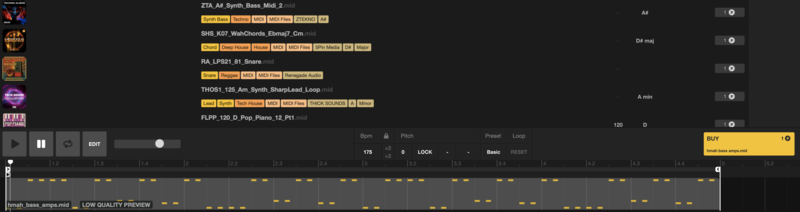
With Loopcloud’s Pitch Lock, you can change the key of a MIDI file to match another key that you want to work in. And the tempo will also match to that of your DAW, or what has been selected in the app.
To find out more about MIDI files and Loopcloud, including the range of preset options that you can choose from when auditioning the files, take a look at the article here.
2. Flip Sample for Fresh Sounds
Our new Flip Sample feature bridges the gap between browsing and producing. Giving you instant options to change up samples, as you browse, with just a few clicks.
Think a sample could fit what you are working on, but not in its current form? You can use the Flip Sample to change things up.
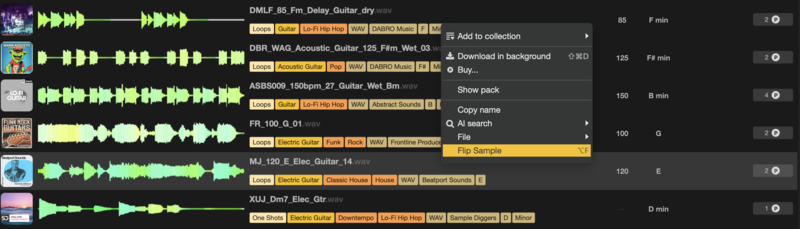
This feature has the power to turn one sample into numerous creative options for your tracks, right there in the Loopcloud editor, before you even own the sample.
Flip Sample offers over 1,000 instrument-specific patterns and effects to change up samples, supercharging your workflow, and creativity.
3. There are Three More Plugins in the Loopcloud Family
You may be just using the software app, pairing it with the ‘Loopcloud’ plugin in your DAW to communicate with your DAW project. But there are more ways to use the power of Loopcloud as well…
Loopcloud Sounds
This plugin gives you instant access to over 4 million high quality samples, directly in your DAW. Whether you’re looking for a high-quality vocal to add to some heavy beats, top loops to enhance your drums, or the final missing piece to finish your track, Loopcloud Sounds is here to help.
Loopcloud DRUM
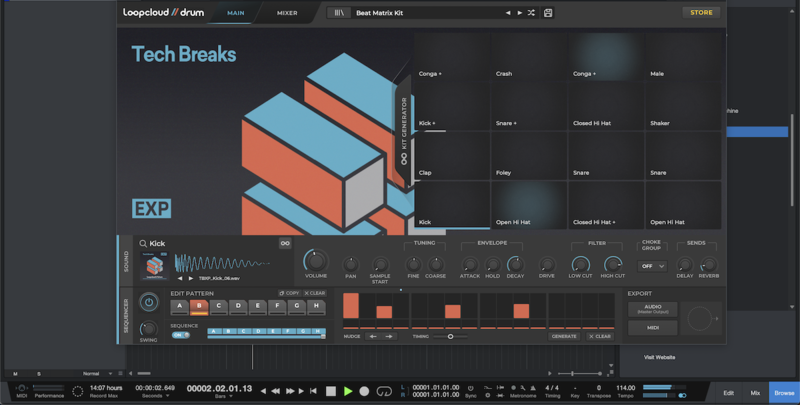
Loopcloud DRUM is a 16-pad percussion instrument and sequencer that helps you to lay down fresh grooves that you can build on in your tracks, or add to existing drums. And with the The Latest Loopcloud DRUM Update, the plugin now comes with 1000 free sounds that you can start producing with, straight away. And you can get many more via the Loopcloud store.
Loopcloud PLAY
Loopcloud PLAY is an advanced sampler which gives users access to a wide range of specific instruments that have been designed by professional sound designers. It’s easy to use, has multiple adjustable features, and comes with 300 presets, some of which are genre themed.
4. Find Similar Sounds using AI
What if you’ve found a sample you kind of like, but you feel like there’s another out there somewhere that’s a cut above? It’s similar, but it’s out of reach.
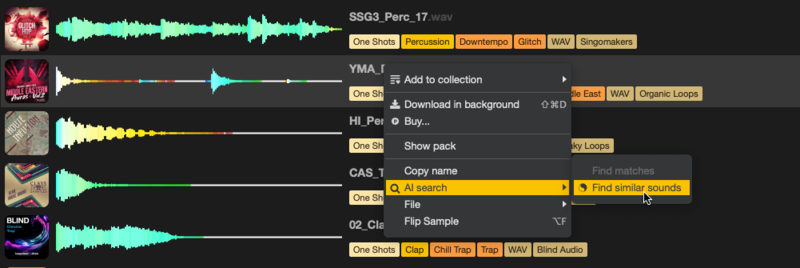
Loopcloud lets you search for samples using AI, using your currently selected sample as the starting point. The Loopcloud Desktop App offers three match types when searching:
- Find Similar Sounds
- Rhythmic Match
- Harmonic Match
You can access these options simply by right-clicking on a sample.
5. Sequence One-Shots to Make Them Loop
Did you know that you can loop one-shots in the Loopcloud plugin when auditioning tracks, in a pattern of your choosing, in just a few clicks? Allowing you to hear how they sound almost instantly, without having to draw out MIDI after adding the one-shot to a sampler, or arranging audio files in the order you would like them.
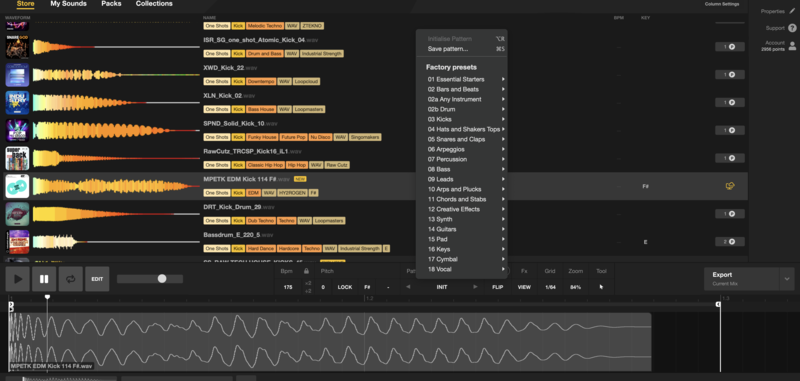
Connect the Loopcloud plugin to sync with your DAW, then click Edit and choose a PATTERN in the larger tab that appears. You can choose a pattern for a kick, then audition different kicks to play in that same pattern (for example). Or snare, to help in your endless search for the perfect snare. You get the idea.
6. Generate Drum Kits (in Loopcloud DRUM)
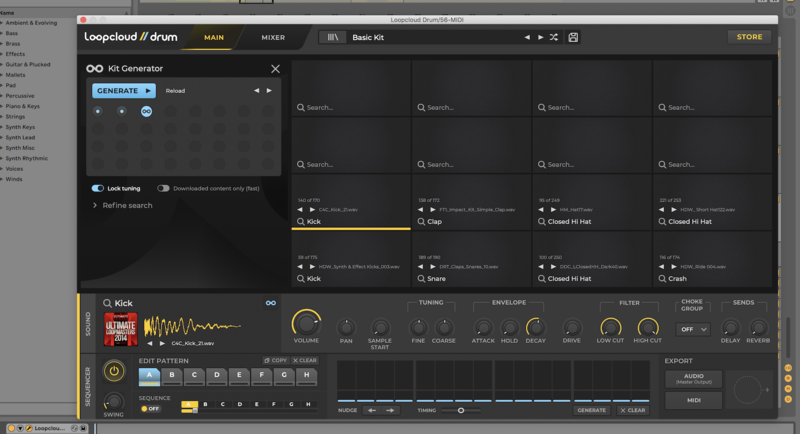
A useful feature in Loopcloud DRUM is the kit generator which can be used to create whole new drum kits across the pads. This could be handy when you aren’t feeling the current vibe, or the kit doesn’t fit with what you are working on. You can also keep certain individual pads that you like, by clicking the padlock on each pad, and then roll the dice again for sounds that you don’t. Opening up a multitude of variations quickly and easily.
7. Filter Samples by Rhythmic Density
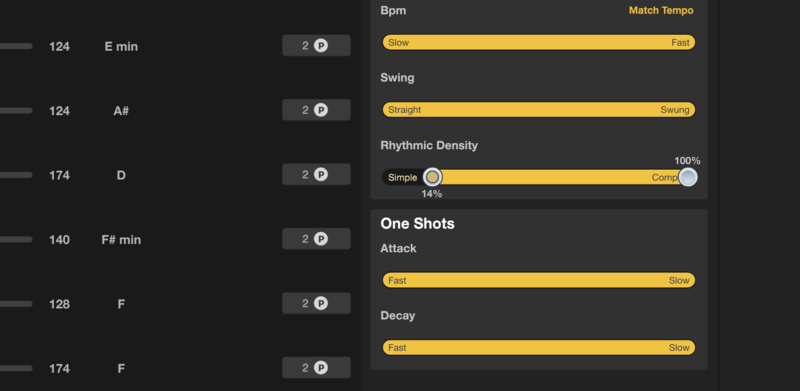
When looking for samples using Loopcloud, there are a number of filters that you can use to narrow your search to help find what you are looking for. You can find the audio filters menu on the right hand side of the app.
Did you know you can search for loops that have a lot going on, or less busy loops by choosing ‘Rhythmic Density’ as an audio filter. Are you looking for some ear candy to add interest to your track, moving the slider towards ‘simple’ could help. Maybe you want a pad sample with a busy chord progression, then you can choose a position on the slider closer to ‘complex’.
8. Even More Hidden Features
Here are five more features that you might not know about in Loopcloud:
- Loopcloud Sessions Playlists in App - Did you know that you can save previous Loopcloud sessions in one folder and then load them straight from the app. This could help you to revisit old ideas, carry on with something that you liked the sound of, but never finished, and more.
- Add Custom Images to Imported Folders - Easily add images to your imported Loopcloud folders. This could help you to organise your folders, and enhance your workflow.
- Exclude Tags from Search Results - This could be helpful when you know you don’t want certain sounds in your results.
- Save Searches - Save time by saving search parameters that you use often, such as recently released vocal samples, with no ad-libs, or FX.
- Custom Keyboard Shortcuts - Map shortcuts to keys of your choosing to help maximize your workflow.
Get Loopcloud Now
If you still haven’t discovered the power of Loopcloud for your own music-making routine, Download a Free Trial of Loopcloud to see how you can benefit.