

Blog
How to Use Loopcloud PLAY to Kick Off New Ideas
12 Jan '2026
Get ideas down quickly that inspire you, and push creative momentum forward, with this premium VST that comes free with Loopcloud

Cover Photo by Wilfried Vowoto on Unsplash
Loopcloud PLAY is one of Loopcloud’s own premium VST’s that can help to supercharge your creativity, streamline workflow, and make more exciting music. As an advanced sampler, it gives you access to a wide range of individual, high-quality instrument patches, specifically made for the app, that can be adjusted and automated via multiple different parameters. Whether you are in need of some Tech House leads, an atmospheric bed for your liquid DnB tune, or some uplifting strings for a classic House track, Loopcloud PLAY could help. It’s simple to use, and the sounds are searchable right from within your DAW. Here are some ways that you can use Loopcloud PLAY to get new ideas going, and creativity flowing.
Create an Evolving, Effervescing, Atmospheric Bed to Build On
It can be hard to know where to start, let alone catch a vibe when you are sitting facing a blank DAW. Creating an atmospheric bed to sit in the background as you try out ideas and start to get a track cooking gives you a glimpse into the future of how your track might sound, and what direction you should go, as it melds with chord ideas, riffs and more.
It’s simple, and quick to do this with Loopcloud Play, so you can then get stuck into building the rest of the track.
1. Once you’ve downloaded the VST via the Loopcloud App. You can add an instance of Loopcloud Play to a MIDI channel in your DAW.
2. Draw in (or play, if you have the time to spare) a single, held chord for 32 bars.
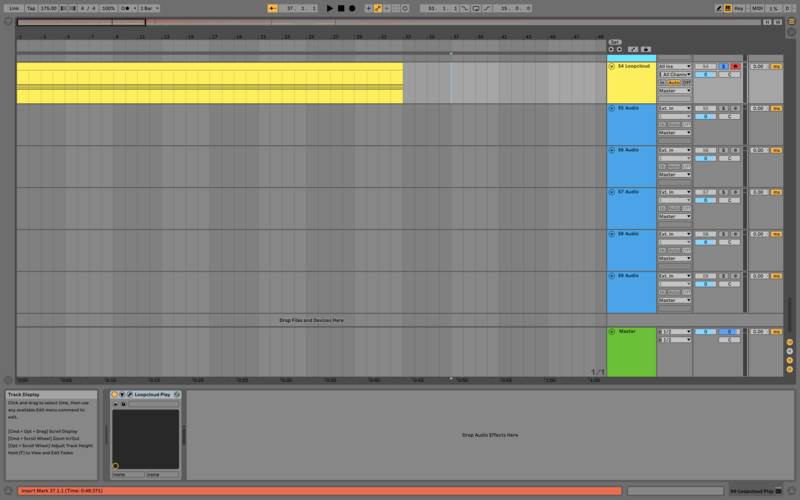
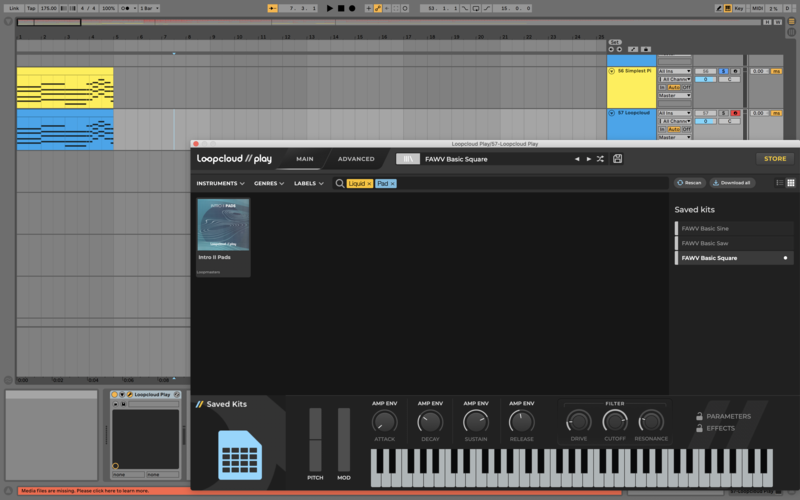
3. Once you add PLAY to a channel you are greeted with the default load - a basic square wave patch. Navigate to your own library by clicking on the menu button next to the description of the square wave patch at the top, or if you don’t have any Loopcloud sounds yet click on ‘Store’ in the top right of the app. Yes, Loopcloud lets you browse its selection of instrument patches available in the store, without even having to leave your DAW, in the Loopcloud PLAY VST!
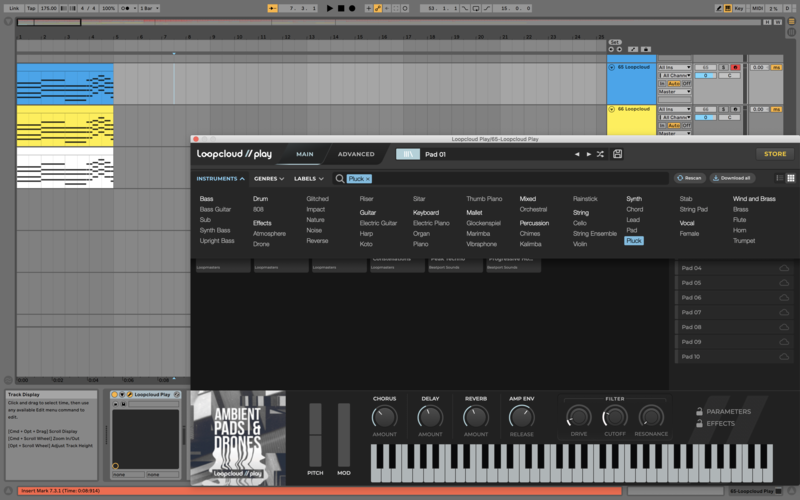
Loopcloud PLAY lets you search for sounds based on three different parameters – ‘Instrument’, ‘Genre’, and ‘Label’.
In this instance choose ‘Instrument’ and the ‘Pad’ option for some good options.
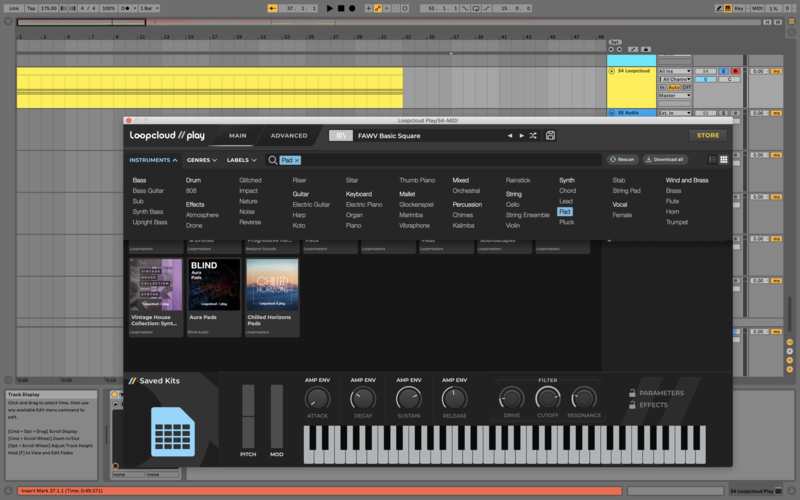
Find a pad that you like and then head to the ‘Advanced’ window to start getting creative.
4. The Loopcloud PLAY sounds are designed by professional sound designers, so you could use an evolving type pad straight out of the box. But to make them more your own you can automate multiple parameters within the VST to slowly change over time; the filter cutoff, LFO’s, and more, will give you a nice bubbling, undulating, and often changing bed, automated to your own taste, making a strong starting point for a track.
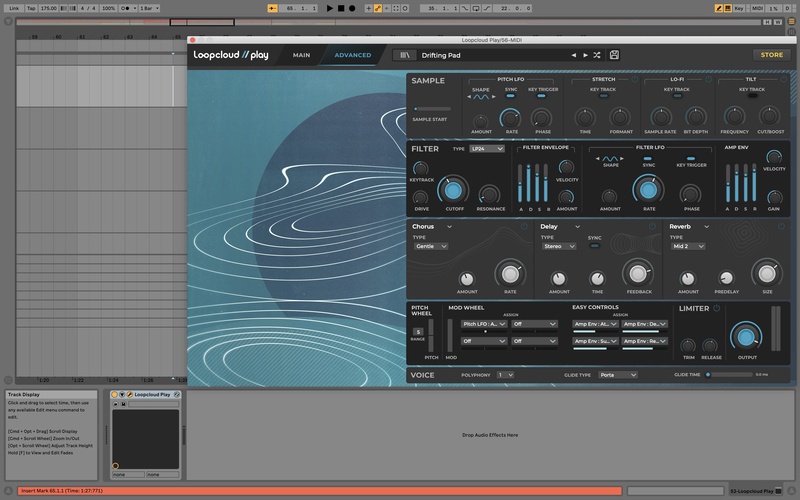
Top Tip for Ableton Users - You can access the automation parameters for Loopcloud PLAY using the automation icon.
Melody First, Sounds Later
In a similar way to an artist sketching an outline of their drawing before they fill in the details, getting a melody down that you know that you like, without focusing on the sound design can be freeing.
1. Mess around with some melodies using a simple piano instrument in your DAW of choice.
When you have one that you like, now it’s time to use the magic of the PLAY app.
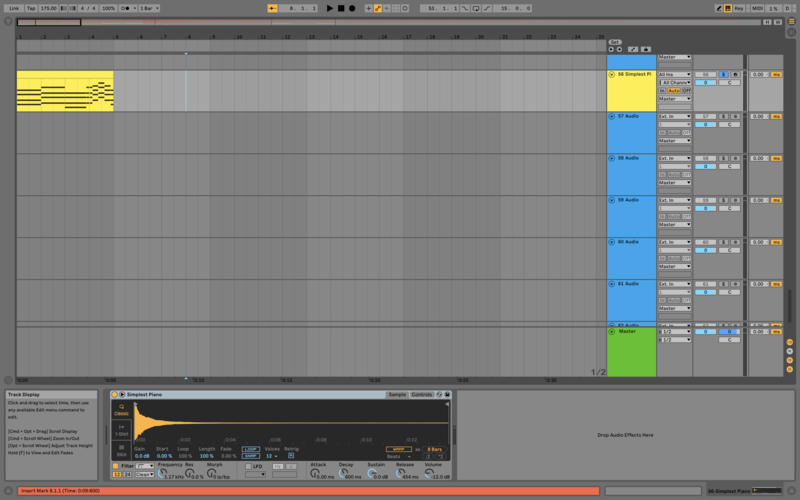
2. Add Loopcloud PLAY to a new MIDI track.
3. Copy the MIDI from the piano track to the PLAY track.
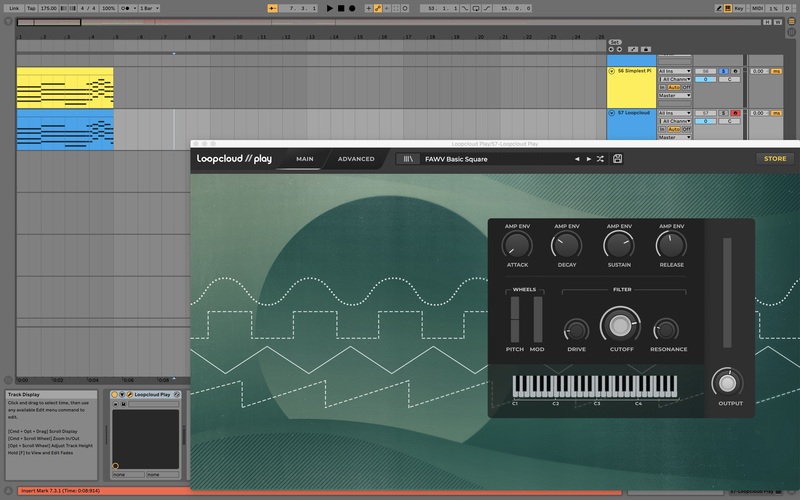
4. You can now try out different instruments and sonic variations on your melody, adding depth and colour to it, much like the painter filling out their sketch, until you find one that sparks the creative fire. And once you have one, you can tweak the various parameters to make the patch more your own.
Keep It Simple With Subtractive Synthesis
Sometimes playing around with simple waveforms, and a range of filters and FX can help you come up with a catchy idea that gets you moving, and just won’t quit. These are ideas that can be easy to run with, and build entire tracks around.
Aside from the powerful predesigned patches. You can also load Loopcloud PLAY with basic wave table shapes and use it like a subtractive synthesizer.
There are basic wavetables included when you download PLAY.
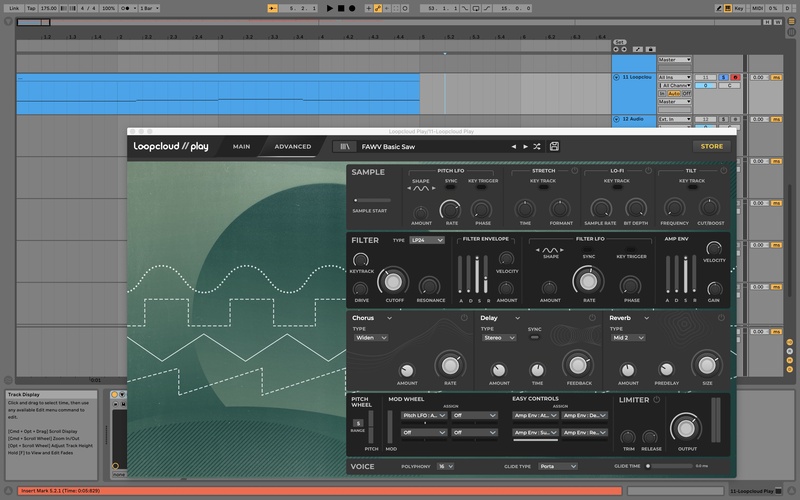
1. Simply go to the ‘Saved Kits’ in the PLAY library and choose ‘FAWV Basic Saw’.
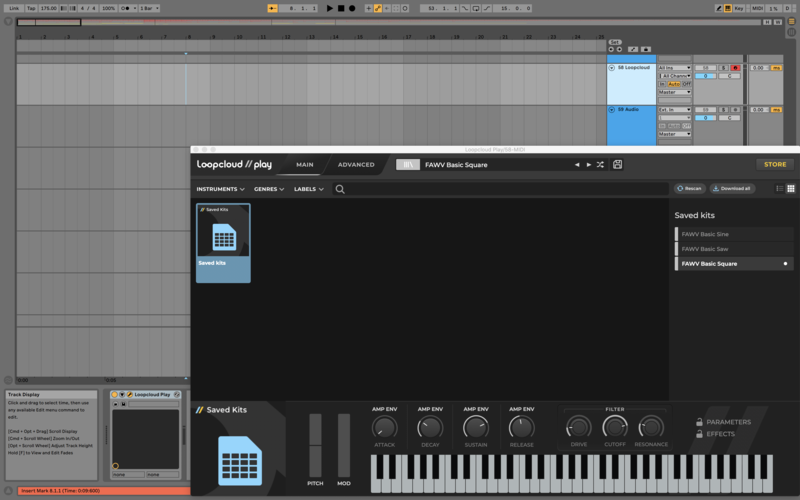
2. Once you’ve done this, either jam out using a controller or draw in a basic bassline in your DAW. We don’t want to worry about making it too complicated as we are going to add interest using the functions in PLAY.
3. Start to shape your sound with the options available on the main screen. You can adjust the cutoff of the filter and adjust the amp envelope.
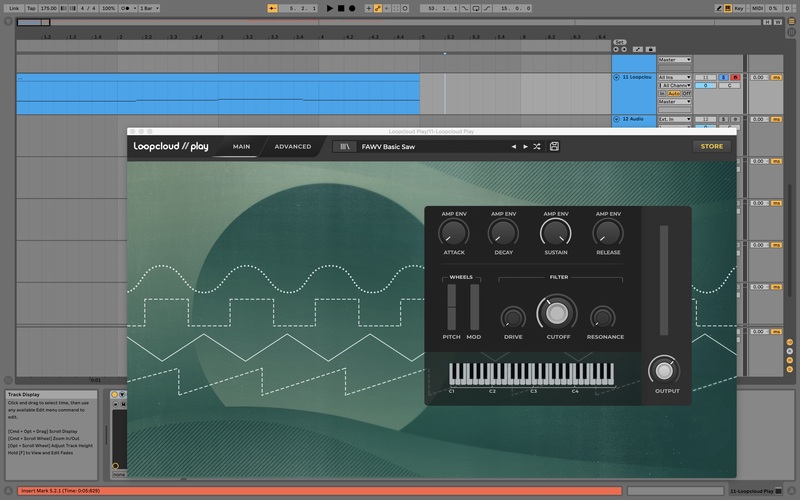
4. Head to ‘Advanced’ and get creative with the additional options that the app has for changing the character of the sound. You could draw in some automation, or jam and record some. You could put a pitch bend on a long note, add an LFO for some rhythmic variation, add distortion, or automate filter cutoffs. Together these give you the options to transform these basic wave shapes, and create something special that forms the basis of a track.
Build a Powerful Intro, Quickly
Sometimes writing a good intro can be the inspiration you need to create a fat bassline. Sometimes you already know in your head how the track is going to drop before you even get to writing it; you’ve spent some time creating an emotional intro that hits.
Similarly to before, if you spend ages creating strings from scratch, bespoke pads, and other sounds, at this point you are likely to lose the ember of the spark you had in the first place. If you want to write things quickly, you want them to sound high-quality, and you want it to be easy to do. Enter, Loopcloud PLAY.
1. Start by writing a MIDI chord progression that works for an intro.
2. Add Loopcloud PLAY to the track and duplicate the track 2 times.
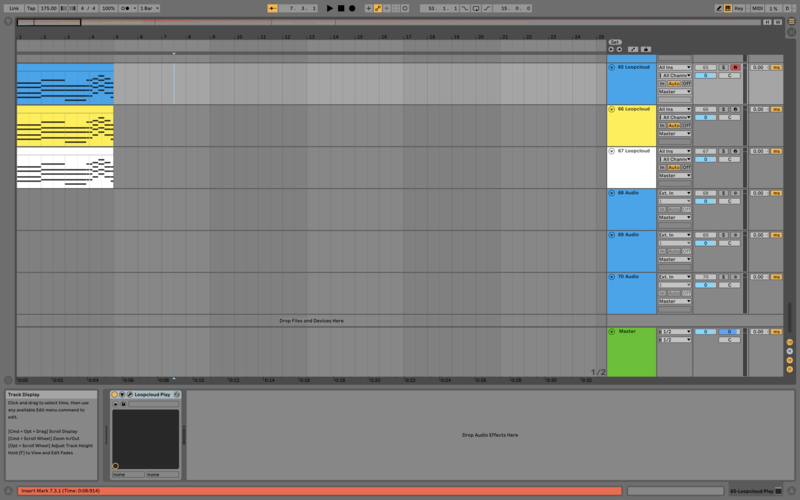
3. Using the ‘Instrument’ search function, find a ‘Pad’ to use for one track, ‘Plucks for another’, and ’Synths’ to the other, depending on your personal taste, and what works for the vibe you want.
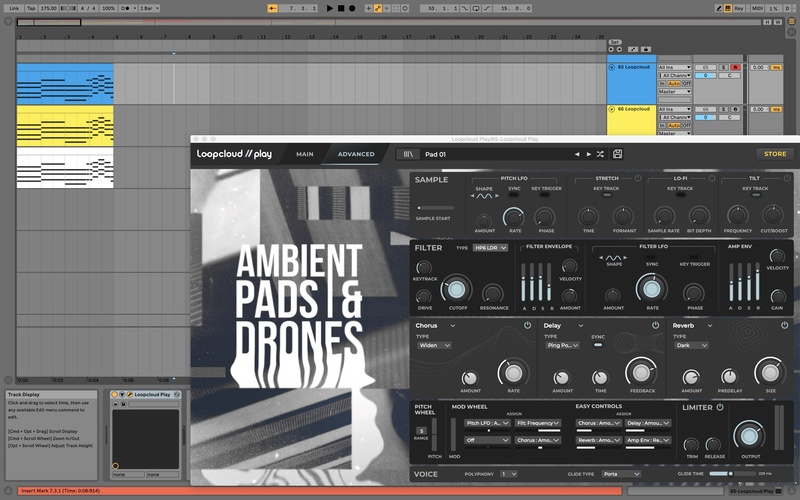
4. Now you can use many functions within the ‘Advanced’ section of Loopcloud PLAY to add variety to each sound, and to sculpt them all so that they work well together. For example, you could add an LFO to one to get some movement, slight distortion to another. With these functions right there in the app, you can really get stuck in and make them groove together.
5. Then add a vocal from the Loopcloud Library, and a drumbeat made using Loopcloud DRUM, and we’ve got something building!
Easily Craft Basslines With Multiple Different Noises
Are you struggling to write a bass line that pops like you want it to? Or a lead that has enough presence to carry a track? Once you’ve got something like that it can be all you need to open up new ideas and track directions.
With Loopcloud PLAY, it’s easy to create leads with alternating sounds, or a bassline with 3 or 4 different bass noises. And this could give your patterns the variation that could be needed to turn them into tracks inspiring ideas that you want to build on.
1. To try this out simply take your desired MIDI channel and pattern, and duplicate it.
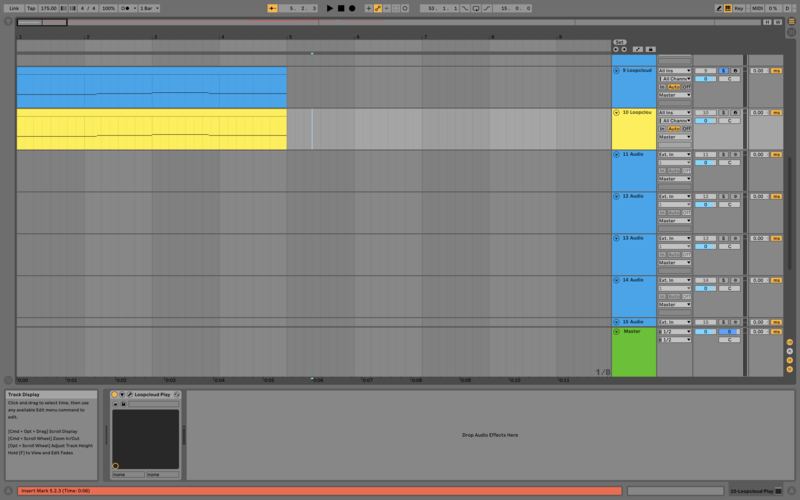
2. Next remove some of the notes from the first channel, but keep them on the second. And remove some from the second, but keep them on the first.
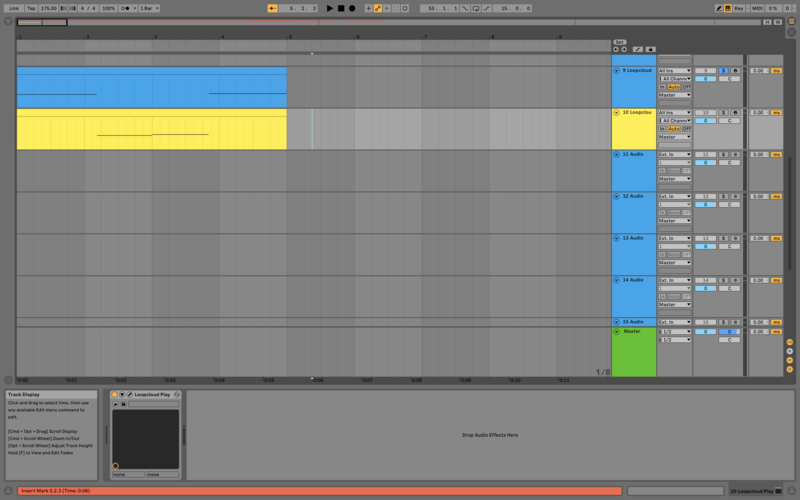
3. Now you have two instances of Loopcloud PLAY, one on each channel, with different MIDI. And you can select one bass noise for the first and one for the second. You can search for Bass noises using ‘Instrument’, ‘Genre’ or ‘Label’, or a combination of all three.
4. The beauty of PLAY is that because the patches are all designed by professionals, they all sound great out of the box, helping you to keep moving and follow the vibe when creating. But we also recommend tweaking them to your sound.