

Blog
How to Use Loopcloud's Effects to Customize Samples
24 Feb '2026
Make a sound your own before you drag it into your DAW – here’s how to use our huge suite of effects to audition and process samples

Photo by Gytis Bukauskas on Unsplash
When searching for samples, you may think a sound could work in a track, but you won’t really know until you’ve splashed it with FX. Maybe an EQ to remove that annoying bit that you don’t like, some vibe with reverb and delay, and a sprinkle of saturation to warm things up. Did you know that the Loopcloud App comes with a range of built-in FX that you can use to tweak sounds, make them pop, and make them your own, all before you’ve even bought them? Or opened your DAW?
This article takes you through the different ways to get the most out of Loopcloud FX. Whether you want to stack FX to supercharge creativity, or add some EQ and compression. Loopcloud FX offers versatility, and creative flexibility whilst browsing our extensive sample library.
How to Access Loopcloud’s Effects
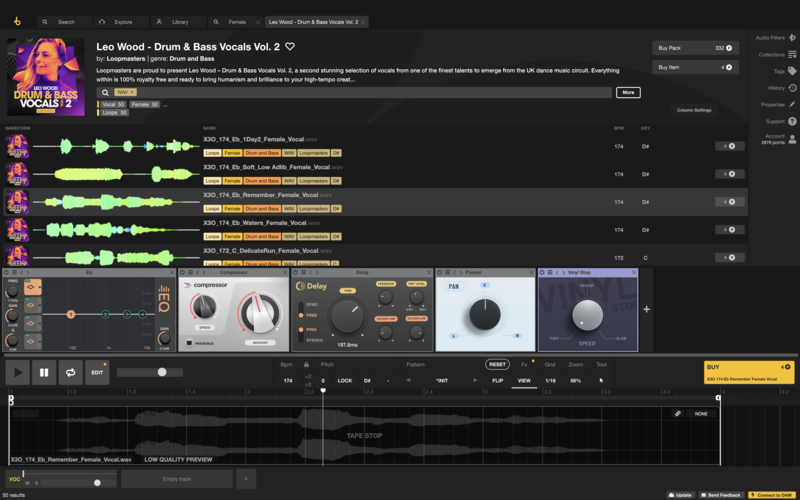
The Loopcloud app has 10 built-in FX to edit samples on the fly, including an EQ and Compressor, Filter, GrainStretch, Vinyl Stop, and more. You can add them separately, or chain them together. And with multitrack functionality you can also add different FX to up to 10 tracks at a time whilst browsing our extensive library of over 4 million sounds.
To add an effect to a track:
1. With the Loopcloud app open, ensure the edit window is open at the bottom of the screen - click “Edit” if it isn’t.
2. Click “View” under the FX tab in the edit window. Then “Add Effect”.
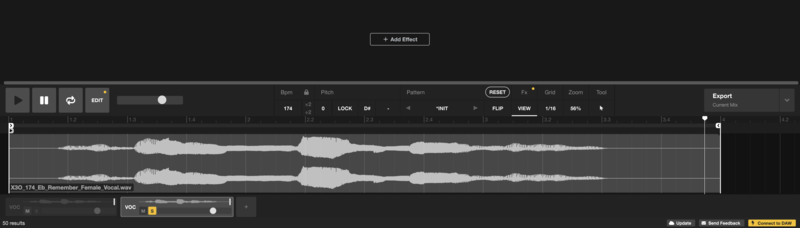
3. You can then choose from the list of FX. You can load a default setting for each, and then tweak as you wish, or you can choose from a number of presets for each.
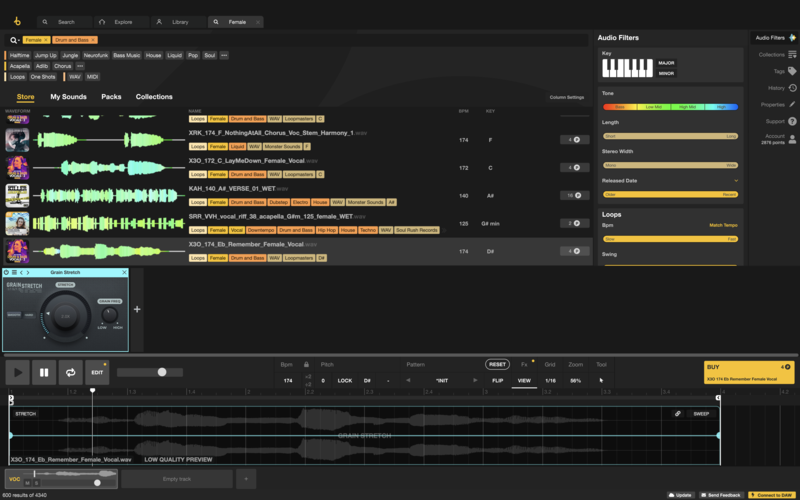
4. To add an additional FX. Click the “+” button to the right of the plugin just added.
5. You can also change the order of the plugins by dragging and dropping them. Switch individual plugins on and off using the power button on the left of each, or click on one and press delete to remove it.
What’s Included in Loopcloud’s Effects
Loopcloud has 10 FX for you to get creative with and change up samples:
Compressor
Find compression confusing? Loopcloud has a simplified version of a compressor so that you can be thinking about creative ideas, and not what “Knee” and “Threshold” mean. Loopcloud’s Compressor has “Amount”, “Speed” and “Presence” controls. You could use it to beef up some drums, add presence to vocals, and more.
Delay
A versatile delay plugin that you can use to add depth, interest, and wherever else your creativity takes you. You could add some layers behind a vocal or a repeating delay to leads. Choose from a number of presets, including short, synced delay, and other delay FX, such as the “Stopping” sound. Each preset can be adjusted, including the wet signal. Or you can load a default setting, and start from there. You can adjust the timing to “free”, or synced. Choose from Ping Pong or Stereo delay. Adjust Feedback amount and Dry / Wet signal, plus add high pass and low pass filters to the delay.
EQ
A fully parametric, four-band EQ. Choose from a Filter, Shelf or Bell curve for each band.
Filter
This plugin provides high pass, low pass and band pass filters. Adjustable Cutoff Frequency, Drive, and more. Choose from different modulation presets including LFO’s and sweeps.
GrainStretch
Use granular manipulation to twist samples. A great tool for glitchy and neuro vibes, and evolving textures. Choose how much “Stretch” to apply to your audio. The Grain Frequency parameter changes the size of the grains, and therefore how much the audio will be warped. The higher the frequency, the more change in sound. “Smooth / Hard” changes the size of the fades between grains. Hard preserves more of the transients!
Panner
Pan sounds to the center, left, and right. Choose from a number of presets, adjust them, or automate your own.
Reverb
A digital reverb with adjustable “Size” “Tone” and “Mix” parameters. It comes with preset options. Plus, you can automate it for more movement.
Stop Reverse
Add the iconic FX used in many tunes.
Tonebox
Add saturation, other types of distortion, dirt, and more. Choose from presets or try out the many different “Drive” and “Cabinets” combinations.
Vinyl Stop
Another popular sound FX. Set it to your taste with the “Speed” parameter.
FX all come with a number of presets. Use the menu to the right of the power button on a plugin to view the presets.
Automate Loopcloud FX
Did you know you can modulate / automate certain parameters within Loopcloud FX? If you click on an effect, a corresponding coloured line or border will appear in the editor window.
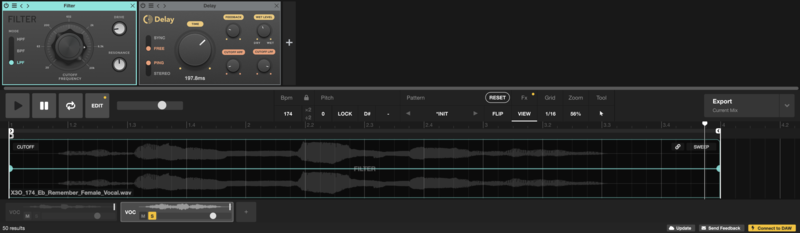
On the left hand side of the editing window you can see which parameters can be modulated. Once you have selected a parameter, on the right hand side of the editor you can choose from a number of built-in LFO styles for the modulation, such as a sweep or different wave shapes such as a sine. These can also be adjusted to taste. You can also split the sample up into different clips, and have different modulations for each.
Take a look at this video for more tips.
Render with Effects
Once you have finished editing a sample with FX, there are a few different export options if you want to add the sample to your DAW. You will need to buy samples with your points before adding them to your DAW.
You can then choose to export samples and ideas to your DAW with or without the added FX. Got an idea cooking with multiple tracks? No problem, you can export this as a single audio file, split it up in multiple files with FX, and the original files, with no processing if you want the dry files.
1. To export click the “Export” button on the top right hand side of the track editor. This will automatically add file(s) to the clipboard, based on the “Export” settings you have selected. And you can drag and drop straight from the button into your DAW.
2. Click the arrow next to the Export button to view your options.
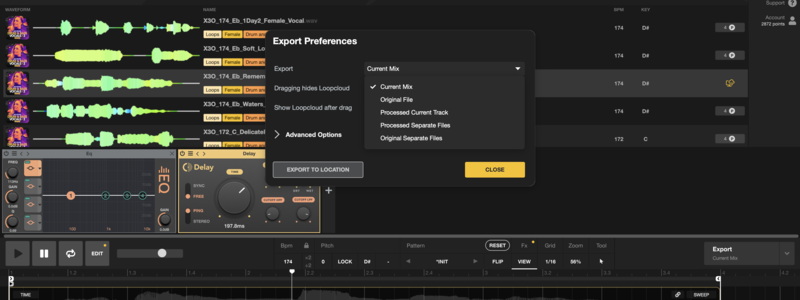
Here are some of the export options available:
Current Mix
Exports a single file of all tracks including FX and edits
Original File
Exports original file of the track you have selected, without FX
Processed Separate Files
Exports each track in a multitrack mix separately, with FX and edits.
To find out about the other options, and more helpful information, take a look at the video below.
Top Tip: Did you know you can save all Loopcloud settings in session view, including FX. Go to “File” in the heading menu. And select - Save Session “untitled” or Save session As….
Audition through Effects
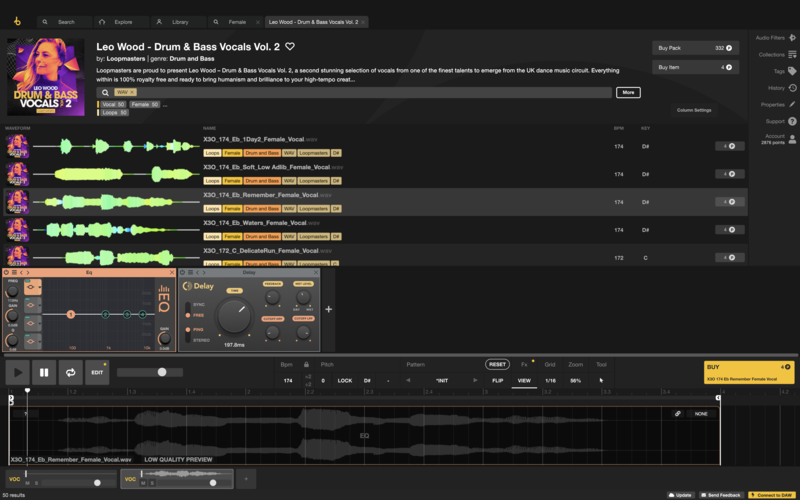
Your FX chain will stay active while you are browsing samples. But if you want to hear a sample without it, you can simply use the power buttons on the left of each plugin to switch them on and off. Or they can be deleted by highlighting and pressing delete.
You could also make use of the Loopcloud app’s multitrack functionality to AB samples with and without effects, or to try out different settings and combinations. Simply place duplicates of a sample in multiple tracks in the edit window. Add your desired effects to each, and then use the “S” button at the bottom left of each track to solo them and listen separately.

Don’t forget, you can save settings that you like as presets to access them quickly and save time.
FAQs
Does Loopcloud have presets?
Yes, Loopcloud comes with a number of presets for its plugins and other features such as “Sample Flip”. The FX presets include different types of reverb, delay, and more.
How Does Loopcloud Work?
Loopcloud is a subscription based sample library that works on points, and gives you access to over 4 million samples. With the Loopcloud App you can audition samples in our extensive library, combine them, add FX, and more. All before you have even purchased them.