


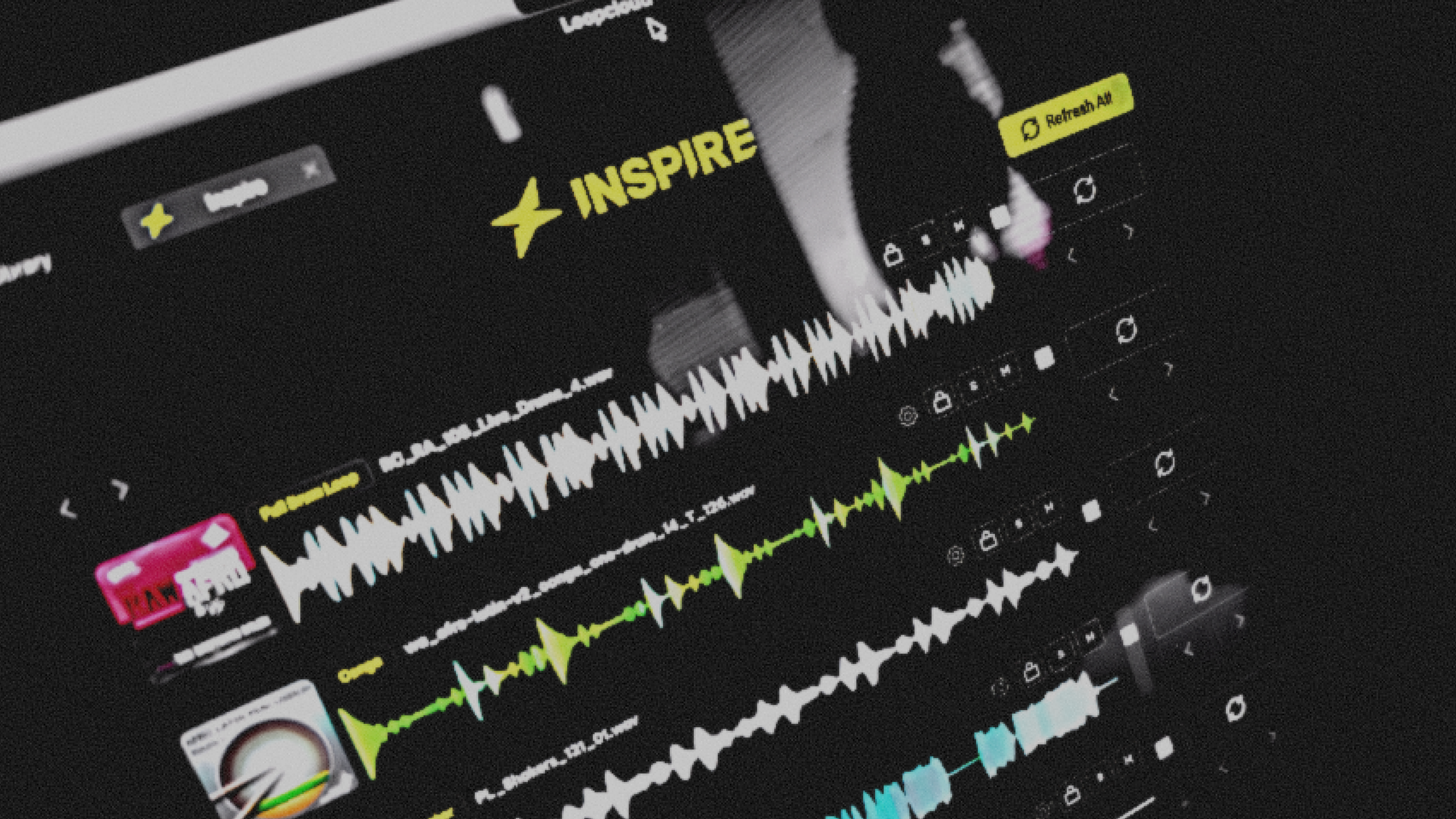
Deep Dive – Inspire in Loopcloud 8
Discover a new way to get ideas for tracks in just seconds – and possibly a different way to make music altogether
We recently released our biggest update to Loopcloud yet! Loopcloud version 8 is bigger, better, and introduces features including Advanced Search, Listen, and even a dedicated mobile app. One of the greatest new features in Loopcloud 8 is Inspire, and in this article, we’ll show you exactly how to use it.
Inspire is a way to generate ideas for new tracks by instantly combining samples that work together, then customizing the sound by swapping out sounds until you’re ready to bring them into your DAW to start arranging a whole piece of music.
Inspire is available in Loopcloud 8. Try it out free for seven days with a Loopcloud Trial.

How Inspire Works
Here’s a guide to getting started with Inspire. We’ll cover the basics here, and you can move onto more advanced features lower down.
Open Inspire
With a new Loopcloud session open, you can access Inspire from the bottom of the main page, or by selecting it from the sidebar on the right and clicking New from the panel that appears.
Choose Your Genre
Choose a general genre from a cloud of tags, and then refine into a more specific genre if you wish. Loopcloud will now create a tab hosting a number of matching loops within that genre that will go well together as a track-starting idea. Just like in your DAW, you can Solo and Mute loops.
Play Your Inspire Idea
Press Play and all the loaded samples will play together, at the same tempo and the same key. Loopcloud has used its harmonic and rhythmic matching capabilities, as well as knowledge of genre, key and tempo, to bring multiple samples together into harmony.
Swap Out Loops
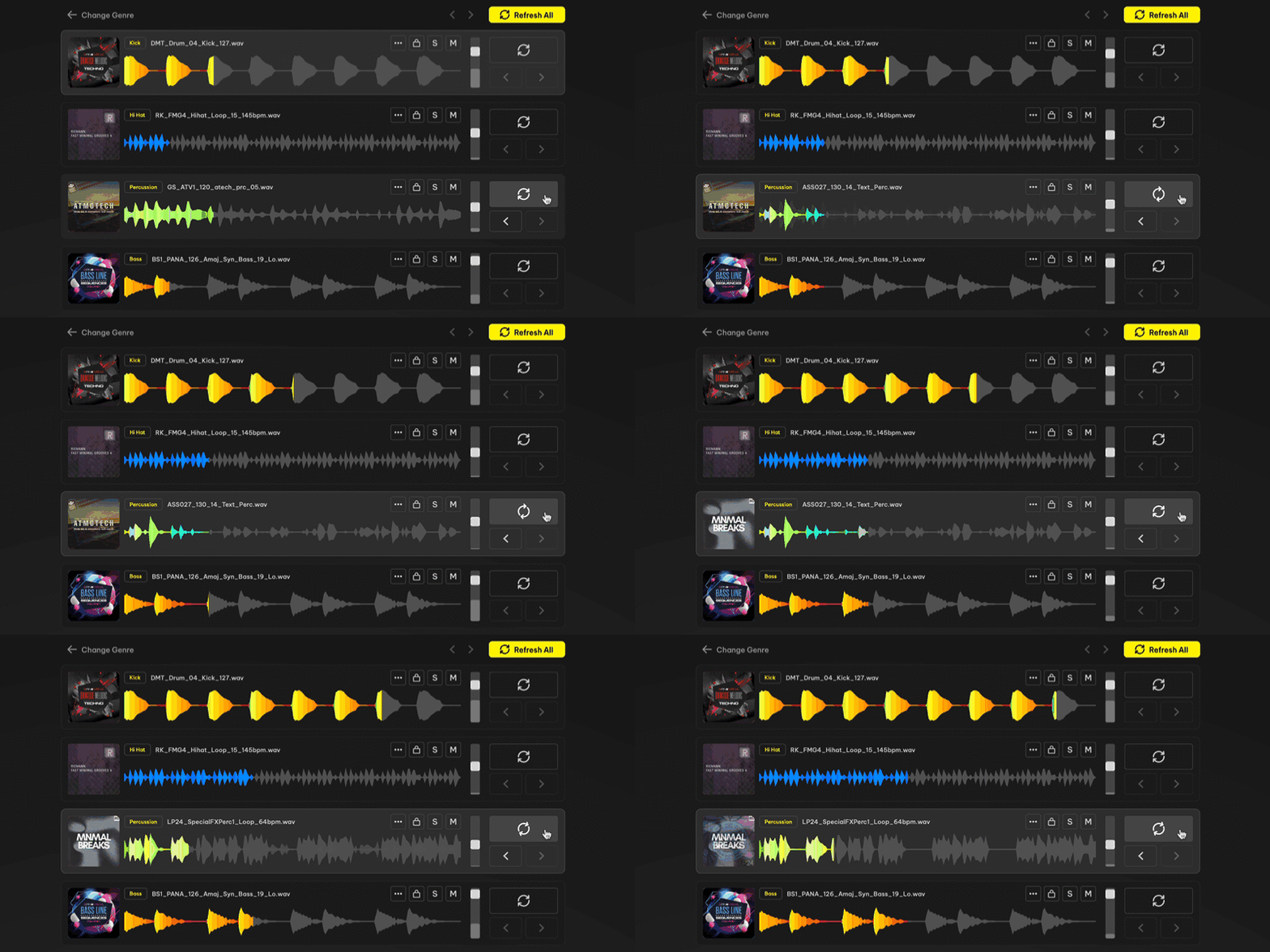
Using the Refresh button on any loop, you can swap it for a new one that still works well with the overall whole.
You can also swap out all the current loops at once, or use the ‘lock’ icon on any track to prevent it from being swapped away by the Refresh All button. There are Back / Forward buttons to move through your undo or redo history after refreshing a loop (or all loops).
Add More Tracks
You can click to Add Track below. Select the type of instrument from a list of tags, or choose your Advanced settings to get far more particular about the type of sound you’re looking for. We’ll cover those advanced settings in the next section…
Even Deeper with Inspire
With the simple overview done, we’ll move forward and show you some of the more advanced parts of using Inspire – all optional, of course.
Choose Advanced Settings for a Track
One of the best things about Loopcloud is how well categorized every sample is, with its key, bpm, instrument and genre just the start. If you’re a user already, you’ll know The Power of Loopcloud’s Audio Filters, for example.
Loopcloud’s powerful search and tagging system can also be leveraged while using Inspire, helping you generate a more bespoke choice of samples. For an existing sample or a new one, you can choose an instrument type, a different genre, Tone, BPM and Length properties.
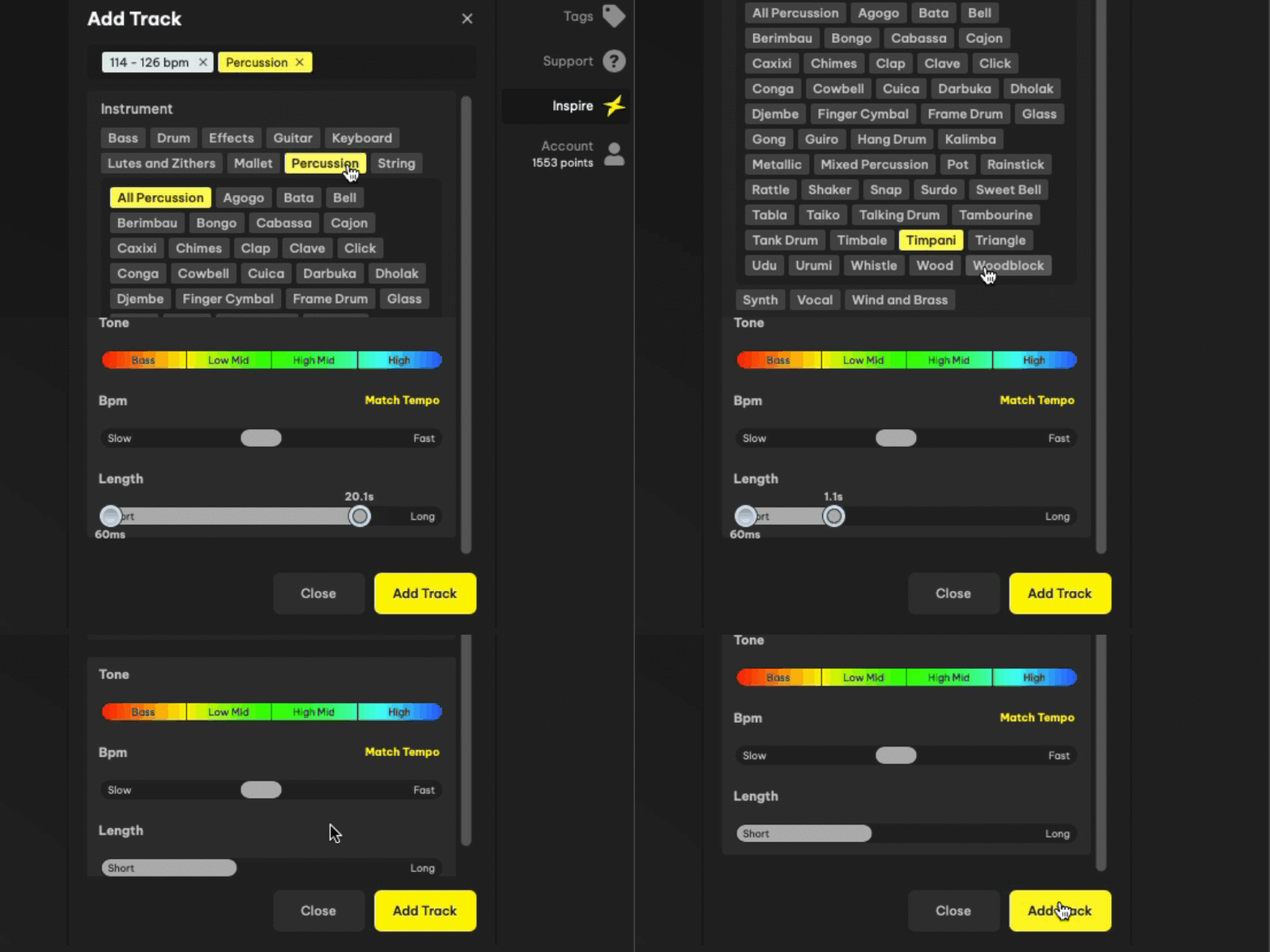
This can be done when a track is already loaded (click the three dots and go to Track Settings), or can be done when adding a new track (click Advanced while creating a new track).
Edit Tracks from Here
Loopcloud’s Editor is available from the bottom of the Inspire section, meaning you can slice and add effects to any sound to experiment with it. The presence of the Editor also has another implication, though…
Flip Tracks Straight from Here
Loopcloud 8’s beefed up Flip capabilities are great, and we’ll go in deep on those in a particular run-down. Did you know you can use the Flip function directly from Inspire, using slicing patterns and effects to automatically put a new spin on a sound in a loop right from the start.
Save Your Inspire Session
Your Inspire sessions can be saved for later recall. With the Inspire sidebar open (on the right-hand side), click Save to store a loop. You can even generate multiple variations on your currently selected genre, and save them all to the same project.
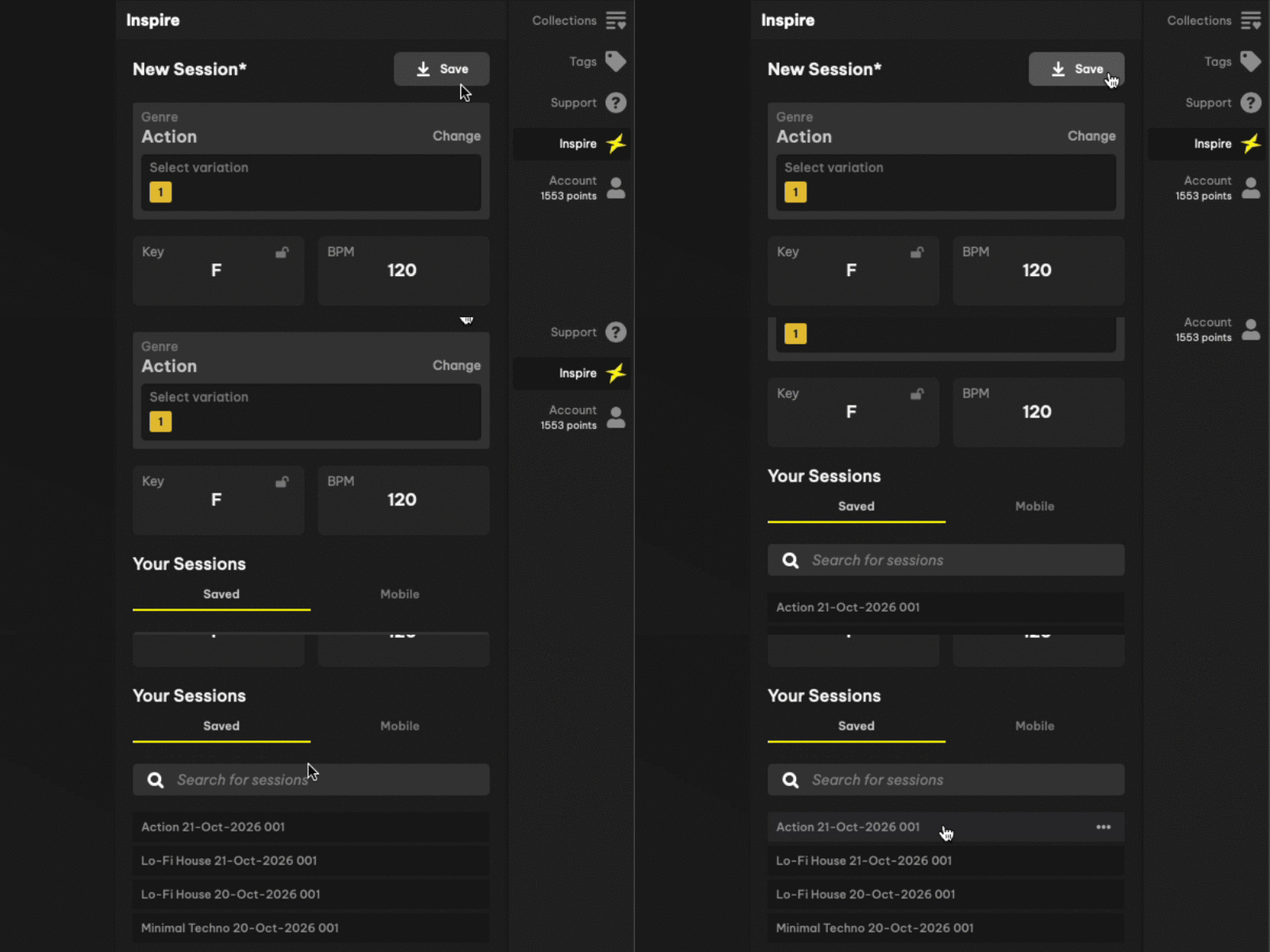
It’s possible to save Inspire sessions on Mobile using the Loopcloud iOS app, and recall them later on the desktop app, ready to drag into your DAW.
Make Inspire Part of Your Production Workflow
Inspire is available within Loopcloud 8. Current users can update their Loopcloud app to get access to Inspire and other new features including Advanced Search, Listen and Harmonic Matching.
You can download a seven-day free trial of Loopcloud to start Inspiring new tracks now.
Keep Ideas Moving
Try Loopcloud free for 14 days. Cancel anytime.

Import your existing sounds · Works with your existing DAW · Setup in under 2 minutes