

Blog
Loopcloud's Audio filters – How they Work and What to do With Them
11 Mar '2026
Find the right sounds faster by dialling in what you’re looking for. Your scale, swing, density, tone, length and stereo – Loopcloud’s got your back
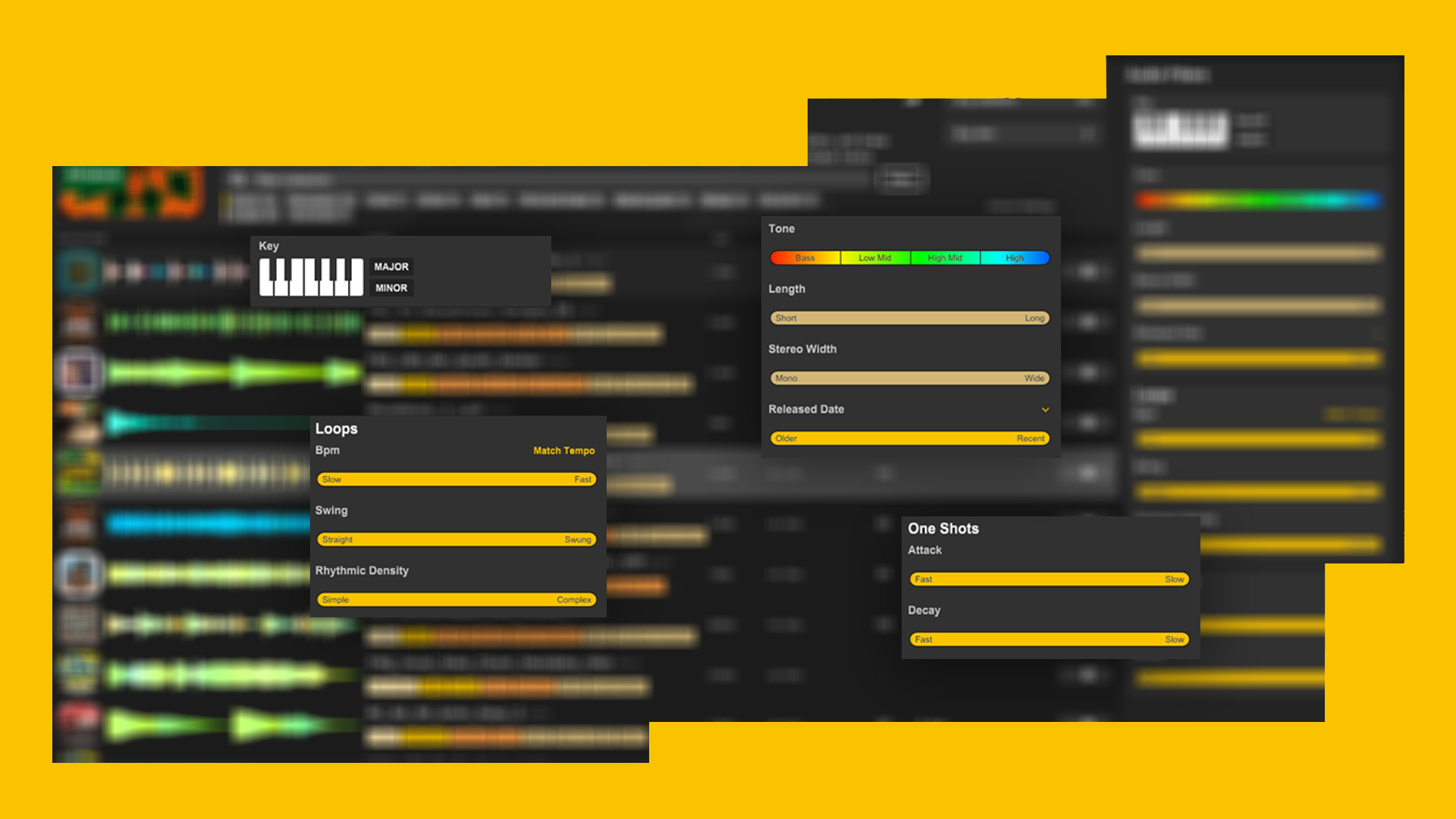
Loopcloud is built around making sample discovery easier, more musical and more creative for everyone. Instead of mindlessly scrolling through millions of samples, you can use our smart audio filters section to narrow the library down to samples that actually fit in your session. If you’re new to Loopcloud, check out our tutorials page which covers up to date information on everything you need to know about using Loopcloud.
The audio filters section of the Loopcloud App is there to get you the specific sounds you need as efficiently as possible. Some filters describe musical information while others describe the characteristics of the sound. When used together, these powerful filters can turn a vague search into a focused set of results ready for your projects.
That's why we created this guide to break down each Audio filter in detail, giving you full control over your sound searching journey.
Key
The Key filter lets you narrow down your search results by musical key. Loopcloud analyses melodic and harmonic samples and then tags them according to the note or key centre that they fit within. Simply click on a root note such as C and choose your scale type (Major or Minor) and Loopcloud will only show samples in that specific key.
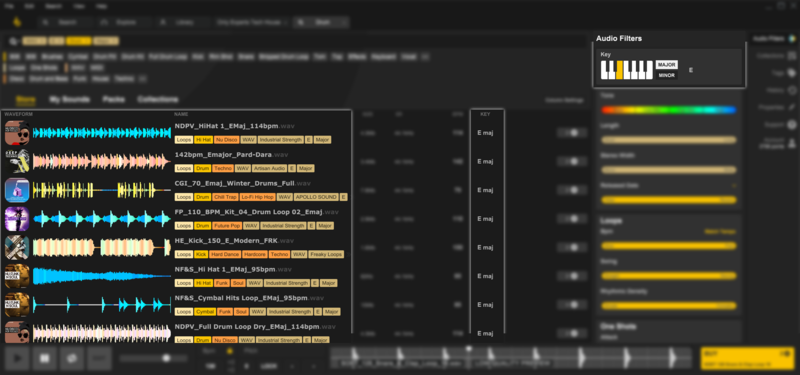
Use this filter when you’re already working on a track that has an established key centre and you want to find new samples that work perfectly without the hassle of repitching or drawing MIDI. It’s also really useful for building sample-based ideas from scratch; choose your key and browse for samples that naturally belong together. You can even assemble your chosen samples under the edit window before committing to spending your credits so you know for sure they work together!
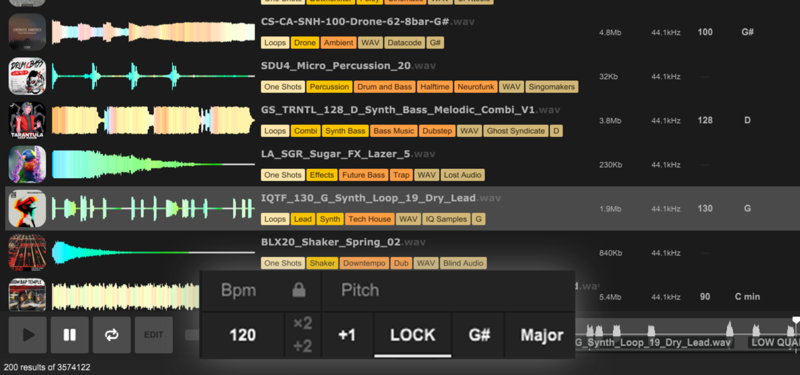
Additionally, if you find a sample that you really like, you can use the scale lock feature to lock to that scale and any other samples that you preview will automatically transpose to your locked key. This is especially useful when working with a project that has a defined key, allowing you to preview samples in key with your track, without committing to spending credits.
Tone
The Tone filter helps you search using the overall frequency content of a sample, with selectable ranges of 20Hz-20kHz across Bass, Low Mid, High Mid and High frequencies respectively.
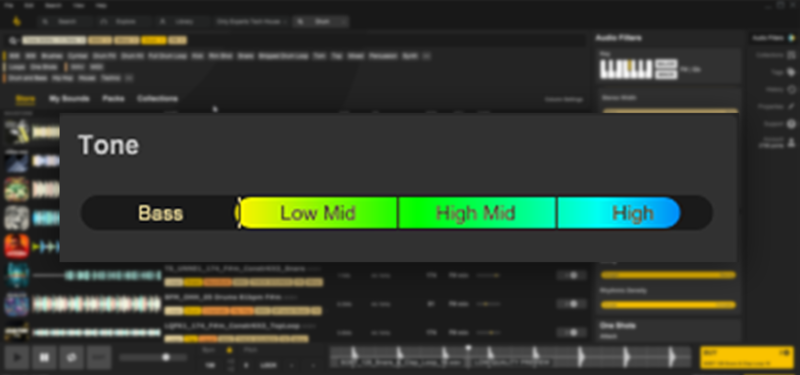
Use the Tone filter when you know the sonic space that the sample needs to fill in your track. If your track has bright hats and sharp vocals covering the high frequencies, use the Tone filter to search for sounds that cover the lower end of the frequency spectrum. Tone is especially useful when combined with other filters; two percussion loops might share the same tempo and rhythmic density, but one may be very crisp while the other feels dusty and vintage.
Length
The Length filter lets you search according to how long or short a sample is. Short results might include one shots like drums, stabs or vocal hits, while longer results might include full drums loops, chord progressions or pads.
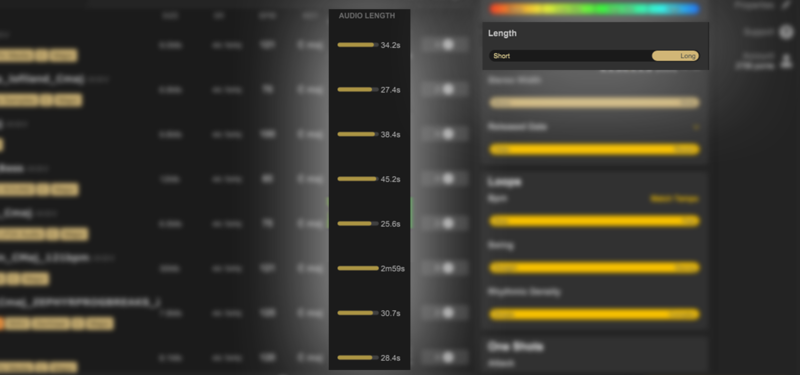
Use the Length filter when you know what role the sample needs to fill. Looking for quick foley one shots? Filter for short sounds. Need inspiration for your new section? Filter for longer sounds or even combine with key and BPM to find your perfect fit.
Stereo Width
The Stereo Width filter allows you to choose how wide or narrow you want your sample to be. Narrow sounds are closer to a mono signal and sit in the centre of the mix, while wide sounds spread across the left and right channels creating space in your mix.
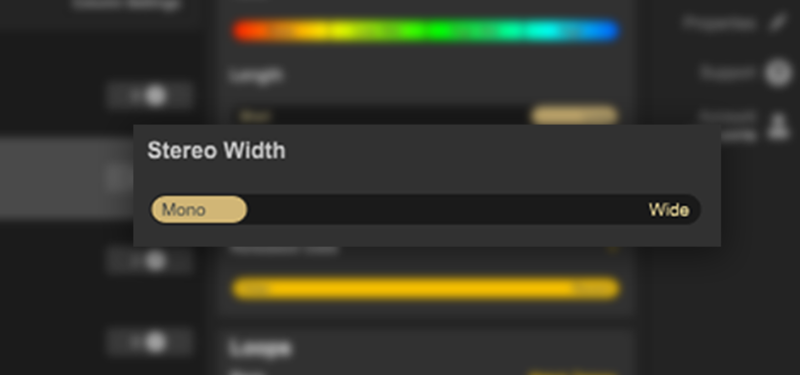
Use the Stereo Width filter when thinking about where you want the sample to fit in your mix. Typically kicks, basses and low-frequency elements should be narrow and centered, with higher frequency elements like vocals, percussion or leads allowing for a wider placement. The Stereo Width filter is especially useful when you need to find a sample that fits in an already busy mix or you need some extra elements like pads or stereo FX to bring in some additional width.
Release Date
The Release Date filter does what it says on the time, it will sort samples according to when they were released, allowing you to search for the latest releases or legacy sounds that have been on Loopcloud from the start.
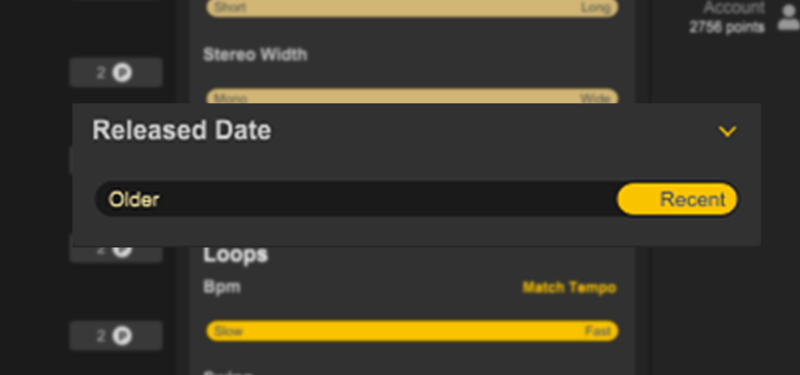
Use the Release Date filter when you want to find the freshest material, brand new packs or recently added sounds, with fast-moving genres where modern sound design matters the most, the Release Date filter is your best friend. Take the latest samples even further by using our neat Flip Sample feature.
Loops - Beats Per Minute (BPM)
This one’s specifically for looped material. The BPM or Beats Per Minute filter allows you to search by tempo. Loopcloud detects samples that have a steady tempo and tags them accordingly, making it easier to find sounds that match your project's BPM.
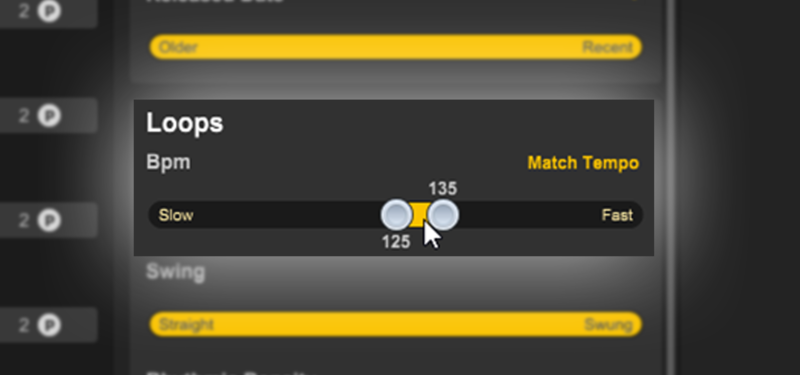
BPM doesn't have to be specific. If your project’s tempo is 130BPM, filtering from 125-135BPM should produce results that all work well at that speed because your DAW will be able to timestretch them, or may do so automatically. BPM filtering is also useful creatively, you could try searching at half or double your project tempo to find loops that have different feel while still fitting the grid. On top of all that, our handy Match Tempo feature means that you can quickly find other samples that match the BPM of your currently selected sample.
Loops - Swing
The Swing filter is another that’s designed for looped samples. Loopcloud analyses and tags samples that have a straight, swung or shuffled rhythmic feel; allowing you to quickly find samples that work within your project's actual feel rather than just its tempo.
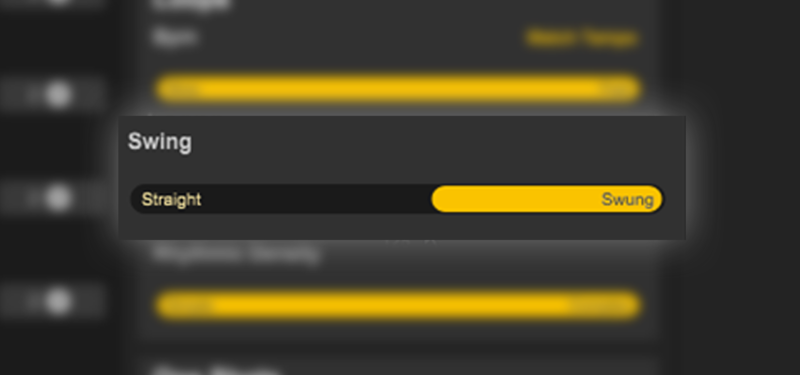
Use the Swing filter when working in a project that’s using a shuffled or swung rhythm in order to find results that match. Swing is especially useful when looking for drums, percussion or basslines - really anything that relies on the pocket for its groove. If your track feels rigid or straight, a sample with more swing can give you that human feeling without spending ages manually aligning your sample or MIDI.
Loops - Rhythmic Density
The Rhythmic Density filter really sets Loopcloud’s Audio Filters apart from other major sample vendors – it describes how busy or sparse any given sample is. A dense rhythm will have a lot of hits, ghost notes or fast movement whereas a sparse rhythm will leave larger gaps and include fewer transients.
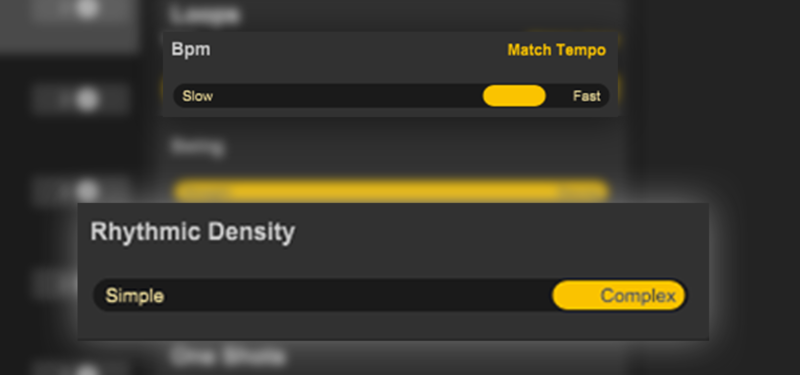
Use the Rhythmic Density filter when you need to control energy and space. Dense loops are good for filling out space or adding complexity to a minimal idea. Sparse loops are useful when you want the groove to feel clean, deliberate and spacious. Combine the rhythmic density filter with the Tone and BPM filters to get to the best drum samples quicker than ever before!
One Shots – Attack and Decay
The Attack and Decay filters can be used in harmony with one another to filter the amplitude envelope of any sample. The Attack filter relates to how quickly a sound starts while the Decay filter relates to how a sound fades after its attack.
A fast attack means the sample begins quickly with a fast transient – like a snare hit or picked guitar note. A slower attack fades in gently, with little or no transient – like a bowed string or pad swell.
A short decay dies away quickly, while a longer decay rings out over time for a sustained period. This envelope is closely connected to how tight, roomy or sustained a sample can feel, especially if a sample is pre-processed with reverb or delay.
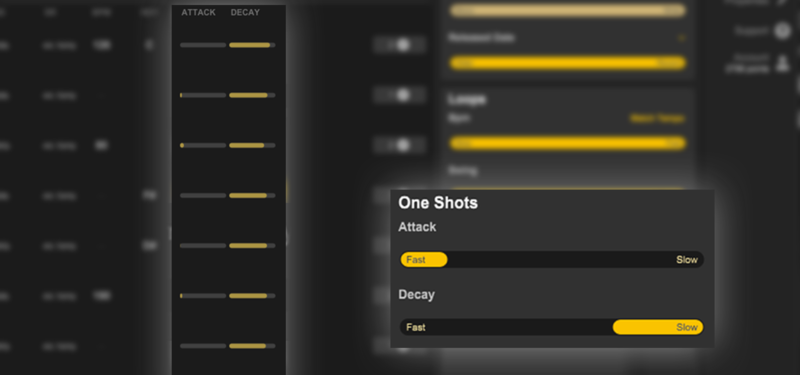
Use the Attack filter when choosing how upfront or soft a sound should feel, and use the Decay filter when shaping the space and sustain of a sound. Together, these form a powerful duo of filters that can get you that perfect riser, epic synth swell or tight percussion hit with extreme precision.
Get All This Flexibility in Loopcloud
Loopcloud’s audio filters are one of the most powerful tools available for finding the right sounds, but they’re not the only things that make Loopcloud a creative choice for producers:
Similar sound search helps you find samples that match the feeling of a sound you already like, MIDI support opens up a whole new layer of creative possibilities and the unparalleled Flip Sample feature lets you instantly rework sounds into fresh variations, perfect for turning a simple loop into something more personal.