


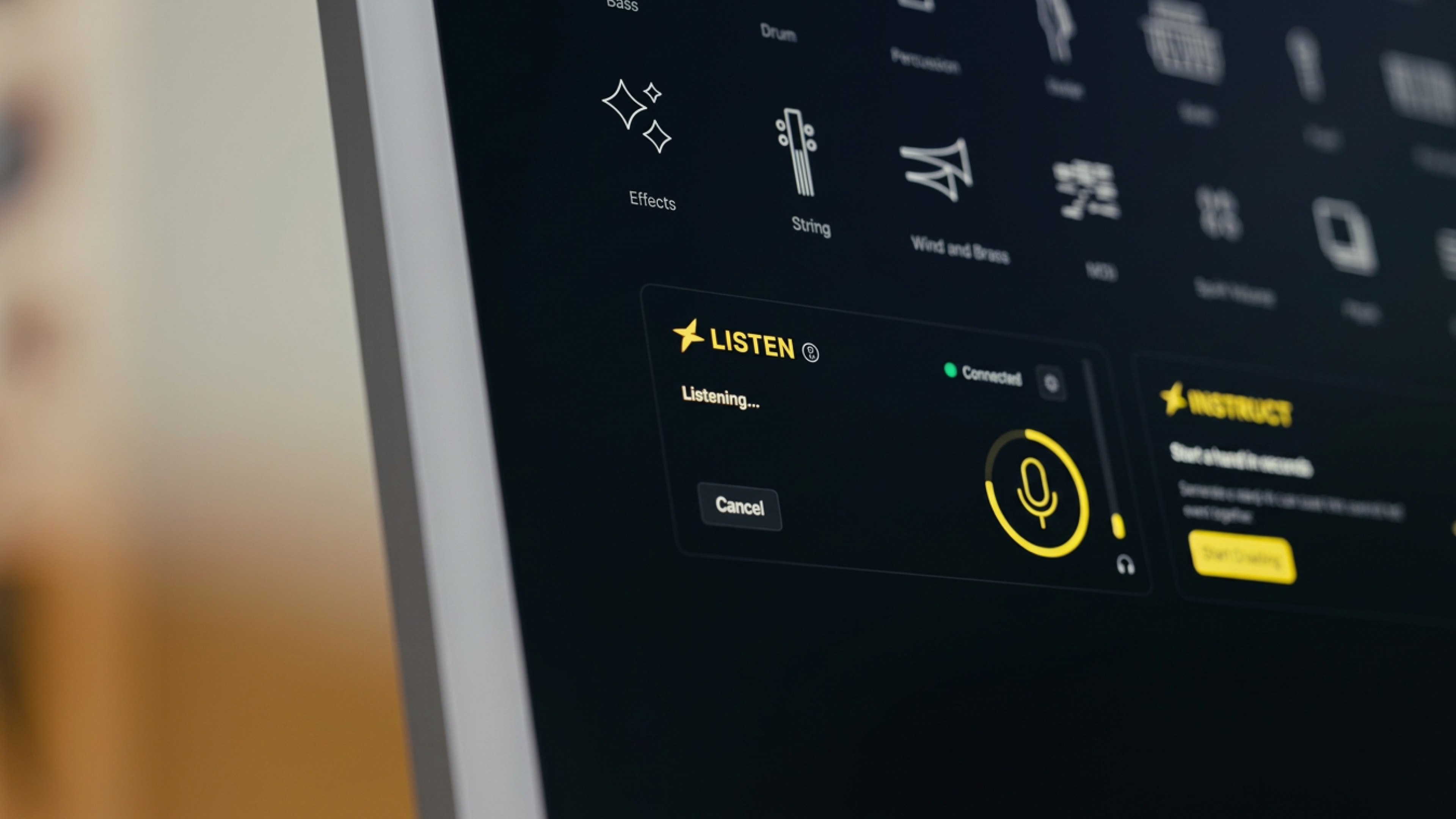
Deep Dive: Listen in Loopcloud 8
Perform a search using the sounds already in your project, and find the missing piece for your project using Loopcloud 8’s new Listen feature
Loopcloud 8, our biggest ever update brings a host of new features, including Listen, Advanced Search, and our new Inspire function for starting tracks easily. In this article, we’ll take you through the new Listen plugin feature and how it can help you to find compatible samples quickly and get creative results for your projects.
Loopcloud 8’s Listen feature analyses the existing audio within your DAW, and suggests a selection of samples for you. Thanks to advanced analysis technology, the samples Loopcloud serves up will all be musically related to your existing material, and you can then browse, filter, and edit until you have what you need.
Using Listen for the First Time
Before getting started, ensure you’ve got Loopcloud 8 installed. You can download it here.
Open Your Project
Open an existing project in your DAW of choice.
Insert the Listen Plugin
Insert the Loopcloud Listen plugin on your stereo out or mix bus — you can place Listen on any track, bus, or auxiliary if you wish, but to really get a feel for what Listen can do, we’d recommend trying it on your master channel to get started.
Open Loopcloud
Open the Loopcloud 8 desktop application. If it’s not open already, you can use the shortcut within the Listen plugin in the top-right corner. Loopcloud should now be connected to the Listen plugin that’s open within your DAW.
Analyse Your Audio
Press the yellow Listen button and hit play on your project. Allow the plugin to listen to a few bars of audio (choose 4 or 8) and then click Show Results. You’ll be taken to the Loopcloud desktop application where you will find a selection of samples, loops, and sound effects that have been intelligently selected based on what Loopcloud Listen has heard.
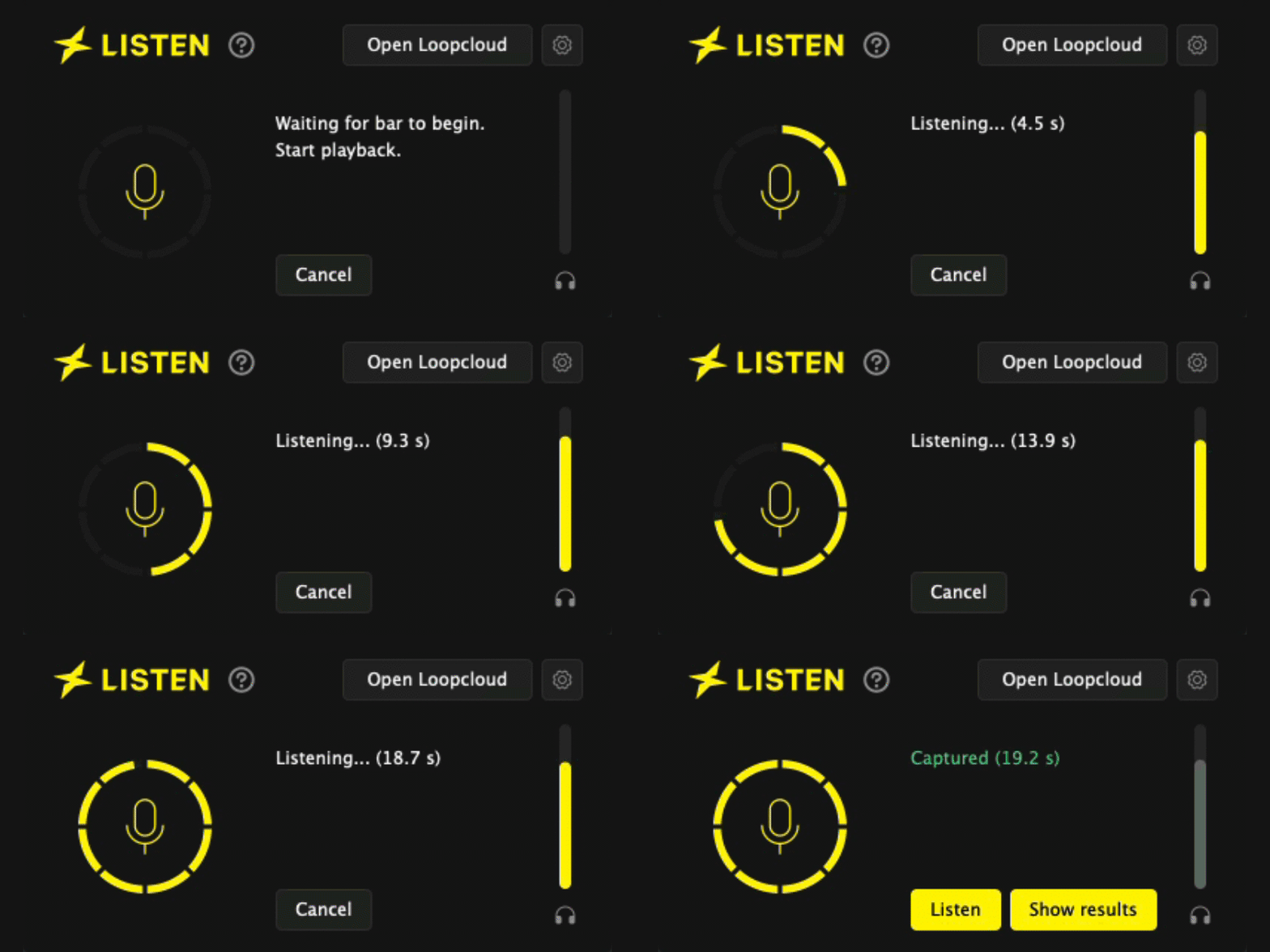
As long as your music is being played back within your DAW, you can now audition samples that have been identified as good fits for your existing work: toppers, effects, loops, and much more that are synced to your project’s tempo and pitch.
Finding Your First Samples
Explore Your Options
It's worth having a listen to the first recommended samples as the suggestion system provides some genuinely creative results – a hidden gem might be waiting within earshot.
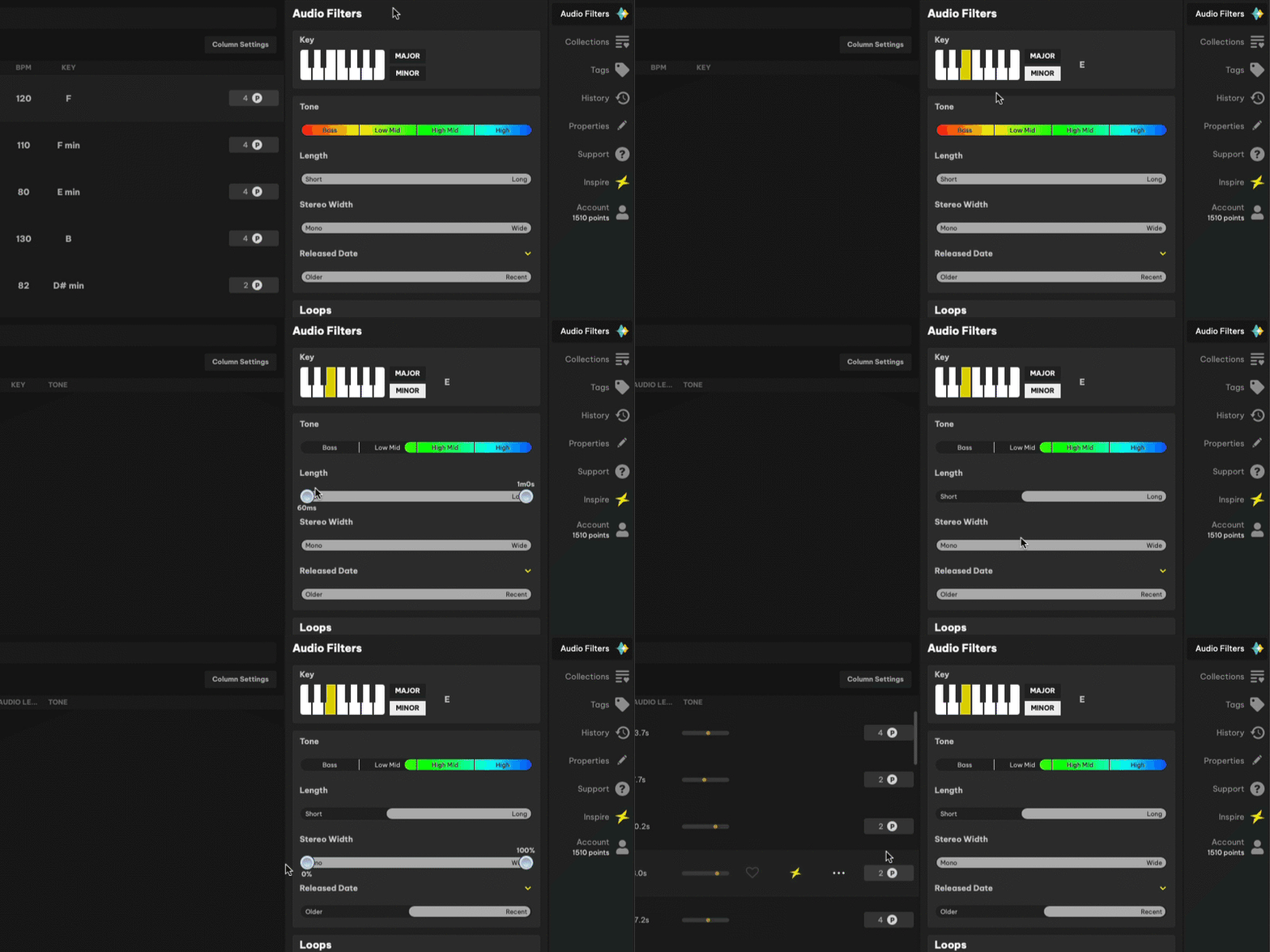
Narrow Down Using Filters
If you have an ideal instrument or genre in mind, then Loopcloud’s search function in the top-left of the desktop application lets you filter your suggested list based on just that. Want to add a jazz clarinet to your Psytrance mix? Use the filters to find exactly what you want within the pool of suggestions based on your playback.
Add It To Your Project
Once you have your sound, all you have to do to get it into your DAW is press Export in the lower-right of the desktop application. Then, either drag and drop your tempo and pitch matched audio from there, or paste it directly into your DAW.
How to Use Listen in Your Productions
There are a variety of ways to use Loopcloud 8's Listen feature. Here are just a few ways that you can use it within your productions.
Develop Core Ideas
Listen can also help you to develop early drafts, or explore new directions for existing ideas. Take a chord progression, for example. Use Listen to analyse your chords, and then use the results to explore recommended basslines, melodies, or textural pads to give you momentum when you are developing your arrangements.
The harmonic matching engine behind Listen recognises not only pitch, but musical relationships between notes, like chord changes. This analysis is what makes it such a powerful tool for development and arranging.
Add the Missing Piece
Use Listen on a more developed arrangement and find missing elements that it might need by testing out potential additions including textures, accents or layers. Give yourself some creative momentum when working on your nearly finished projects when inspiration starts to slow.
Develop Your Samples
Now that we have a solid understanding of what Listen can do, you can begin to take your selected sample within Loopcloud and add creative effects before you export it.
Clicking on the EDIT button within the Loopcloud playbar will open up a multitrack editor that lets you access the built-in multi-effects, then click FX to open a window of preset effects. Alternatively, for even faster results, click FLIP to generate a new variation of your sample, it intelligently selects effects and patterns, including slicing, stuttering, reversing, and time-stretching. It manipulates the actual audio for you to export, and always in-sync with your project’s tempo.
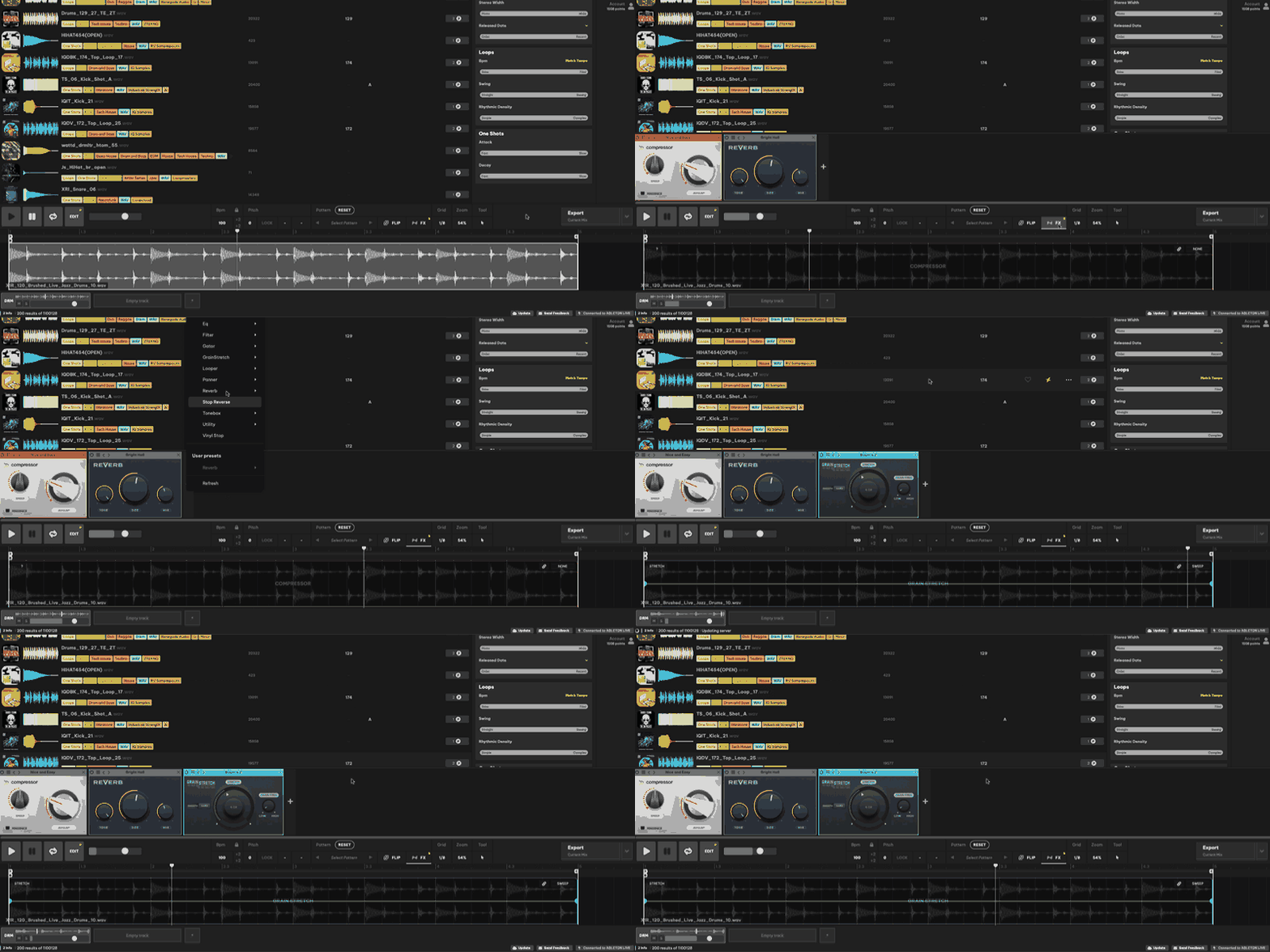
Once you’ve nailed the ideal processing, press Buy to get the sample with your Points and then Export to render your processing into one audio file that you can drag and drop into your DAW. For more export options, check out the drop-down arrow.
Make Listen a Part of Your Workflow
Listen helps you to develop your existing musical ideas and gives you a fast solution to bringing new creative ideas into your tracks. Update the Loopcloud app to version 8 to gain access to all the new features in Loopcloud 8, including the Listen plugin.
Download a free seven-day trial of Loopcloud to try Loopcloud Listen and see how it can speed up your workflow without compromising creativity.
Keep Ideas Moving
Try Loopcloud free for 14 days. Cancel anytime.

Import your existing sounds · Works with your existing DAW · Setup in under 2 minutes