



The Loopcloud Mobile App
See what you can do by adding the Loopcloud iOS app as a sidearm to your production setup – because Inspiration doesn’t wait until you’re sitting down
We recently released Loopcloud 8, our biggest update yet to the Loopcloud system, with impressive new features like Advanced Search, the Listen plugin for your DAW, Inspire, and the all-new mobile app that lets you access the power of Loopcloud’s huge bank of samples from anywhere – and to pick your work up again later on desktop.
Download now:


In this article, we’ll show you how the mobile app works, where it can help you produce better music, and how to use each function, step by step.
Inspire on Mobile
One of Loopcloud’s best new features is its <a data-cke-saved-href=" www.loopcloud.com="" />track-starting Inspire tool set. Inspire is available on Loopcloud Mobile, so you’re never far from the chance to come up with good ideas.
We’ll show you how Inspire works on the Loopcloud iOS app, and how to get reach for your Inspire sessions again later , when you’re back on the Loopcloud desktop app.
Getting Started with Inspire on Mobile
Inspire lives in a dedicated tab at the bottom of the Loopcloud app.
Much like in the desktop app, your Inspire session starts with you choosing the genre you want to generate, then letting Loopcloud choose a handful of loops in that genre that work well together. You’ll usually find drums, bass and a couple of instruments, although different genres have different requirements.
Swapping Out Individual Samples
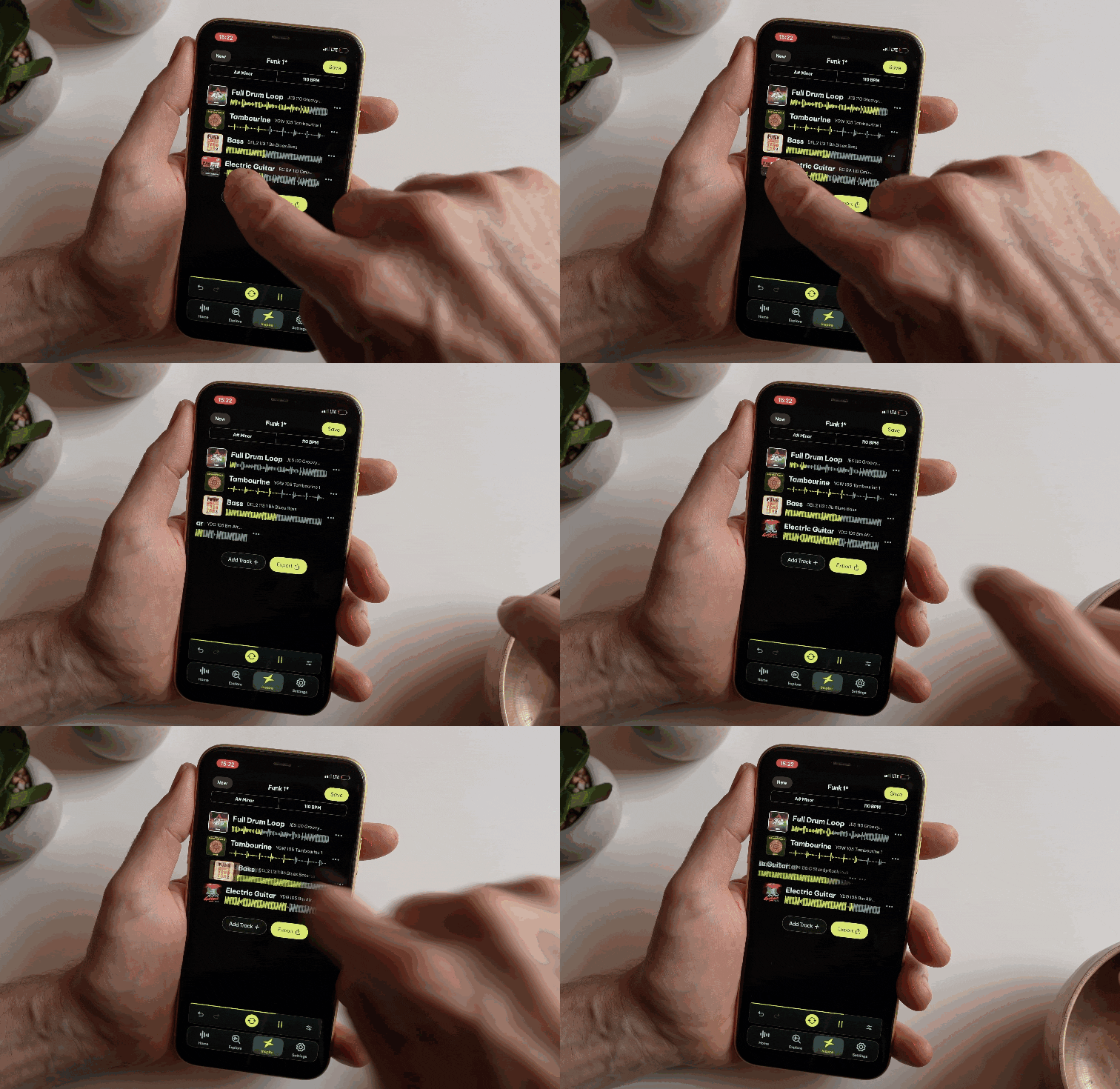
Once a basic loop has been created, you can swipe on a single sample to swap it out for a new alternative. This will be specially chosen by Loopcloud’s new analysis tools to match well with the other loops that are in the mix.
Swapping Out All Samples
Using the Refresh button at the bottom, you can swap out all samples and staert over in the same genre you selected before.
Mute and Solo on Loopcloud Inspire Mobile
Each track can be muted with a single tap, and you can solo a track to play on its own by holding it down.
Deeper Inspire Features
Mastering the very basics is easy. Let’s look further into using Inspire on mobile for more customization.
Change Key and Tempo
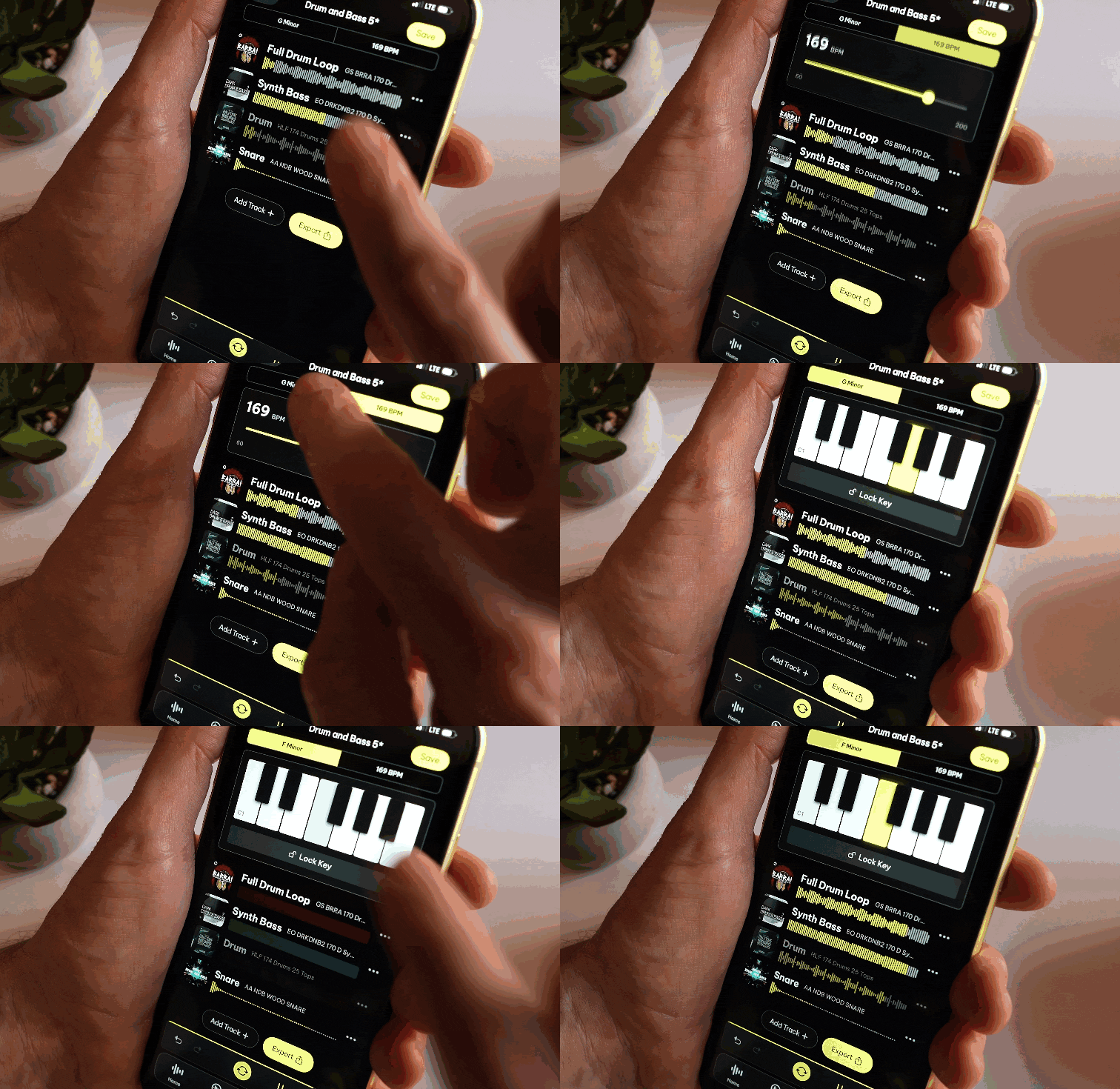
One great thing about Loopcloud is that multiple samples can be retimed to stay in sync, even if they all started at different BPMs. Inspire carries this forward, and while each starting combination fits into a particular key and tempo, you can change this at will once you get moving.
Unfold key and tempo sections at the top to start modifying the tempo and key of the loops that are already playing.
Add New Tracks
The instruments added for your starting loop will cover the basic building blocks of music, but why not see what new percussive layers, ear candy or stabs can add to the mix? Add a new track at the bottom of this view, and
You can also try out new sounds to add in the Explore tab (see below), previewing everything you select and how it sounds with the rest of the elements before adding it in there.
Save and Export
A successful Inspire session can be saved, letting you recall it again later on your iOS device. This also extends to Loopcloud on your desktop, though. Select Inspire in the Loopcloud app (Windows or Mac), and when loading a previous session, you can choose the Mobile tab to choose one of the mobile-first saves linked to your use account.
Using the Explore Tab
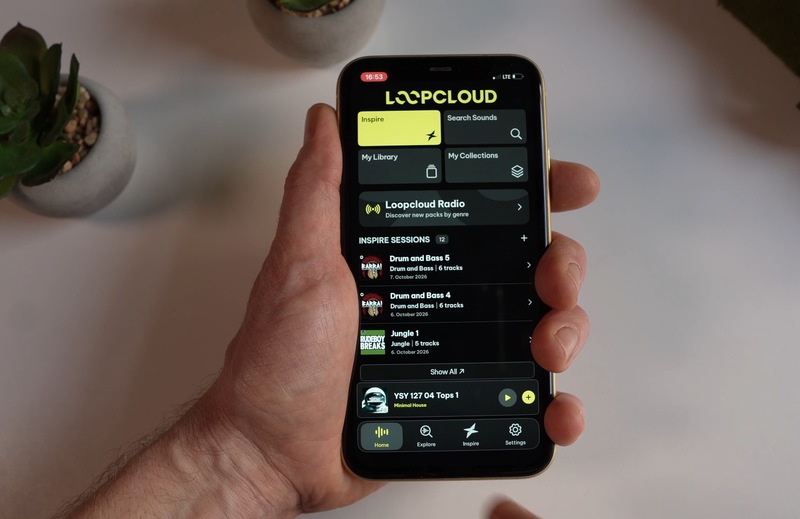
For a way to browse individual samples, packs and collections, the Explore tab lets you browse what’s new on Loopcloud, and filter down a search to specific genres or categories.
Using Explore in Conjunction with Inspire
As mentioned above, adding new loops to your Inspire session can be done from the Explore tab. It means that, while Inspire is playing, your selected Explore loop will be auditioned in sync, in the same key and tempo, as the rest of the material currently loaded into Inspire.
Sequencing One-Shots
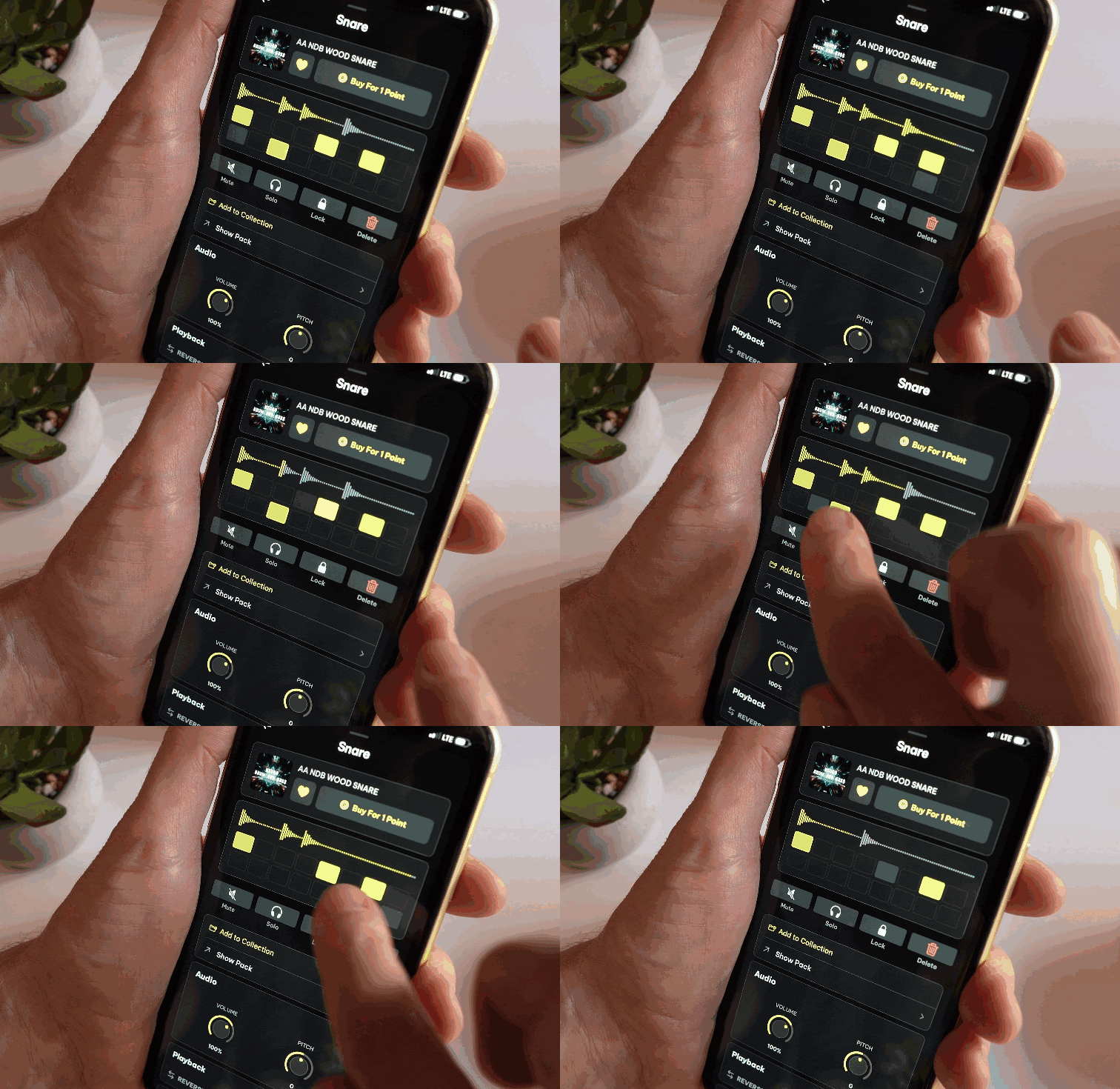
It’s not just loops that get to play in your Inspire sessions on mobile. One-shots get in on the action, too, thanks to the 16-step sequencer you can access while building your Inspire loop. Here, building a pattern is simple using touch controls throughout the lane.
Viewing and Building Collections
In Explore view, you can see Collections of samples and build your own. Collections are a useful way to gather samples in Loopcloud, with pre-curated collections available, or the chance to build your own as a way to store a large group of samples for the future.
…and More in Loopcloud 8
We’ve just updated Loopcloud to version 8, featuring Inspire, Advanced Search, better Harmonic Matching and a lot more. Desktop users can download the update within the Loopcloud 8 desktop application or from the Loopcloud website.
Keep Ideas Moving
Try Loopcloud free for 14 days. Cancel anytime.

Import your existing sounds · Works with your existing DAW · Setup in under 2 minutes