


Deep Dive: Advanced Search in Loopcloud 8
Search for sounds in your own words and Loopcloud 8’s Advanced Search will understand what you’re looking for and present ideal samples for your tracks
Loopcloud 8 is here, bringing brand new features to assist you in making great music, including Inspire which lets you audition layered samples, and Listen which suggests samples based on your existing music.
In this article, we will discuss the Advanced Search feature which lets you search for samples using natural-sounding language to describe the tone quality that you want. We’ll go over what makes Advanced Search different, and how to make the most of its intelligent recommendation system.
Why Advanced Search is Different
Rather than solely relying on tags and keywords, Advanced Search interprets the qualities of the sounds that you want by understanding the terms that you use, resulting in a refined list of suggestions based on your specific or broad, descriptions.
Getting Started Using Advanced Search
Before you start searching for the sounds you want, make sure that you have Loopcloud 8 installed on your computer. Get a 7-day trial period here.
Open Loopcloud 8
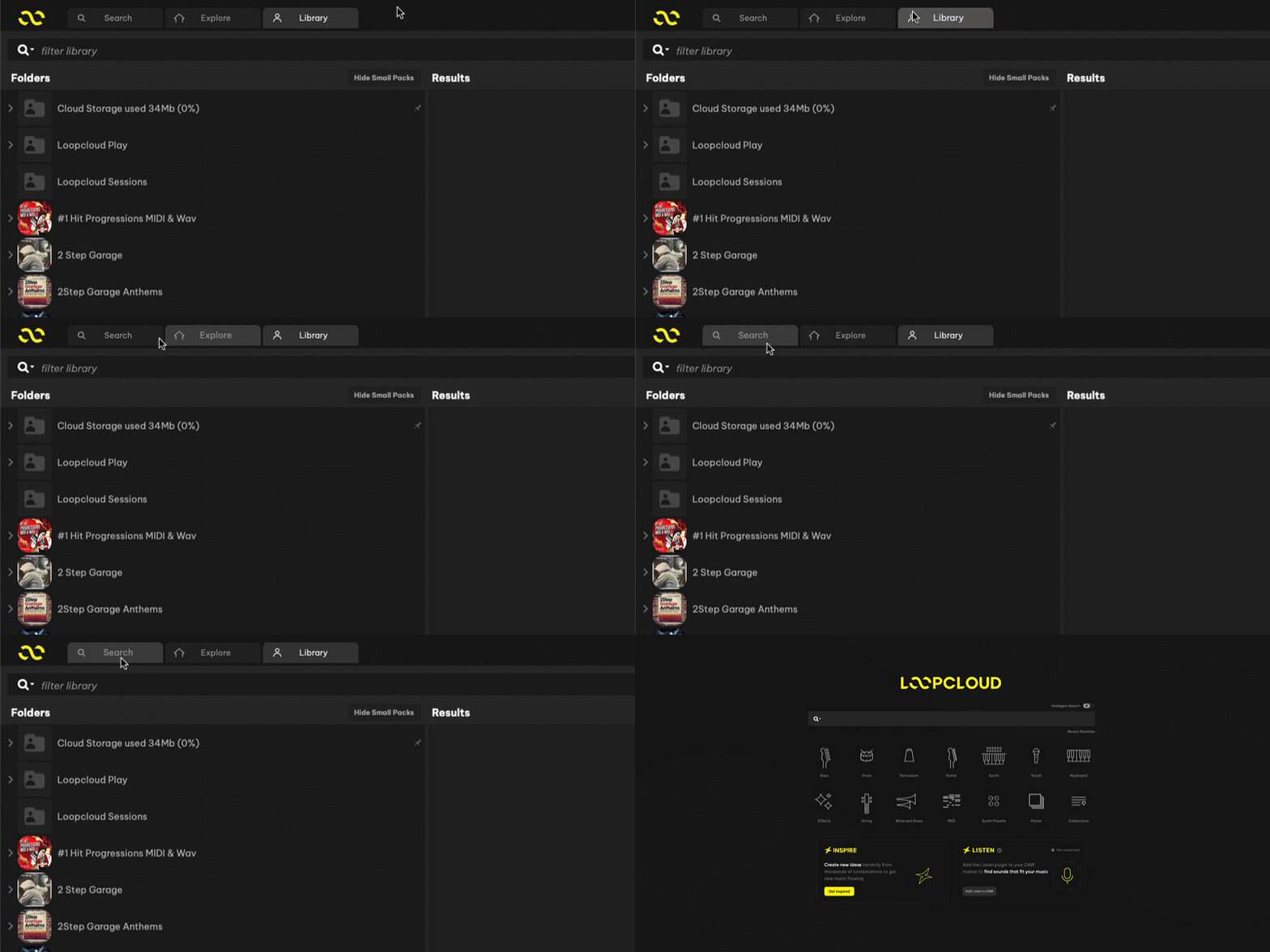
It’s easy to start making the most out of the Advanced Search feature – open the Loopcloud 8 desktop application to access the main search page. You can hit the search button in the top-left corner of the window if you’re on another page.
Enable Intelligent Search
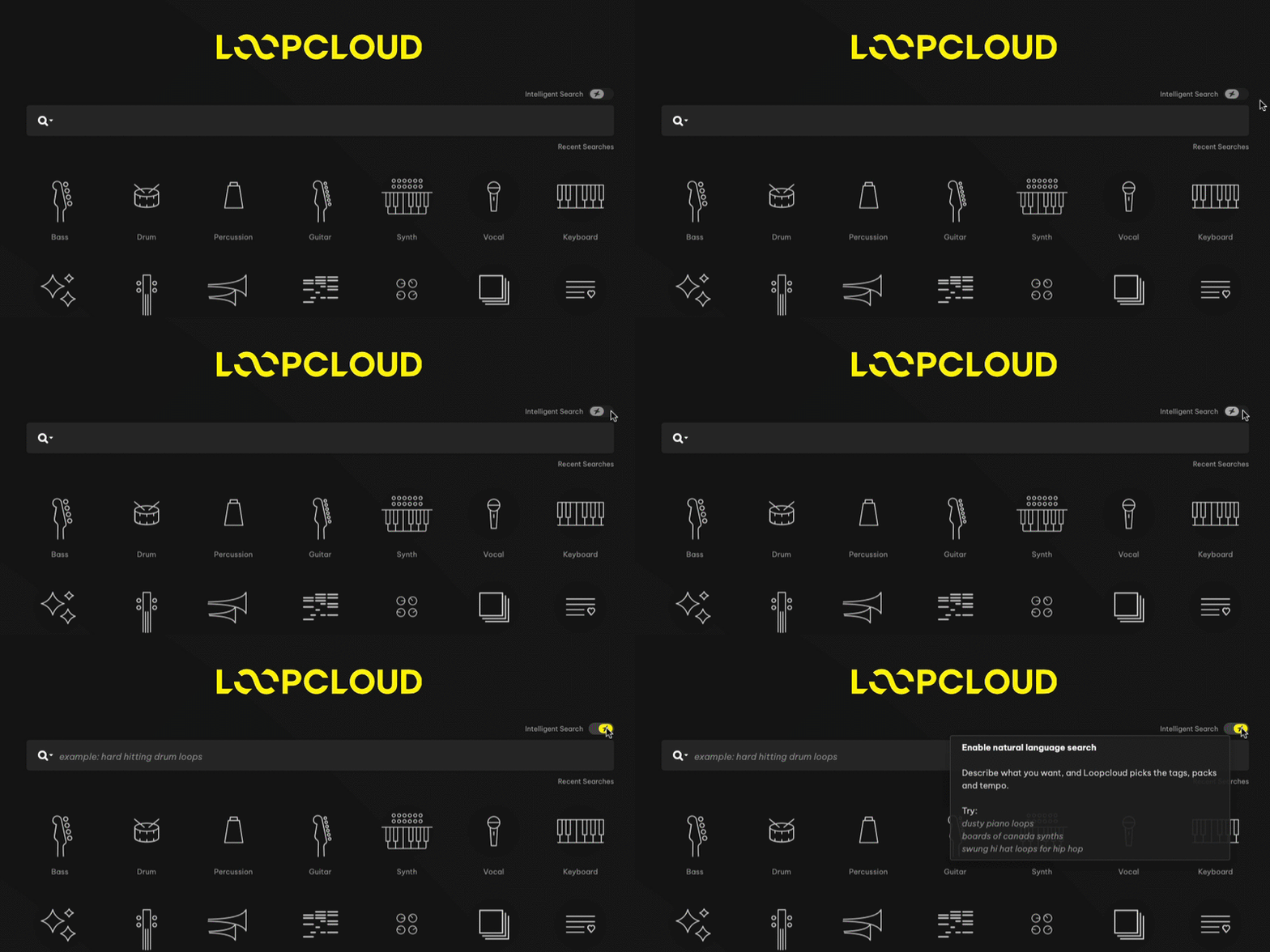
Before making your first search, check that Intelligent Search is activated. If the button is yellow rather than grey, then it’s active! If not, click it, and Advanced Search will be ready to use.
Describe a Sound, Your Way
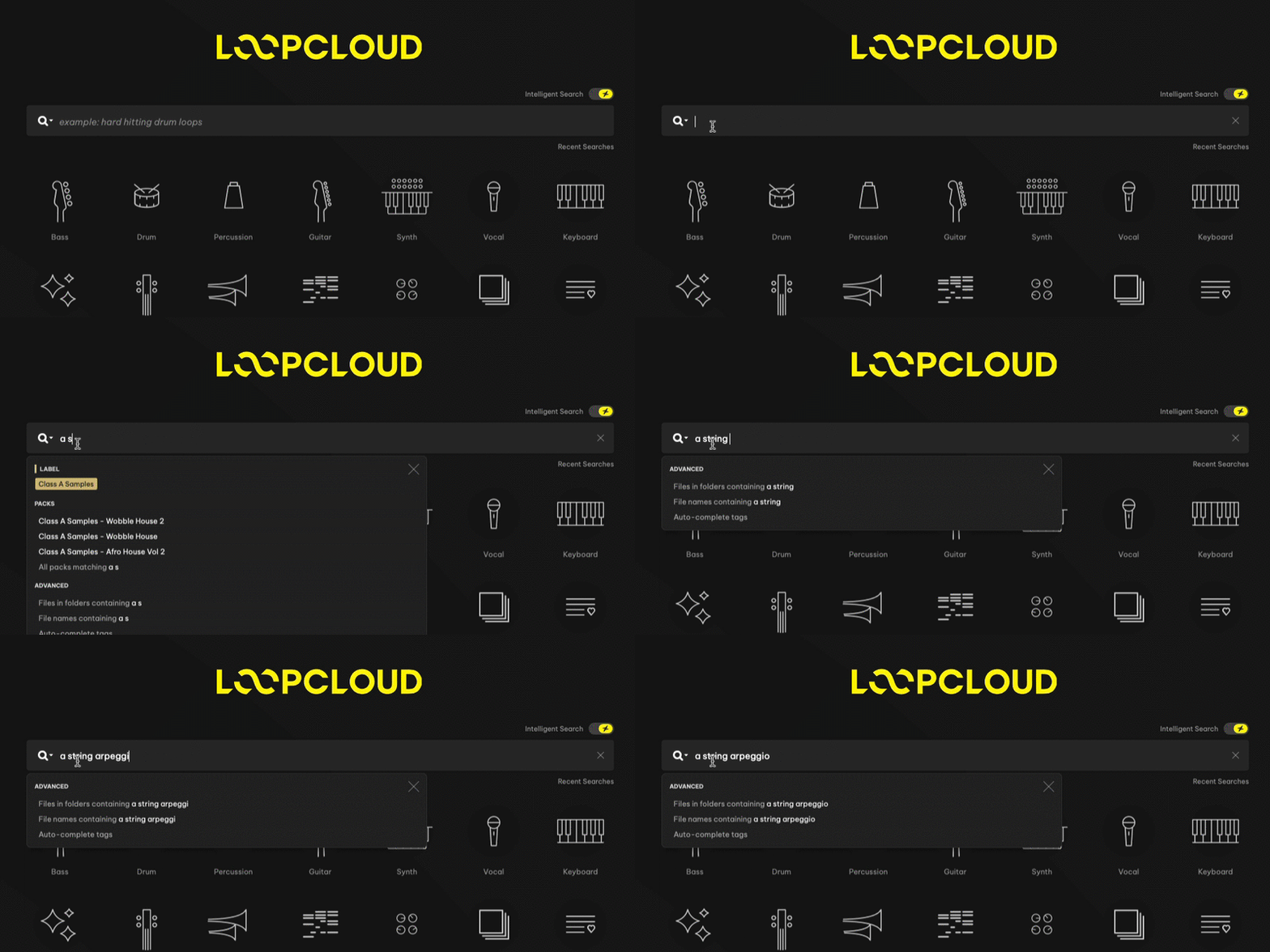
In the search box, type in your own words a description of what best fits the type of sound that you’re looking for. You can be as vague or as specific as you like – both will present samples that fit within the ballpark of what you’re going for.
Explore and Audition Your Results
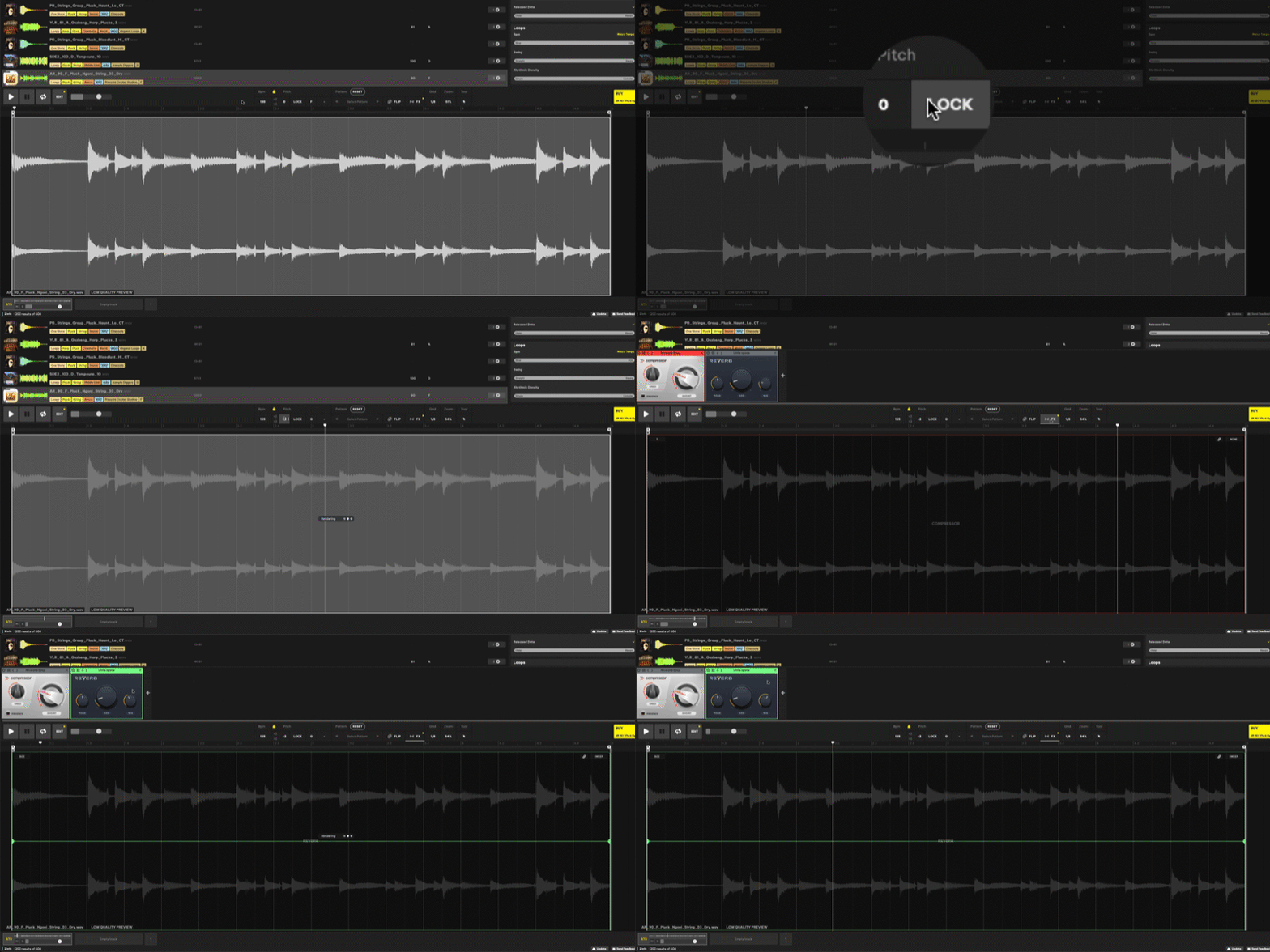
Once you have your results you can click through and audition different suggestions. Choose a sample, and you can change the tempo, adjust pitch, and use EDIT functions to utilise Loopcloud’s onboard effects or try the FLIP randomisation tools for unique combinations of rhythmic splicing and effect chains.
Refining Your Search
Narrow Down Your Search Terms
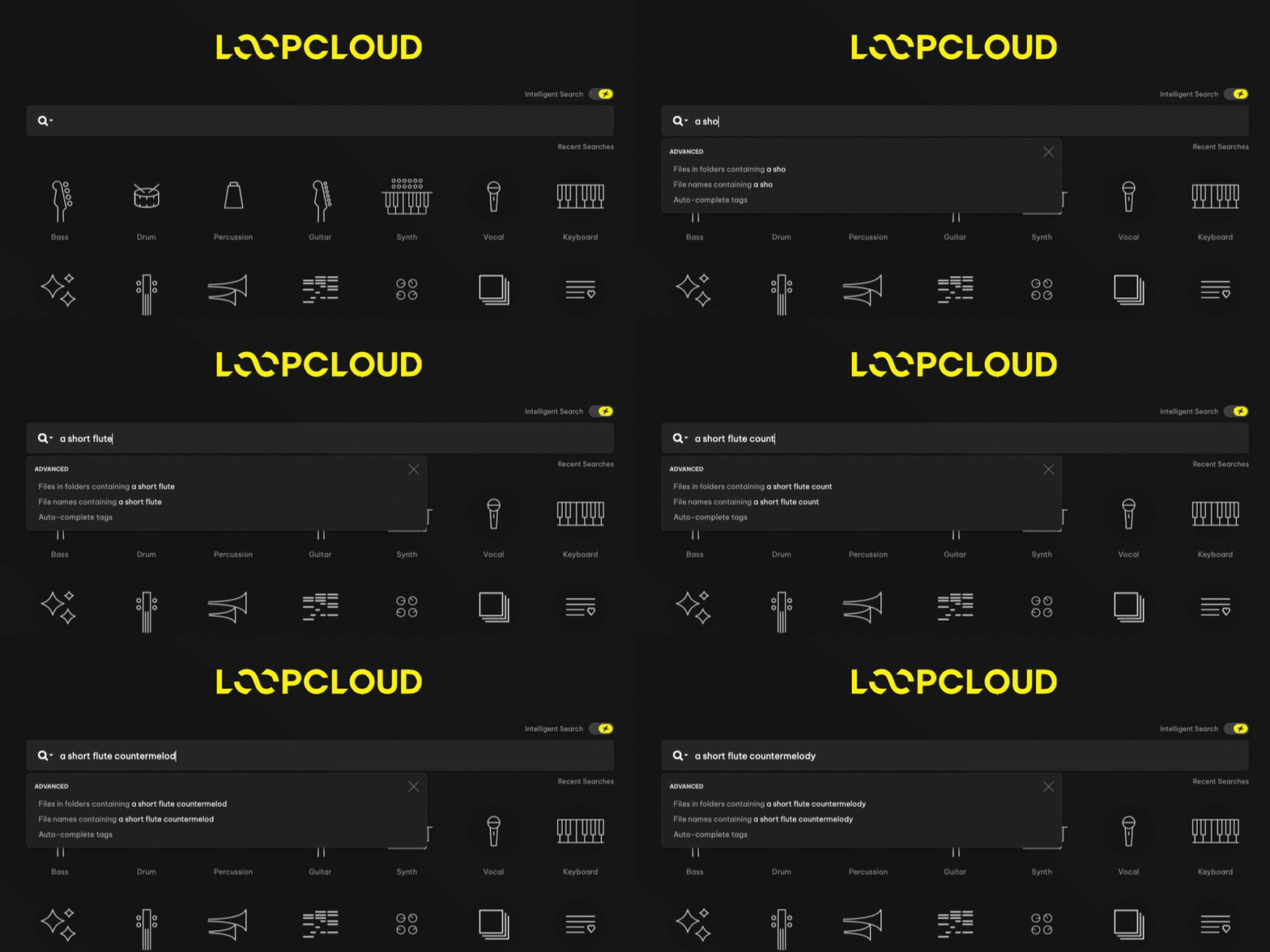
A broad description can produce a wide variety of results, but more specific search terms could help you to find particular samples faster.
Simply searching for ‘string melody’ will get you a large collection of samples of various string performances, be it ensembles or solos of varying styles and instruments. Narrowing your words down to specific instruments and moods will present you with more concentrated results, for example, a more specific search could be ‘inspiring bowed violin’ to get a selection that aligns more with your intentions.
Use Filters to Specify Your Results
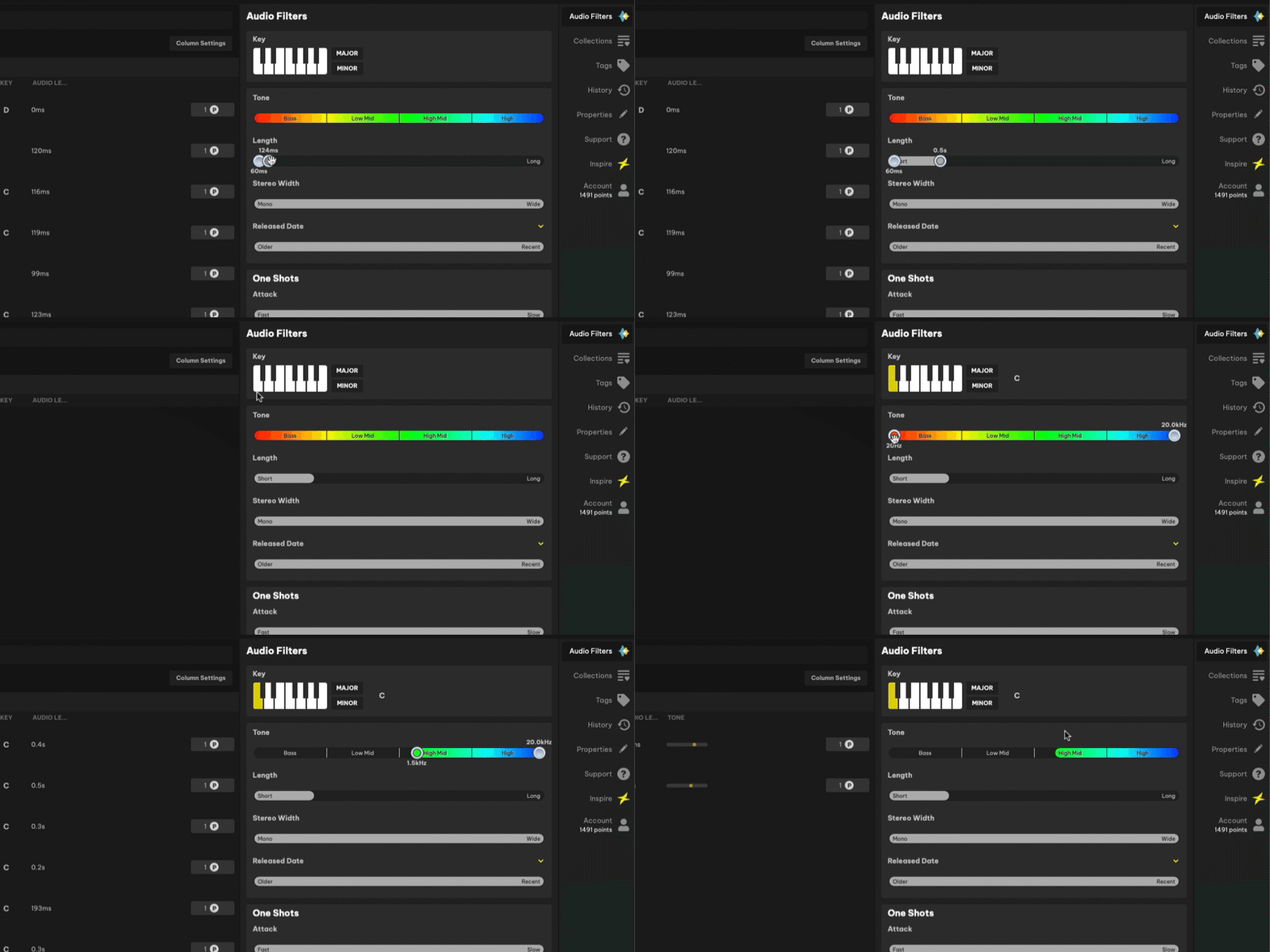
Once your results have been loaded, you can refine your searches even more by using the Audio Filters in the right-hand section of the Loopcloud 8 window. You can filter your results by major or minor scale, key signature, or by their frequency content, stereo width, length, and more. These settings can help you to narrow down appropriate samples for your mixes
Leverage Broad Searches for Creative Inspiration
When you’re struggling to find the best direction for your track, you might want to explore the variety of samples that are returned from a broad search result. A search for ‘Electronic keys’ yields tons of audio examples of organ tones, synth plucks, and Electronic-sounding piano samples. Searching through these could provide the seeds for your next creative idea.
Making the Most of Advanced Search (Examples)
We’ve compiled a few tips on how you can get the most out of Loopcloud 8’s Advanced Search features, alongside some example searches that you can try out too.
Texture and Sound Quality
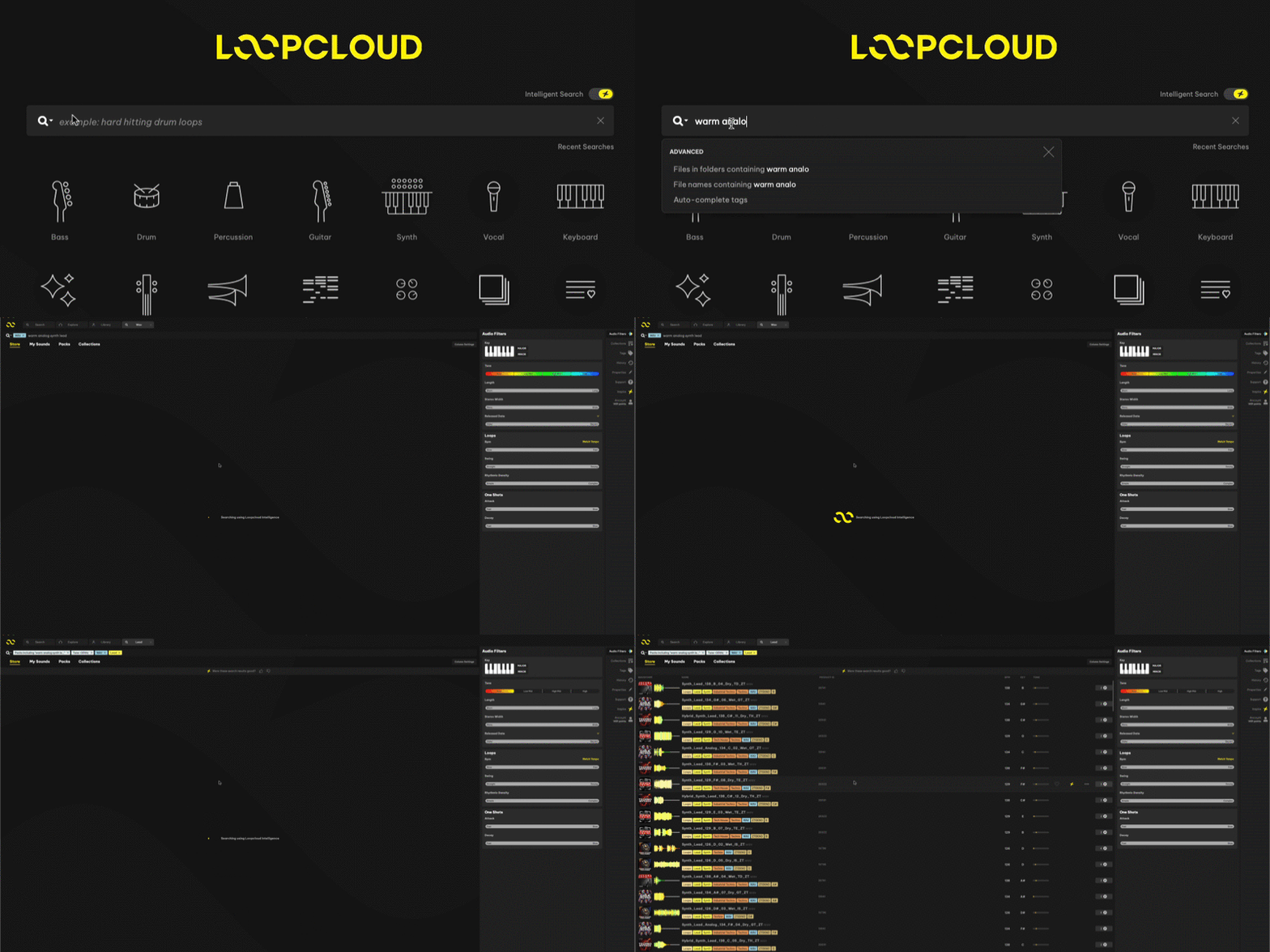
One of the features that sets Intelligent Search apart from regular search engines is its ability to understand natural language. You can describe abstract concepts like the textural qualities of a sound (like ‘warm’, ‘gritty’, or ‘bright’) and be presented with samples that best fit your description Try searching for ‘warm analogue synth lead’, and hear a collection of analogue-style sound recordings that are lead parts, whether melodies or sequences, and are warm in tone.
Mood and Atmosphere
Another way to use the search is to type in a particular mood or atmosphere that you want to convey in your music. You could search for ‘angry guitars’ if you’re making Metal, ‘anxious synths’ if you’re making Cinematic tension music, or perhaps ‘ethereal vocals’ for perhaps reverb-drenched voice samples.
Search by Artist, Genre, and Style
Advanced Search will often be able to find samples based on references to specific artists, or genres. A search for ‘Mick Gordon bass riff’ will bring up samples that have similar energy to Mick Gordon’s iconic heavy, fizzy, and dropped bass tones, giving you access to a niche tonal corner with your searches.
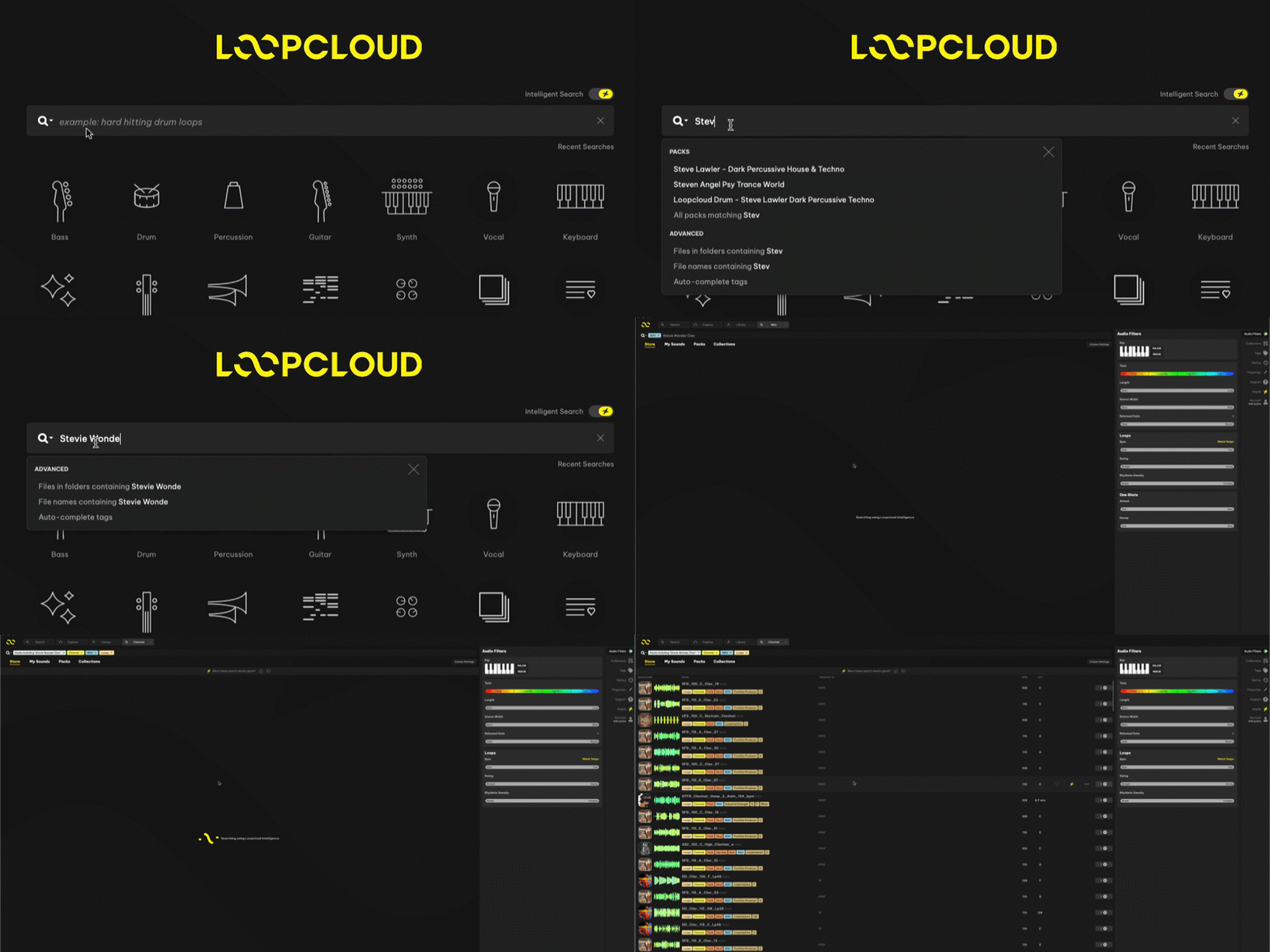
A short search for ‘Stevie Wonder clav’ brings up bouncy, Jazzy, and Funked-up clavinet loops. You can try searching for just ‘Funk instruments’ to bring up a wider range of Funk-influenced sample performances too.
Combine Them All For Specific Searches
You can also use all of these tips in combination to find samples within Loopcloud 8. An example of all of these working in tandem could be ‘dark and brooding Folk flute’ which combines mood, instrument and a musical style into a single search, helping you to find sounds that share these characteristics.
Using Advanced Search to Help You Make Music
Loopcloud 8’s Advanced Search lets you use your natural-language to make it easier to find the samples you want, without the need to learn complex tagging systems. Simply describe what you’re looking for and explore the results!
Download the update within the Loopcloud 8 desktop application to get access to the powerful search engine and find even more powerful features that have been added.
Keep Ideas Moving
Try Loopcloud free for 14 days. Cancel anytime.

Import your existing sounds · Works with your existing DAW · Setup in under 2 minutes