


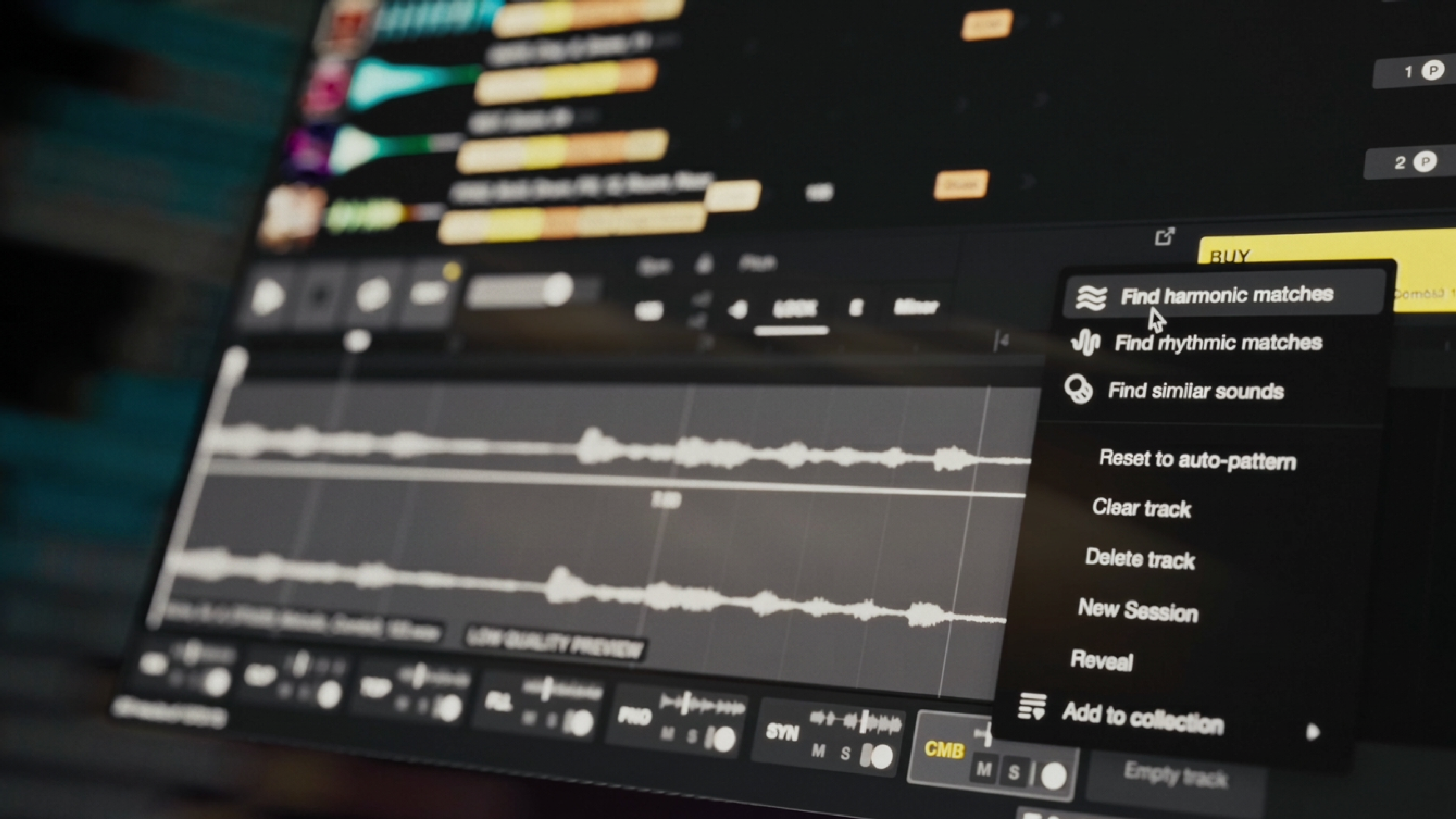
Deep Dive: Harmonic Matching in Loopcloud 8
Get audio suggestions that complement existing progressions with Loopcloud 8’s smart Harmonic Matching feature
If you’re just getting into Loopcloud 8 now, take a look at this overview of the all-new additions as well as our previous deep dives into the Inspire and Listen features.
Harmonic Matching analyses note-to-note relationships within your audio or samples and suggests sounds that have similar harmonic patterns. This feature can save you time, assist in arranging, and help to make creative stylistic decisions.
Get Started with Harmonic Matching
Open Loopcloud 8
First, make sure that you’re running Loopcloud 8. If you’re new to the platform, download Loopcloud 8 here to try it out for 7 days.
Choosing a Starting Sample
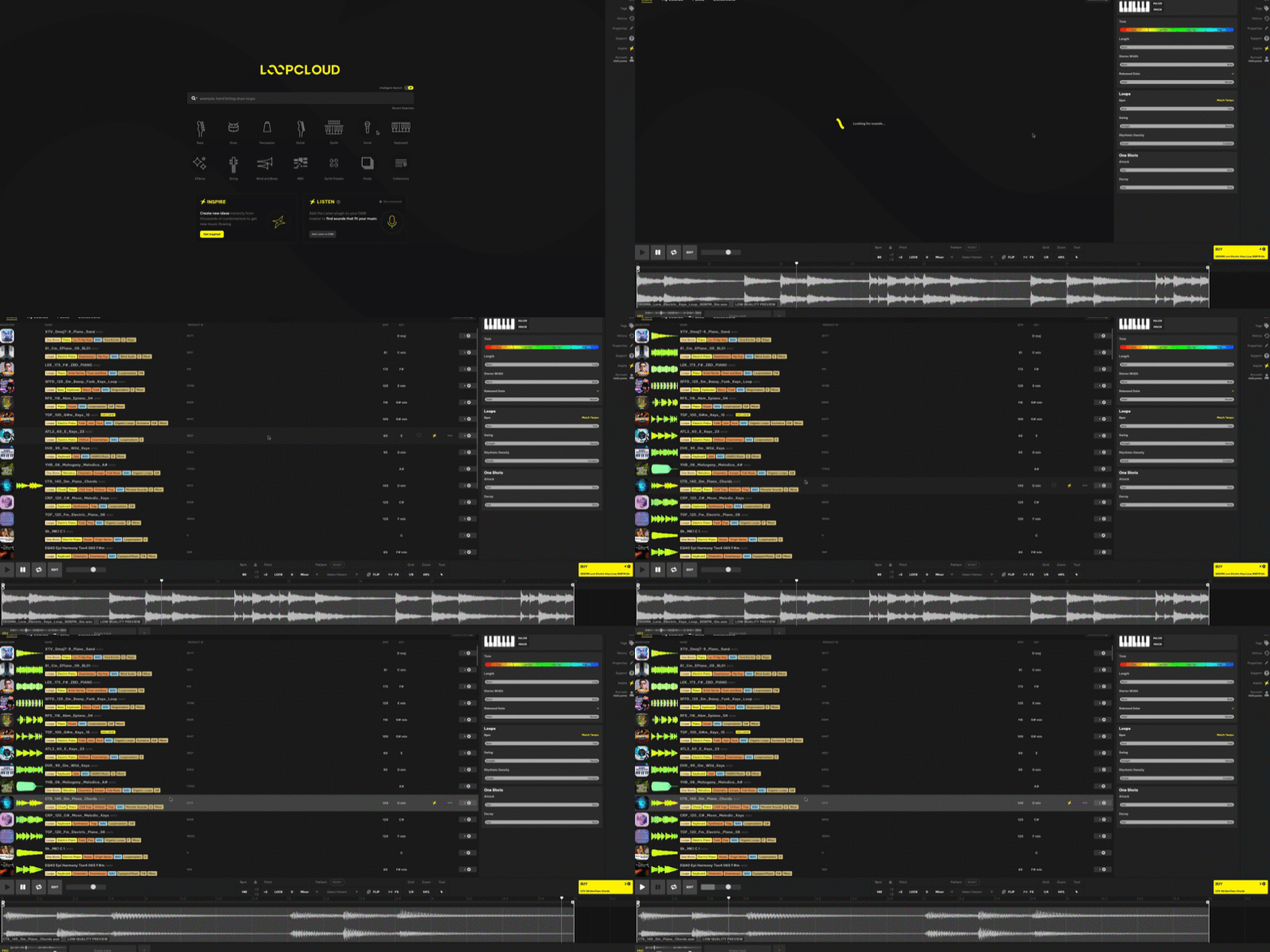
You can begin by either finding a sample within the Loopcloud library or by importing your own sounds into the application. Find a sample that is melodic or has an interesting harmonic movement that catches your ear – something like a piano chord progression, a guitar groove, or an ambient synth arrangement. Try our guide to using the new Advanced Search feature if you want to find something specific.
Find Harmonic Matches
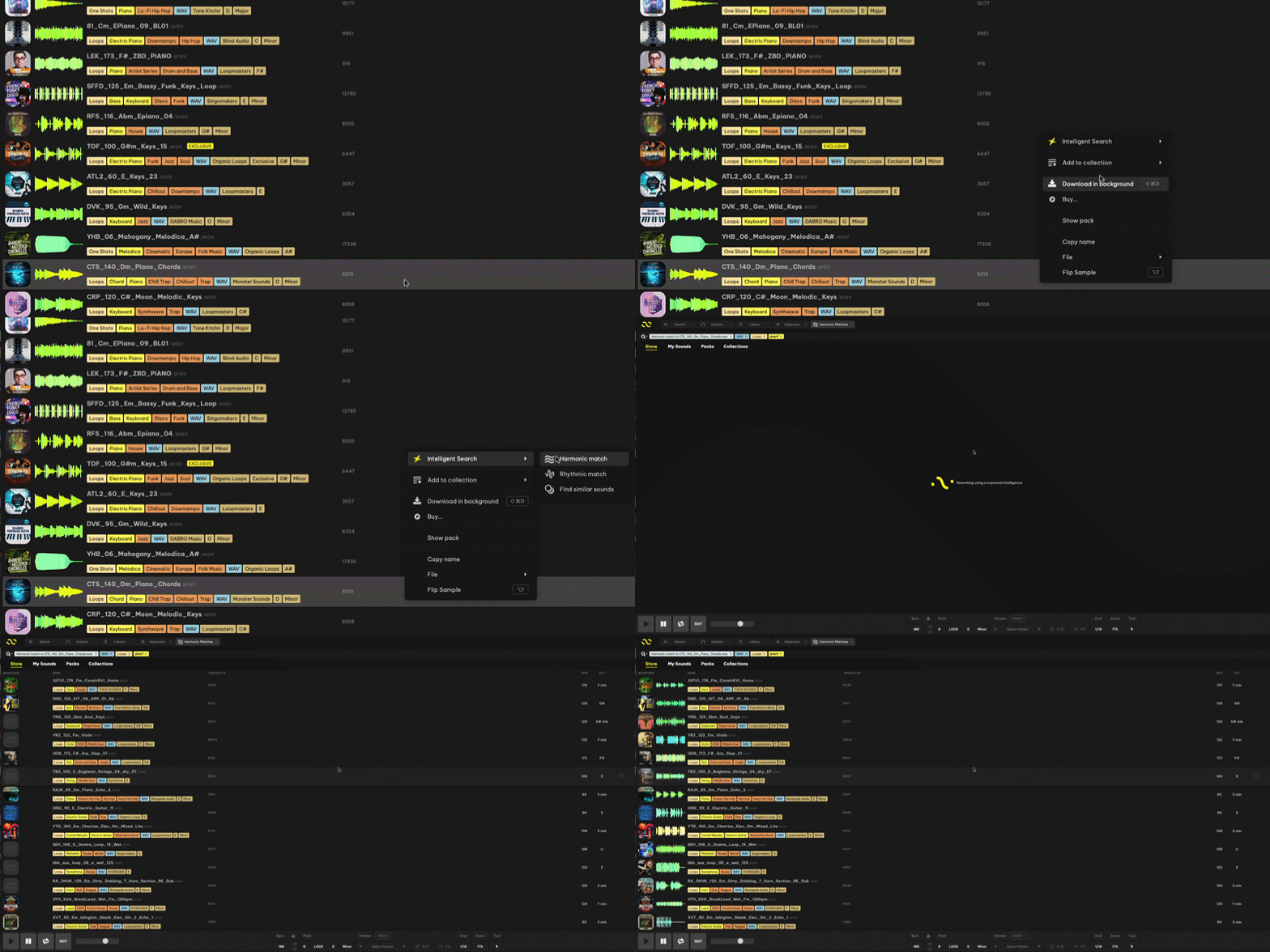
Once you’ve chosen a sample, simply right-click it and select the Intelligent Search dropdown. Click Harmonic Match and Loopcloud 8 will present a collection of sounds that are harmonically consistent with your originally chosen sample.
Audition Your Results Using Multitrack
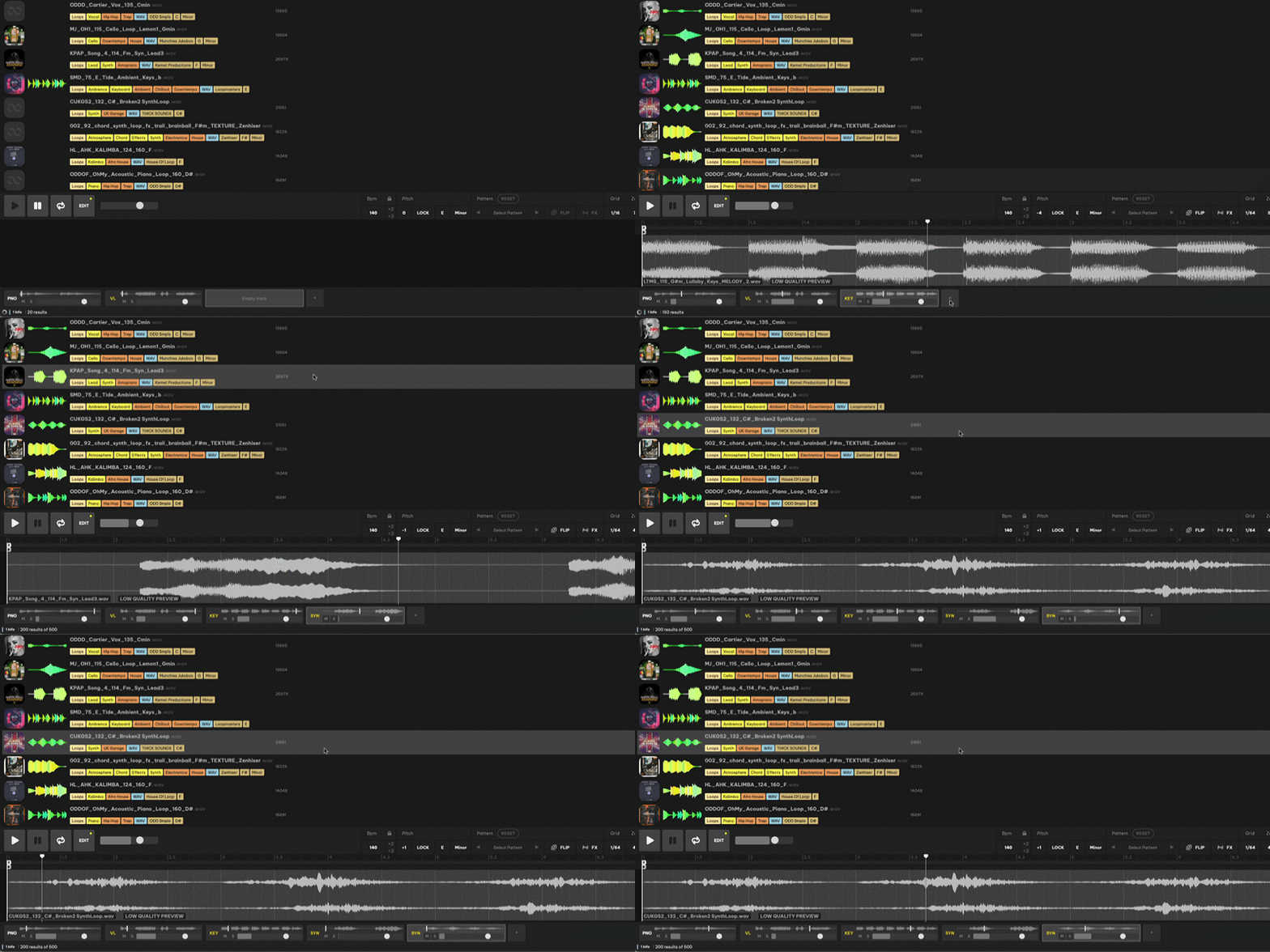
Once your results appear, simply click through the samples to hear how they sound alongside the one that you’re matching.
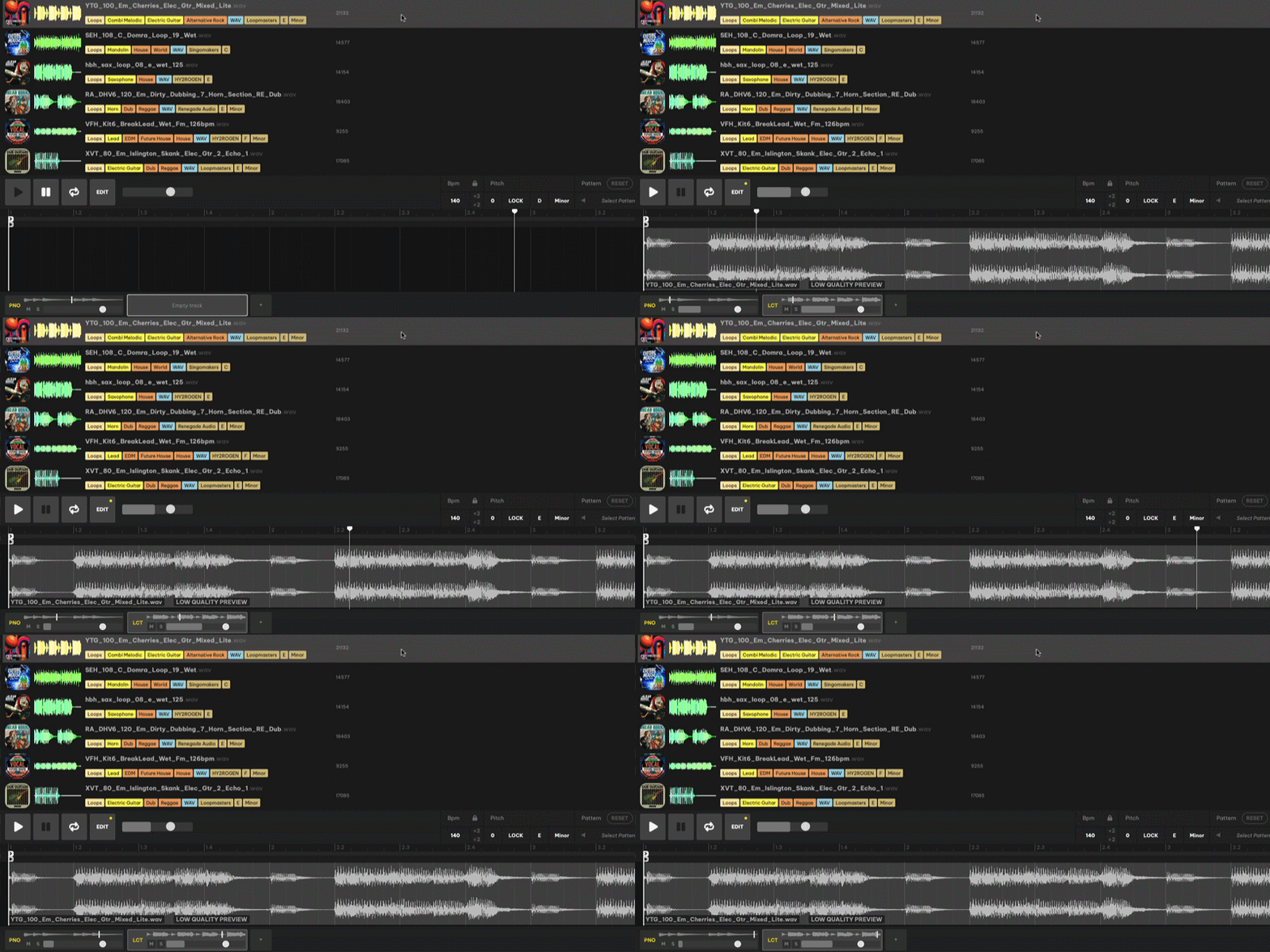
In the boxes at the bottom of the window, below the waveform of your currently selected sample, you can adjust the levels, solo, or mute these layers of your multitrack. You can continue to search for harmonically matched sounds in the same way as the last to add more layers to your original sample and find additional complementary layers to use in your project.
Export and Add Samples to Your Project
When you’re satisfied, click the yellow button to the right of the waveform to purchase the required samples that make up your layered loop. Then you can export the compiled audio file by clicking the Export button to copy the file to the clipboard, or simply drag and drop from this same button straight into your DAW.
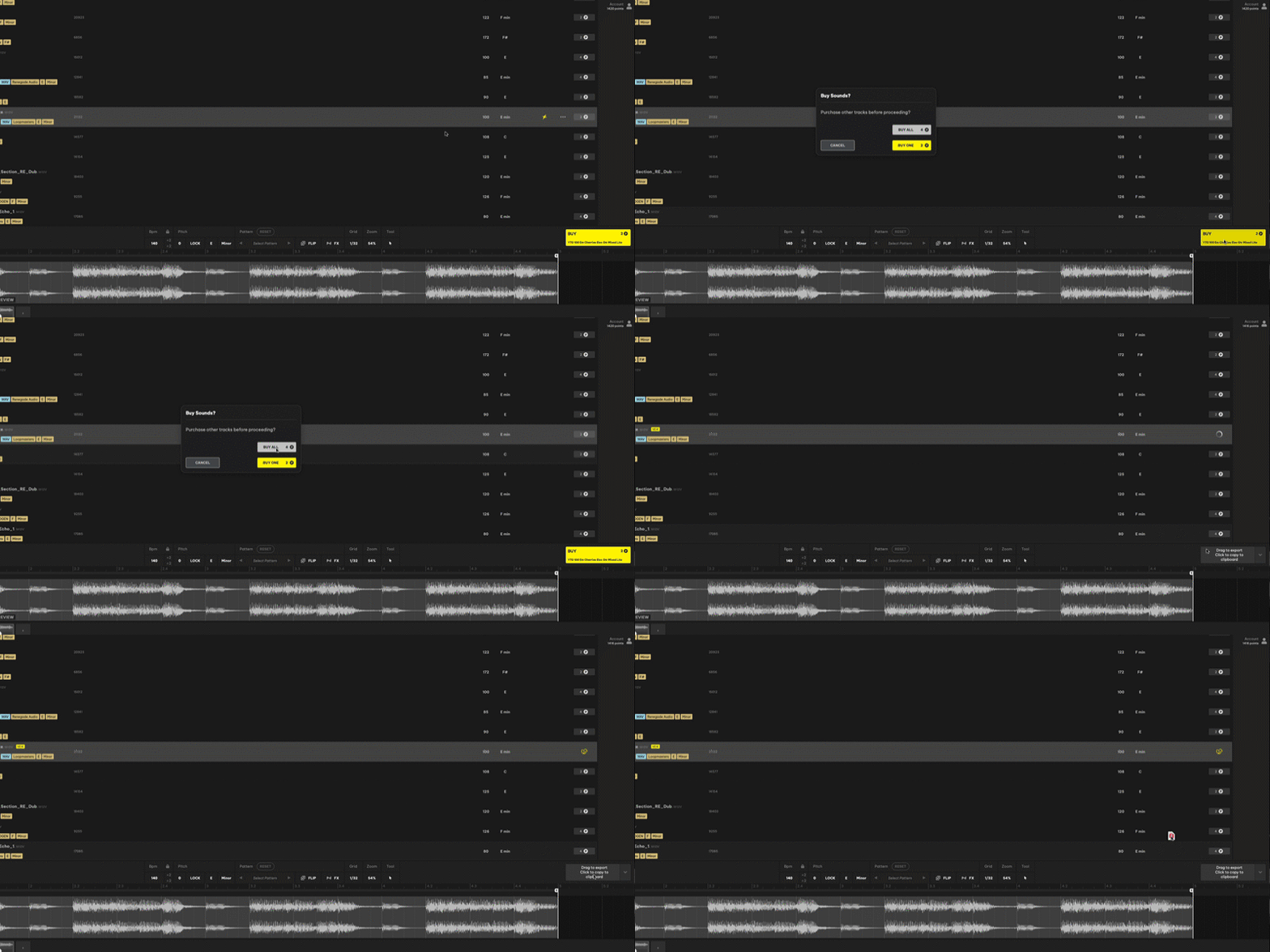
Access further Export options by clicking the arrow within this button. Selecting Export Processed Separate Files, for example, will give you all of the samples in your multitrack, while retaining all of Loopcloud’s processing, including its automatic tempo matches, or any effects that you might have placed upon them.
Refine Your Match Results
You can filter your results to show sounds only from specific instruments or genres. You can find these options by clicking ‘Harmonic match to …’ next to the magnifying glass in the top-left.
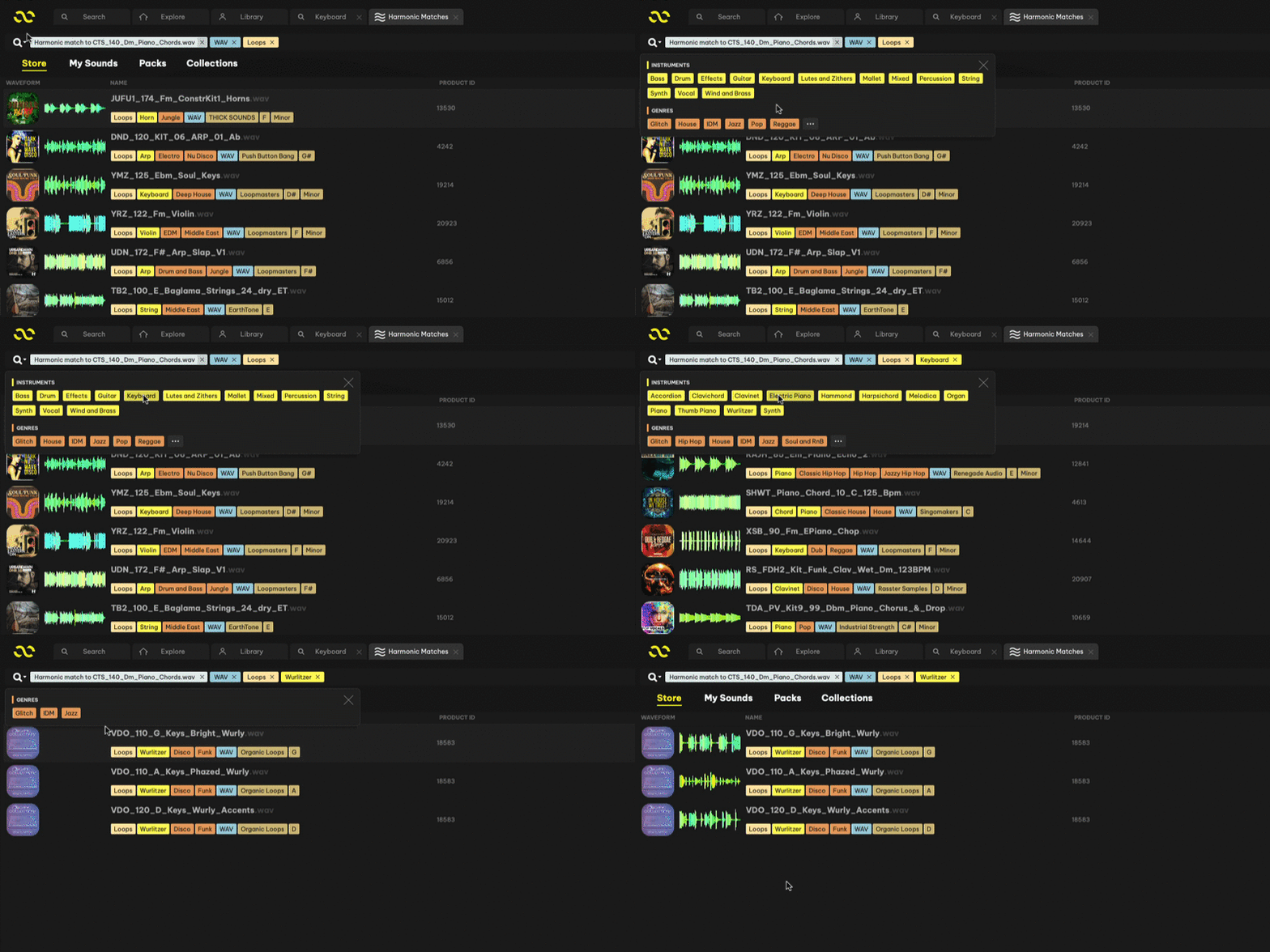
This can be particularly useful if you have, say, a guitar progression and want to find a bassline to slot underneath. Go through the Harmonic Match process and select Bass using the method described above. You can then find sounds that match the harmonic progression of the original guitar part. Specify your search further by choosing Bass Guitar to focus the search around Electric Bass Guitar lines, or select Synth Bass to refine your searches towards a synth sample.
Creative Uses for Harmonic Matching
Building an Arrangement
Start with a harmonic idea like a chord progression or melody played by a specific instrument, for example, you might choose a synth bassline, saxophone melody, or piano chords. Use the Harmonic Match feature to then compile a list of compatible sounds which you can then add into your vertical arrangement, trying different search filters to experiment with what could be effective.
Replacing Sounds Without Losing Harmony
Say you’re using a chord progression sample, but aren’t too keen on the instrumentation, timbre, or texture. You can use Harmonic Matching on the original part to find alternative instrumentation that utilises similar harmonic movement.
If the sample you want to replace isn’t from the Loopcloud library, you can bounce your own recorded progressions from your DAW, import them into Loopcloud 8, and use Harmonic Matching on your own sample to find similar progressions to replace that with. This lets you make changes and adjustments to your mixes while preserving the harmonic direction and saving time that you might have spent going through dozens of samples yourself.
Expand Your Arrangements and Discover Happy Accidents
The initial Harmonic Matching search will likely present samples with contrasting rhythms, textures, and styles to the source. Just trialling samples at random can result in some unexpected surprises. It’s certainly worth just clicking through in order to find happy accidents that might inspire new creative directions.
You can also try filtering for a style which is distinctly different to the one you’re currently working on, this could produce some interesting contrasts and potentially lead to some unique stylistic fusions as a result.
Use in Combination with Loopcloud Listen
You can combine Harmonic Matching with Loopcloud Listen to find additional layers for your projects. Load Listen to analyse an instrument track or stereo output from your DAW, then select a sample that you like from the results in Loopcloud 8. From here, run Harmonic Matching to find compatible sounds to layer on top of your chosen sample. You are able to audition these alongside your track before exporting your favourites.

Use Harmonic Matching to Help Your Productions
Loopcloud 8’s Harmonic Matching feature makes it easy to find complementary layers for your productions, with fast arrangement workflows and creative suggestions to help you work outside the box.
Download Loopcloud 8 to try out the Harmonic Matching feature yourself and see how you can explore new creative possibilities within your productions.
Keep Ideas Moving
Try Loopcloud free for 14 days. Cancel anytime.

Import your existing sounds · Works with your existing DAW · Setup in under 2 minutes