


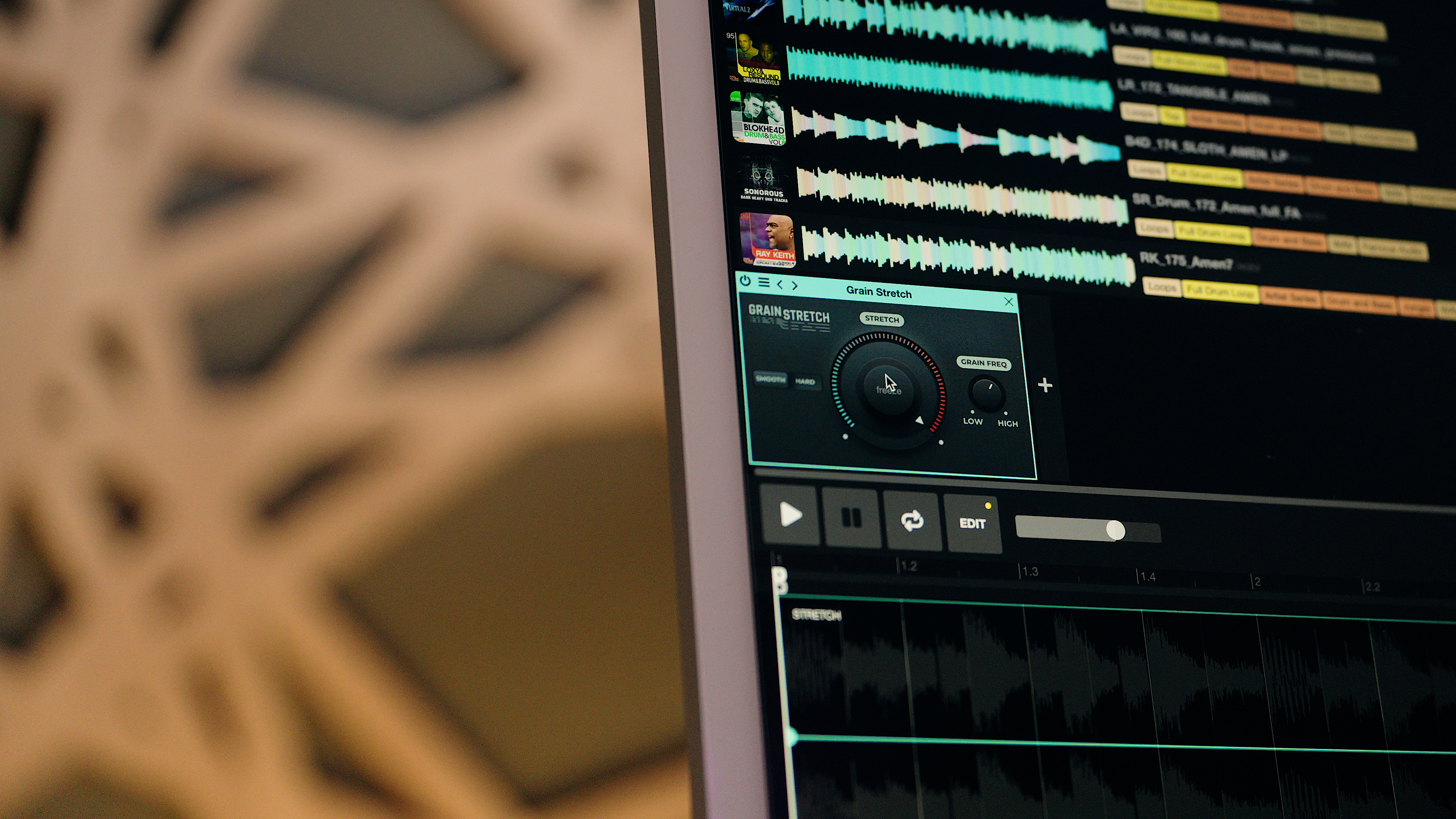
Deep Dive: Five New FX Modules in Loopcloud 8
The latest update of Loopcloud brings new creative ways to make samples your own
Our latest update brings five new effects modules to its existing lineup: Gator, Looper, Utility, Bitcrush, and Chorus. Each has its own unique sound and various automatable parameters.
New to Loopcloud 8? Check out our overview of the latest update, as well as our earlier Deep Dive articles on features like Inspire and Harmonic Matching.
Getting Started with the New Effects
Open Loopcloud 8
Make sure that you’re running the latest version of Loopcloud 8. If you haven’t got it yet, you can download the application here and get a 7-day trial period.
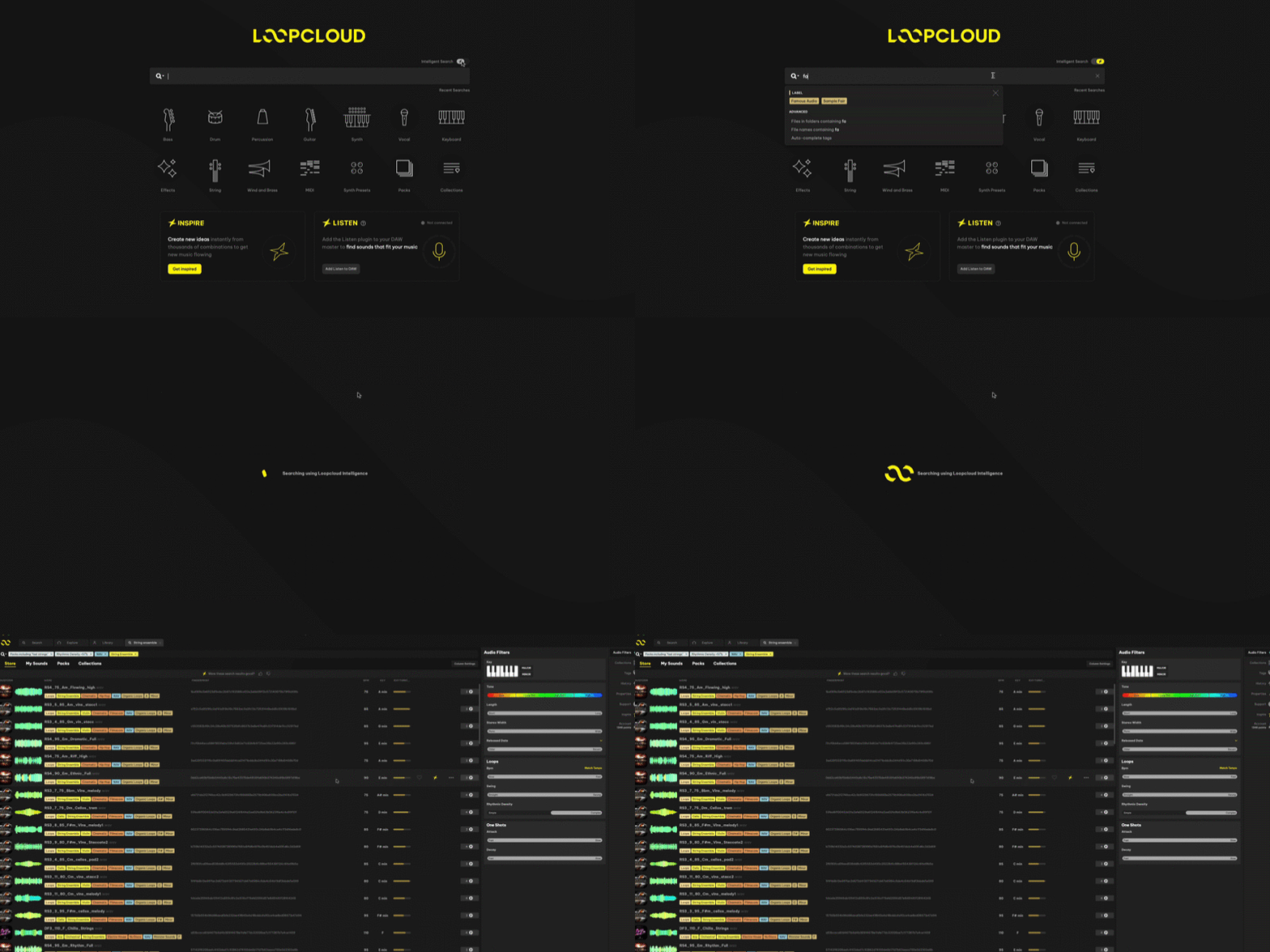
Find a Sample to Work With
We’d suggest trying a vocal part, keyboard vamp, or a synth pad.. If you have something more specific in mind, then try out Advanced Search.
Access the Effects Window
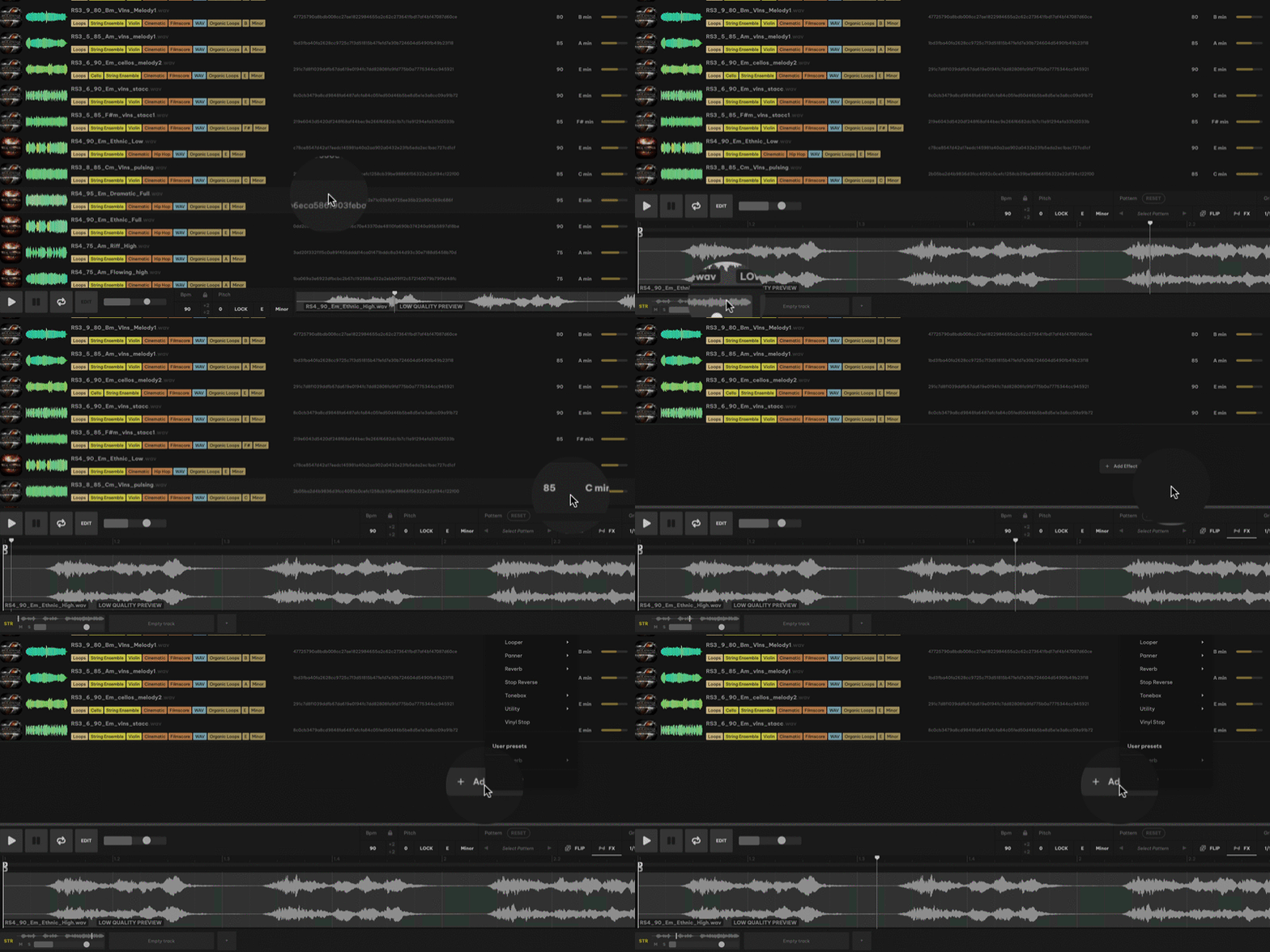
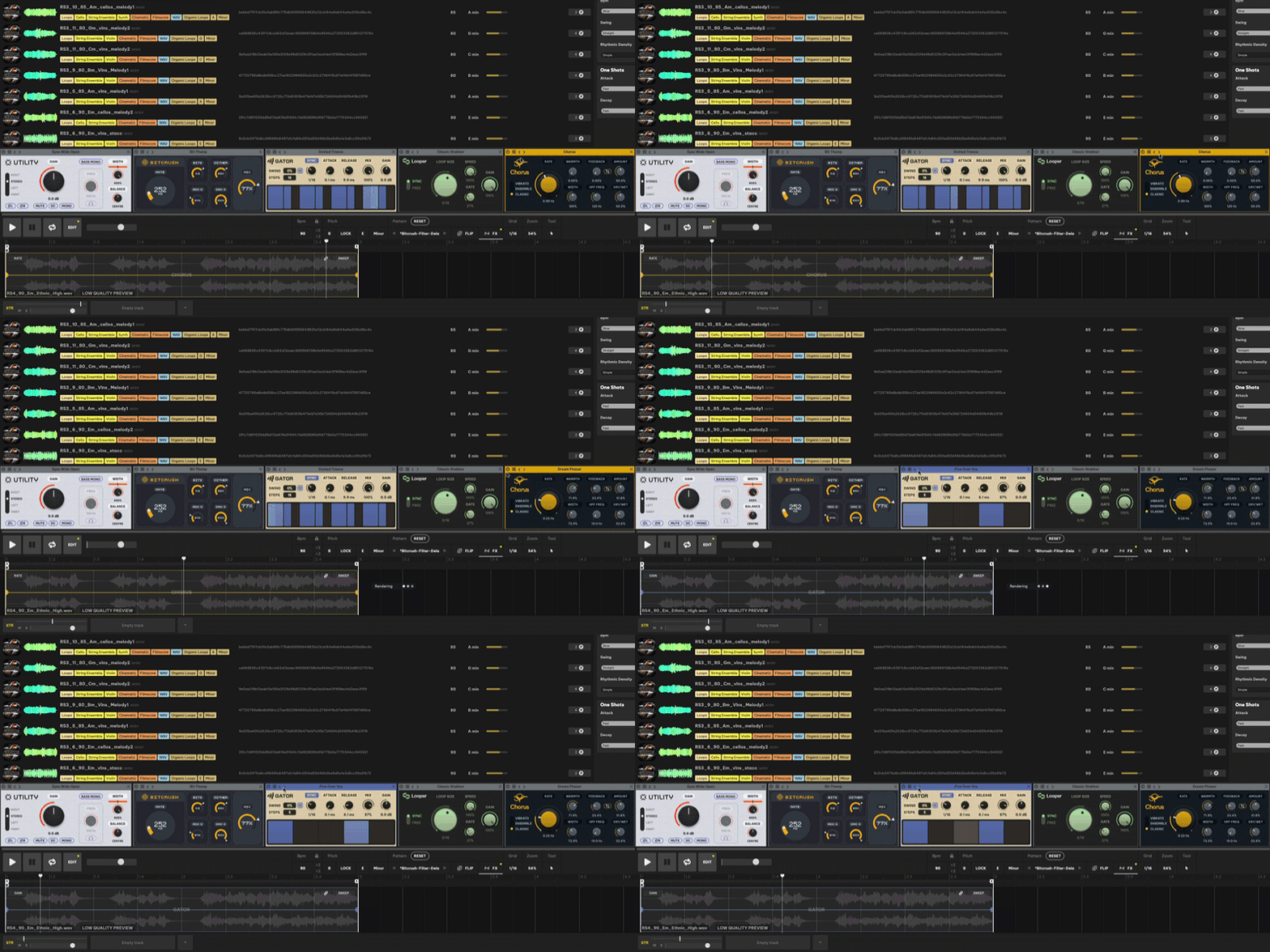
Now, click Edit, situated to the right of the playbar and left of the volume. Select FX, and the resulting window will prompt you to Add Effect from a dropdown which includes our five new additions.
Note on Automating Effects
Automation is a way of controlling different parameters over time. For example, using the Utility module, you can use built-in automation curves to control the gain (volume) of your sample as it plays back.
This works on a wide variety of parameters across Loopcloud 8’s effects modules, allowing you to bake the changes into your sample for export.
Gator
This is a rhythmic gating effect that lets you control pulses by opening and closing an adjustable volume gate on your sample.
How to Use Gator
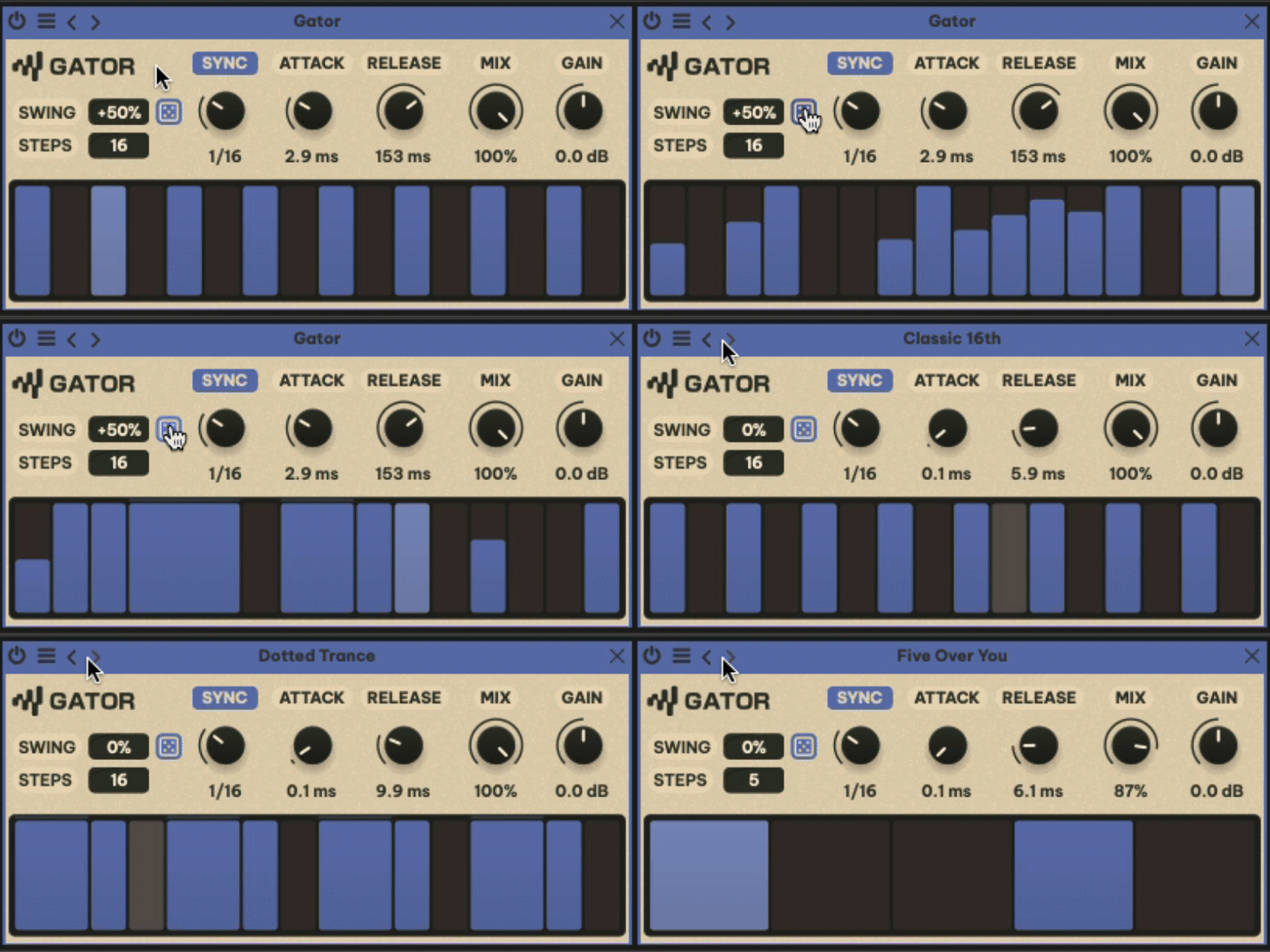
Opening the default preset, you’ll be presented with a tempo-synced gating pattern represented by the purple bars, which you can either click on or draw across to adjust the level of each step.
Use the Sync dial to adjust the timing (step rate) of the gating pattern relative to the tempo of the sample, allowing you to create faster or slower pulses. You can change the envelope of the gate by adjusting the Attack and Release dials, and increase the Swing percentage for a shuffling rhythmic effect.
Use the randomisation button next to the Swing parameter to generate a new starting point, or choose from the available presets.
Creative Applications for Gator
- Try applying Gator to sustained chords to create a pulsing rhythmic movement.
- Try automating the Mix parameter to introduce the effect over time.
- Split the waveform and create alternating step rates throughout the sample.
Looper
This module repeats opening sections of your sample to create stutters and glitch effects.
How to Use Looper
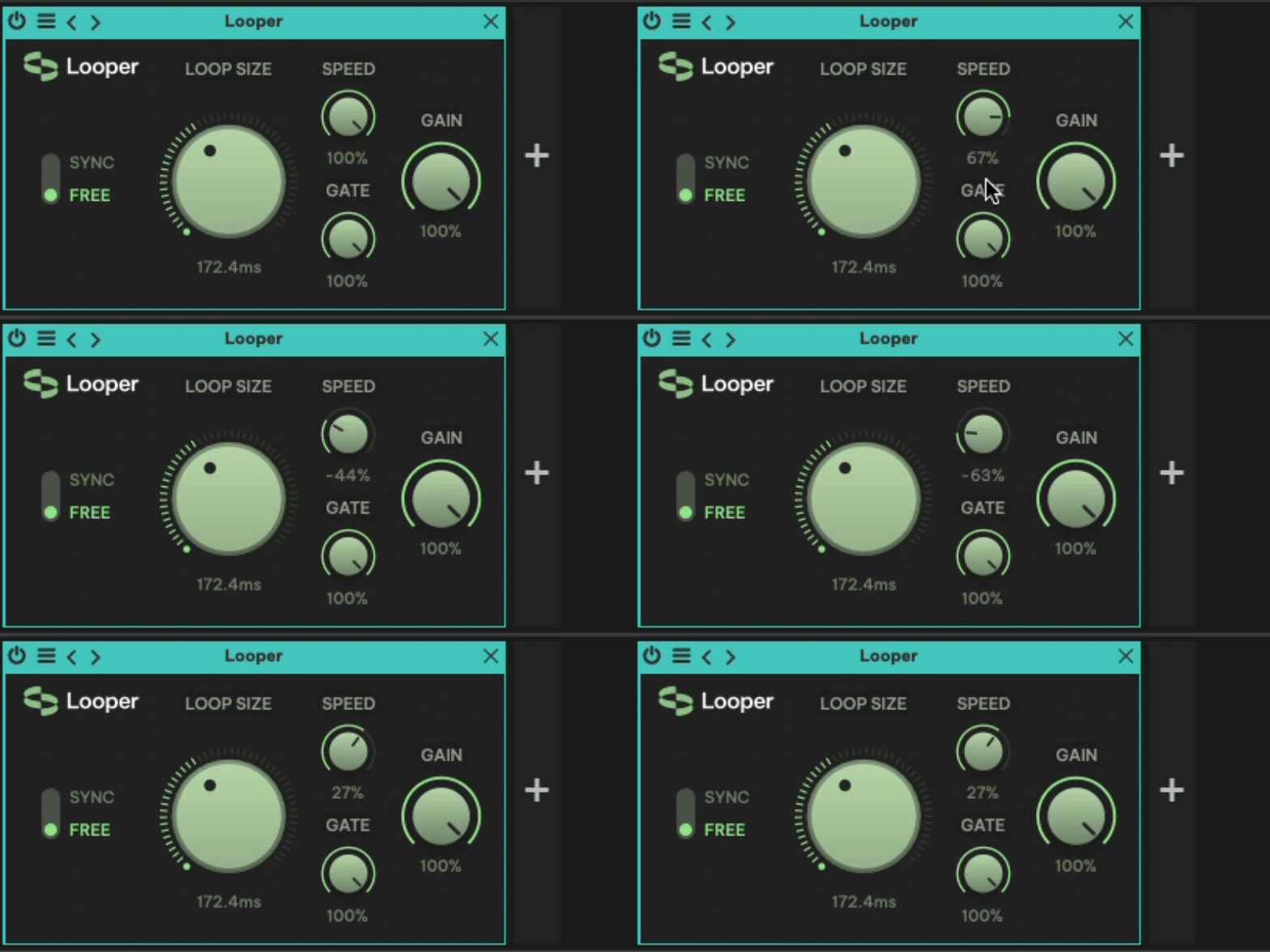
Use the main Loop Size dial to choose the length of the section that you want looping. The Sync switch allows your adjustments to stay within the current tempo, although it can be disabled.
Within the Looper effect you can adjust the Speed of the looped playback, which can create pitch drops. Turning this dial into negative values lets you reverse the loop, and a full -100% will be a reverse playback at its original speed. The Gate dial controls how quickly the loop is cut off.
Creative Applications
- Splitting your sample resets Looper at each cut, letting you create effects like vocal stutters, chopping, and pitch glides when paired with Speed and Size automation.
- Automate the Speed parameter to reverse specific sections. Combining this with varying loop sizes across splits can result in unique and detailed movement.
Utility
This is a practical audio processing module to adjust stereo placement and level. It’s useful to prepare a sample to sit within your mix.
How to Use Utility
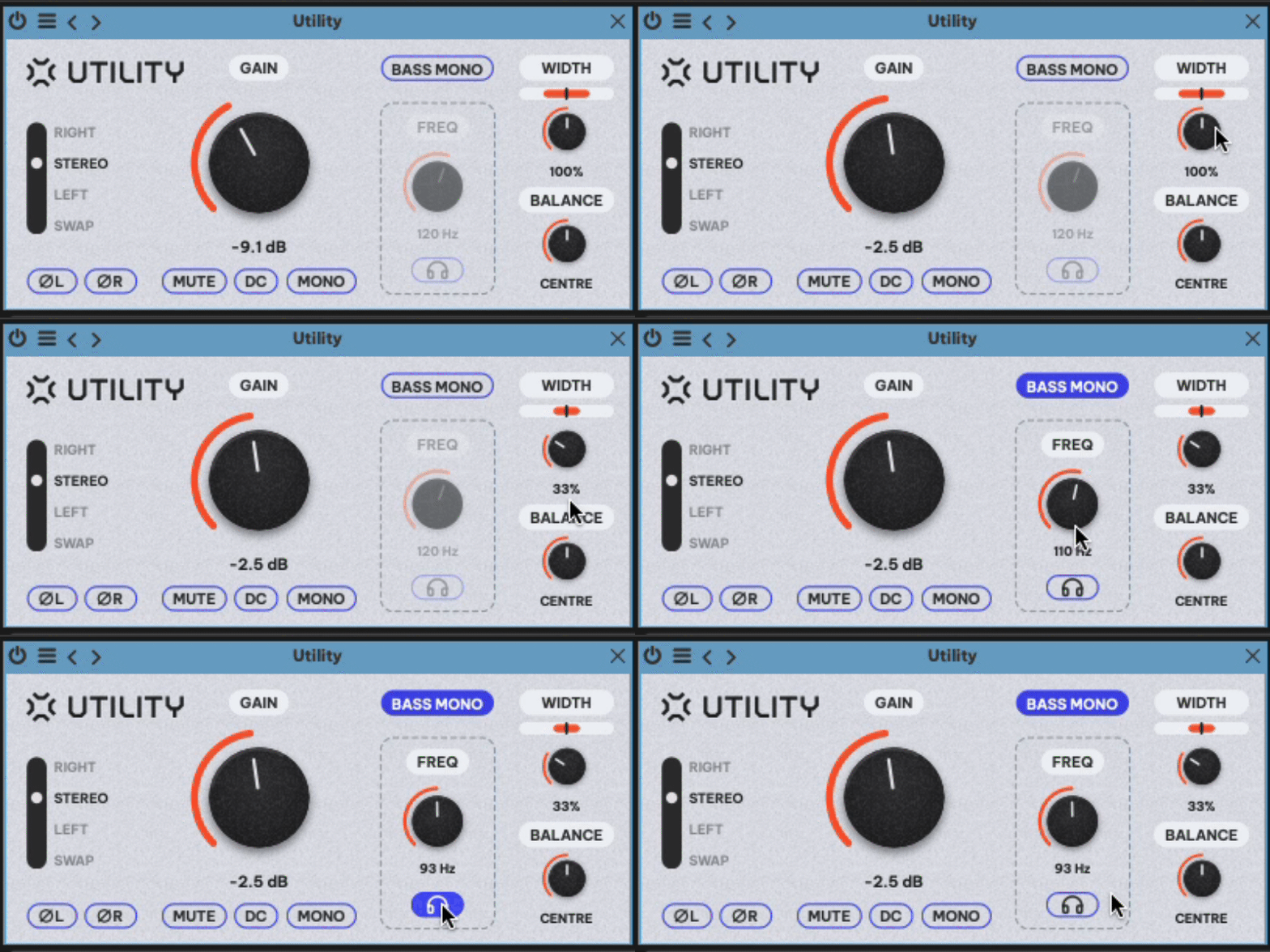
The main Gain control will adjust the overall level of your sample, and the stereo processing dials on the right can expand the stereo spread of your sample up to 400%, or reduce it down to mono. You can also tame some bass frequencies by making sure that anything below a certain threshold will play back in mono, which can help to maintain a focused low end.
Creative Applications
- Adjust the stereo spread of atmospheric pads to create a huge sense of space.
- Automating the Width parameter can create an expansive ‘opening-up’ sound. Using this with automation shapes, such as Square, can provide interesting results.
Chorus
This is a classic chorus effect that uses modulation to create the impression of multiple layered sounds, giving an iconic texture and sense of space to a sample.
How to Use Chorus
Use the Rate dial to adjust the speed of the modulation and Amount to control how heavily the modulation is applied. Using the Offset control and adjusting the phase of the channels can produce some unique resonant effects, particularly when used alongside the Feedback dial.
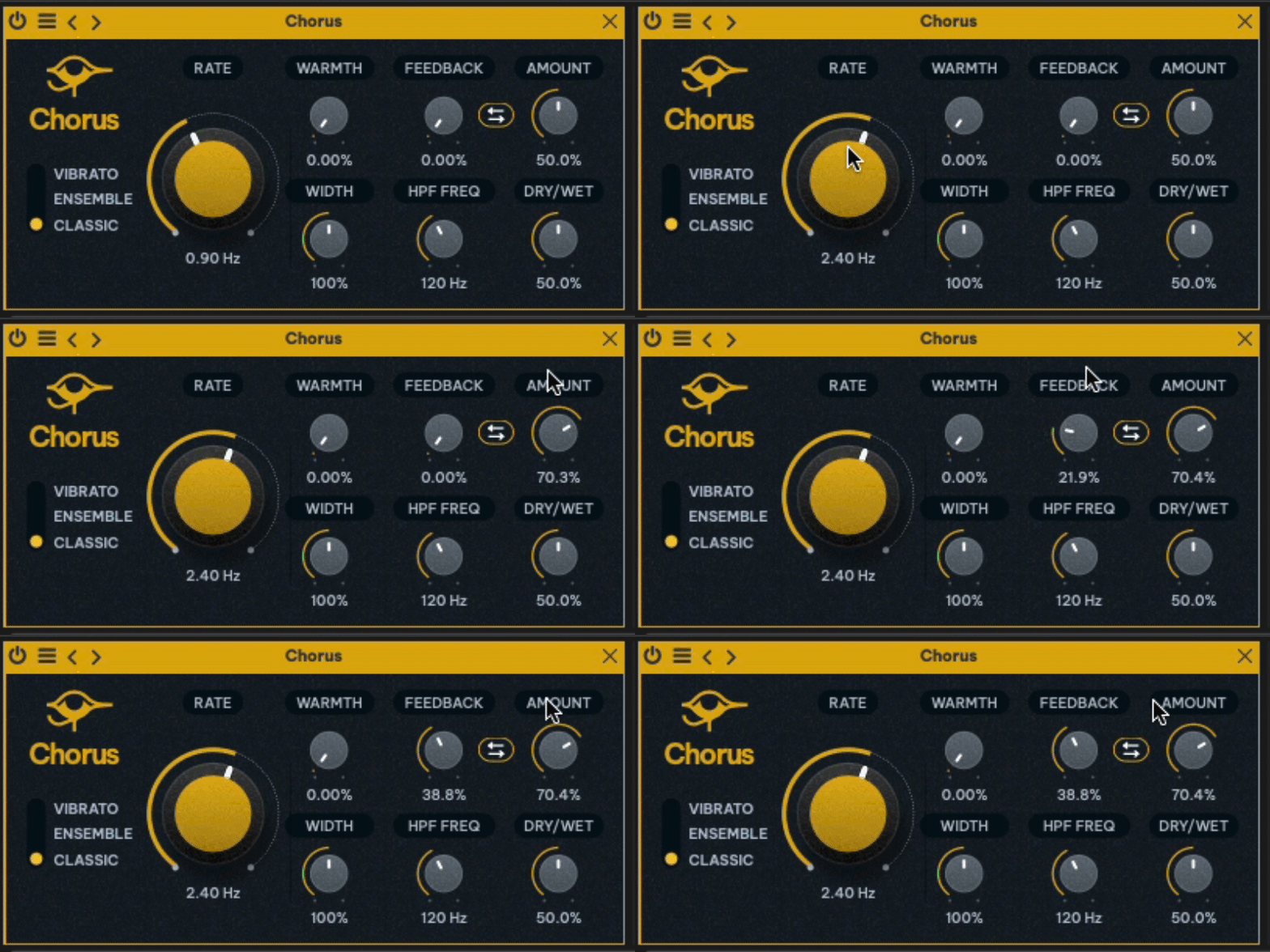
The Chorus module has three different modulation modes:
- Classic: Traditional effect that uses modulated delays to create a thick warbling sound.
- Ensemble: Uses multiple modulating voices to create richer, denser textures.
- Vibrato: Pitch variation that produces a wavering effect.
Creative Applications
- Add movement, thickness, and richness to pads, keyboards, and guitars.
- Experiment by automating various parameters like Amount to change the intensity over time.
Bitcrush
This module introduces audio degradation and digital distortion for a Lo-Fi character with low sample rates and bit depths producing sounds reminiscent of older video game handhelds.
How to Use Bitcrush
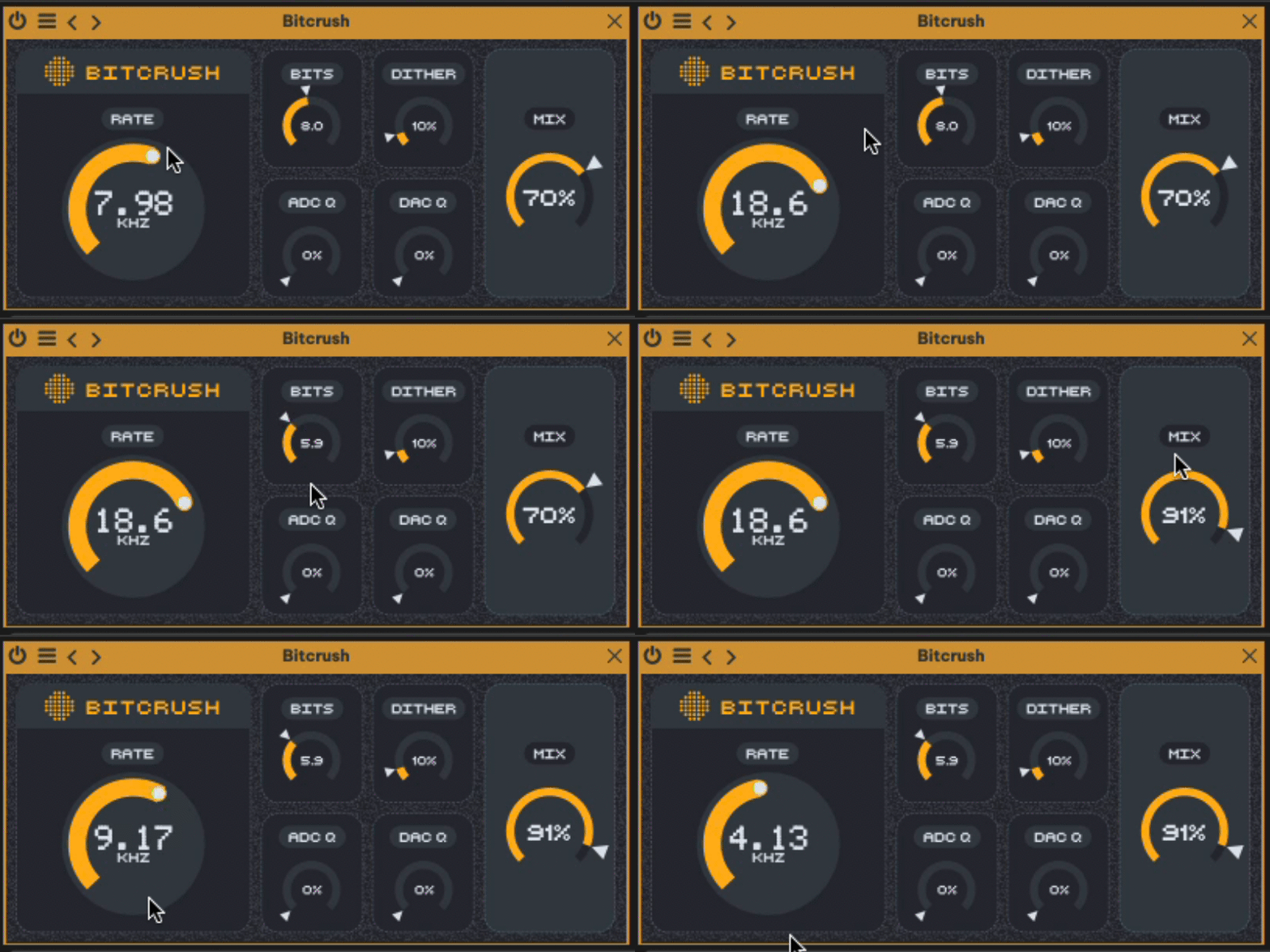
Reducing the Rate means that fewer samples are being used per second, introducing artefacts and a rough metallic texture. The Bits dial affects the bit depth of the sample. The higher the bit depth, the cleaner and more precise the audio is, with a lower bit depth achieving the opposite effect.
Creative Applications
- Automate Rate and/or Bits to your sample and choose a random automation curve in the top right box dropdown. Click Reroll for another pattern in the bottom-right.
- Automate the Mix or Rate to make a sample sound like it’s degrading over time, or the opposite.
Using the New Effects in Your Music
You can use these effects in a chain, while automating various parameters across them to create textures that are far removed from your original sample. You can use these effects with any Loopcloud 8 sample, or your own imported sounds.
Download Loopcloud 8 to try out these new effects for yourself and push the boundaries of what samples can do.
Automating Effects
To make the most out of the new effect modules, it’s worth getting a primer on automation and how it works in Loopcloud 8’s editor.
Automation is a way of automatically controlling different parameters over time. One useful example of this is gain (or volume) automation. This allows you to adjust the gain automatically as your sample plays back within Loopcloud, which can then be baked into your export file.
Try it out with the new Utility effect module to get a feel for how automation works. Here’s how:
- Click Add Effect in Loopcloud 8’s FX panel
- Choose Utility from the dropdown and ensure default is selected for this case
- Click the blue circle at either end of the waveform editor to drag it up or down. Alternatively, clicking the box in the top-right will allow you to choose a preset automation curve.
- The line reflects the automatic adjustment over time and the gain will now change value over the course of your sample playback.
You can use this same process to control all automatable parameters for the effects included with Loopcloud 8.
Advanced Automation
To push automation further, you can cut the waveform into pieces to control automation in separate chunks for unique, rhythmic, and creative processing.
- Hover your mouse over the waveform editor
- Hold option (macOS) or Alt (Windows) to activate the splitter tool for your waveform, and click at an appropriate grid point to split your sample.
- You can now create automation independent of the rest of the sample.
Try splitting your sample into regular one bar parts, and make sure the Sweep automation shape is selected. This is an easy way to create a repetitive pulsing effect with Gain alone.
Tip: if you want to work with a more malleable grid, change the grid size to the right of the FX button is 1/8 or 1/16, and click the link button to replicate your automation curve across each of your splits.
Keep Ideas Moving
Try Loopcloud free for 14 days. Cancel anytime.

Import your existing sounds · Works with your existing DAW · Setup in under 2 minutes