

Blog
8 Ways to use Similar Sound Search for more Inspired Music
31 Jul '2026
From Finding the Freshest Sounds to Replacing Drums Without Changing the Groove, Here’s Everything You Need to Know About Similar Sound Search
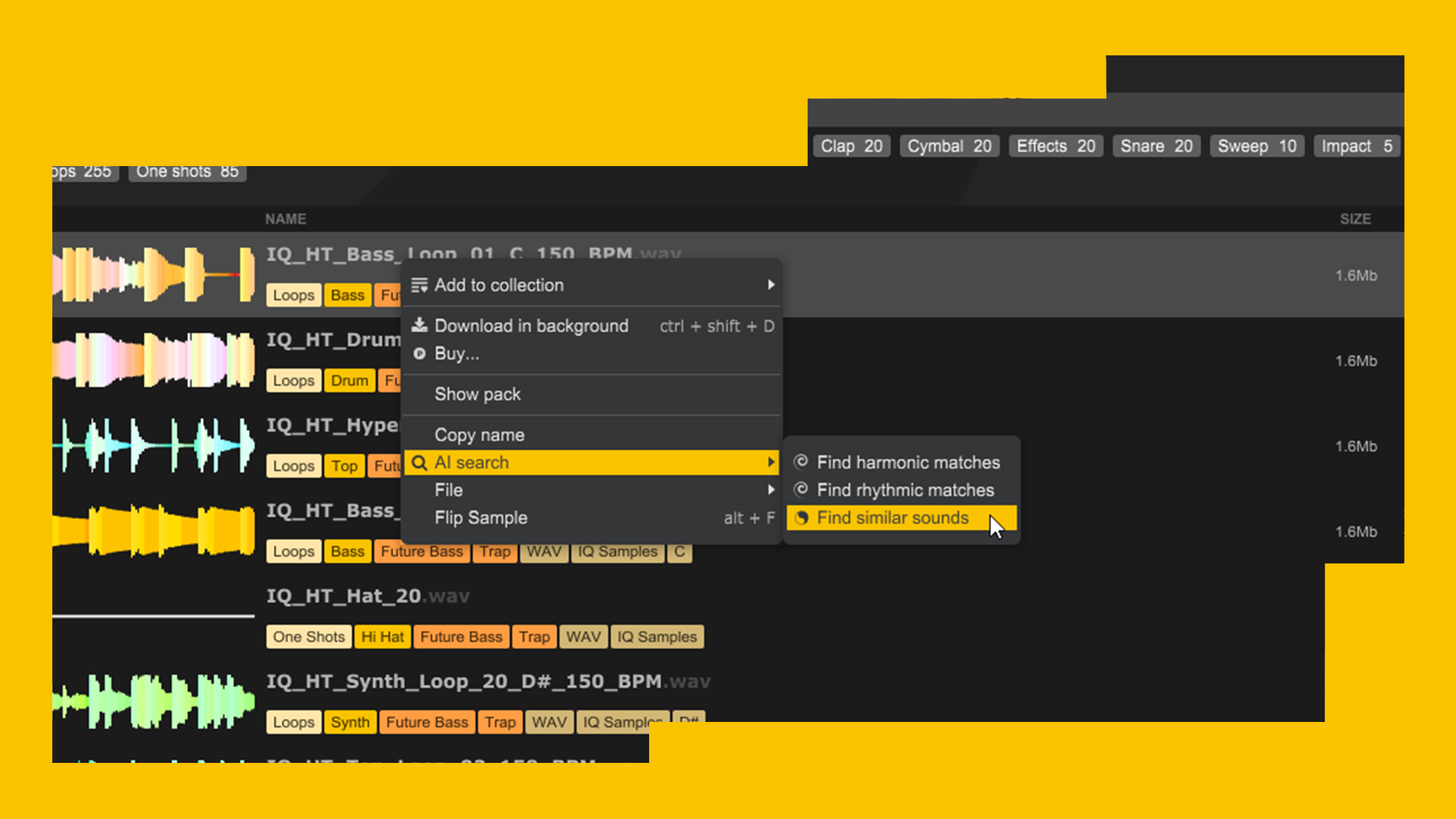
The Similar Sound Search feature on Loopcloud is one of the fastest ways to move from an idea that’s “close enough” to something that feels polished and release-ready. Powered by the Jamahook V2 engine, right click any sound in Loopcloud, choose AI Search and then choose Find Similar Sounds, Find Harmonic Matches or Find Rhythmic Matches depending on what you’re after, and Loopcloud will automatically search for similar samples based on the character, harmony or rhythm of your selected sample. From there you can refine your search even further by using Loopclouds built in Audio Filters.
With the release of Jamahook AI Search V2, recommendations are now better than ever. That’s why we’ve compiled this useful guide on 8 ways to use Similar Sound Search when writing music to make your sample searching journey even more efficient.
1. Replacing Placeholder Sounds
When arranging music quickly, it’s common to quickly drop in sounds that are good enough or fit the groove of the track just to keep the process moving. Once you’ve identified any placeholder sounds in your track, find the original samples in Loopcloud and use Find Similar Sounds to search for samples with the same role or rhythm but better tone, weight or personality. At this stage you can utilise the Audio Filters to refine your search, where you can add or remove tags to find exactly the right sound.
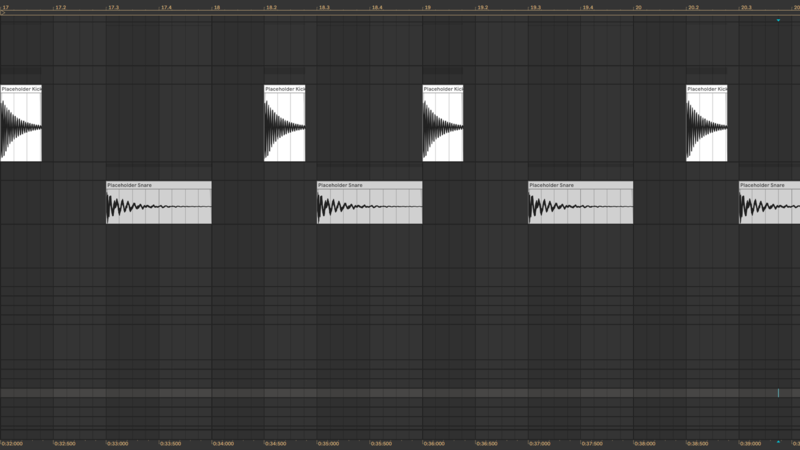
This is especially useful when you don’t want to break the flow of arranging music, starting with a rough sound and utilising Similar Sound Search to get the exact results you need later in the process.
2. Change Up the Swing
If you’ve got a drum or percussion loop that has the right energy but the wrong pocket, you can use Find Rhythmic Matches to find loops with similar rhythmic density, tone or instrumentation. The Jamahook V2 engine is built to get you cleaner, more consistent results, and once you’ve searched, you can refine your results using the Audio Filters to adjust swing, tempo, rhythmic density and more. This process should find you some solid matches whilst allowing you to explore new grooves at the same time.
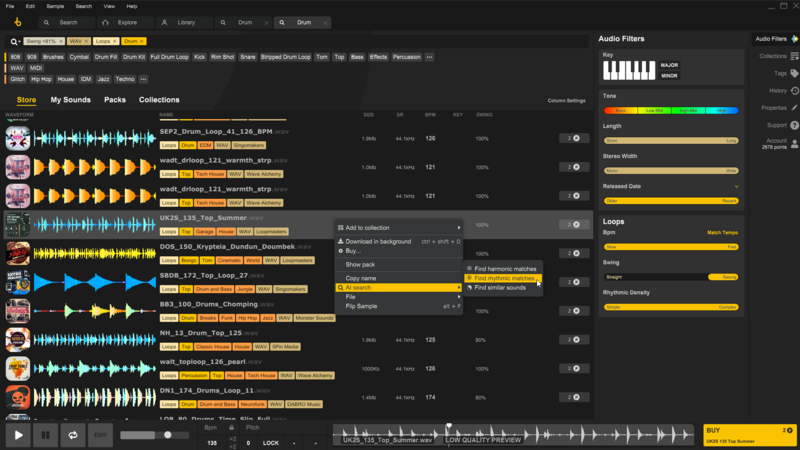
Using Loopclouds DAW Integration you can then audition your replacement samples against your project to find the perfect match. This is especially useful if your track hasn’t fully committed to a groove yet and you want to try out a variety of options around your given tempo.
3. Replace Personal Library Sounds for Copyright Purposes
One of the main advantages of Loopcloud is that the 5 million samples available in the library are 100% royalty free. If you’ve imported your personal library into Loopcloud, you can utilise the same features such as Similar Sound Search on your own sounds too.
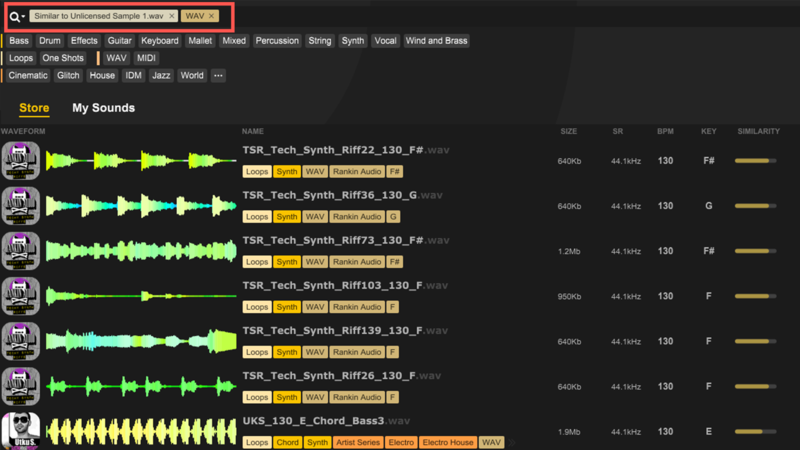
Let’s say you’ve got an old loop from your personal library, a demo sample or a sound you're unsure you can release. You can use that sound as a reference point and utilise Similar Sound Search to help you find a Loopcloud alternative that fills the same musical space whilst giving you a clearer route to release.
This is really useful when you have a great demo that might rely on questionable source material. Using this method you can preserve the same feeling in your track without worrying about potential copyright issues during or after release.
4. Find Samples with the Same Chord Progression
When you’re working with chord loops, pads, keys or really any melodic material, using Find Harmonic Matches can help uncover samples that have a similar harmonic pattern. This is one of the biggest upgrades with the release of Jamahook AI Search V2; rather than just matching the key of a loop, the engine now factors in the timing and position of each chord in a progression. This can be really useful when you love the movement of a certain chord progression but the tone or instrumentation isn’t quite right.
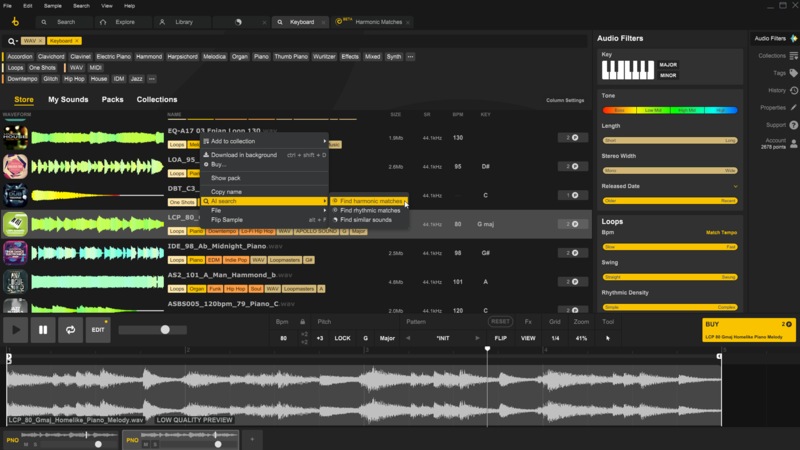
Try searching from your original sound to find replacements, where you could refine your search further using the Tone Audio Filter to find something that fits in key, works with your chord progression and supports your musical direction.
5. Get Fresher Samples with the Release Date Filter
With access to such a large collection of samples, it’s hard to imagine hearing your chosen sample in someone else’s track. However, one way to keep your finger on the pulse is to get the freshest samples using the release date Audio Filter.
If you like the character of a sample but you want something from the latest and greatest packs, try searching for similar sounds and combine your results with the release date filter. This will help you stay close to the tone, rhythm or genre of the sample you already like while surfacing newer material from the Loopcloud catalogue.
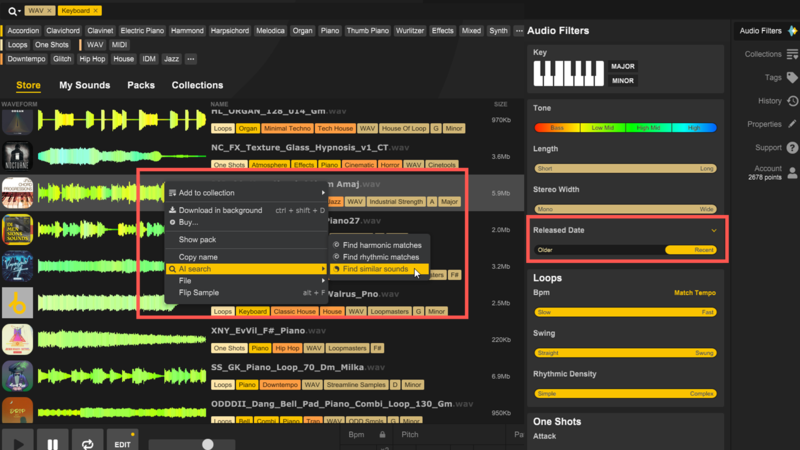
You could take this a step further and use the Flip Sample feature, allowing you to rework the loop within Loopcloud, without even committing to spending credits. With this method you can use the latest sounds in ways that nobody else is.
6. Find Sounds to Layer Together
Similar doesn’t necessarily mean identical. A matching snare might add body to your drums, a similar sub might reinforce your leads or a similar texture might widen your synth loops. You can search using the sound you already have and then select a search result that complements it.
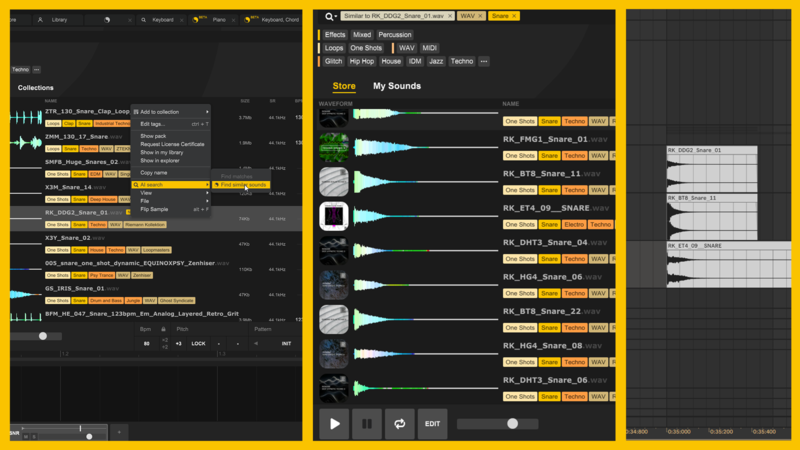
Whether it's a sample that’s brighter, darker, wider or more transient, Similar Sound Search should help you identify sounds that work with the ones you’ve already chosen. Combining this technique with DAW connectivity makes it really easy to build thick, full frequency tracks with excellent texture by allowing you to audition samples in time with your track, no matter the sample's original tempo.
7. Create More Space in Your Track
Got a loop that’s inspiring but too busy? Similar Sound Search is here to help, getting you to something with similar tonality but less rhythmic activity. Run Similar Sound Search from your loop, and then use the Audio Filters to search for samples with less rhythmic density, shorter decay times or quicker attack times.
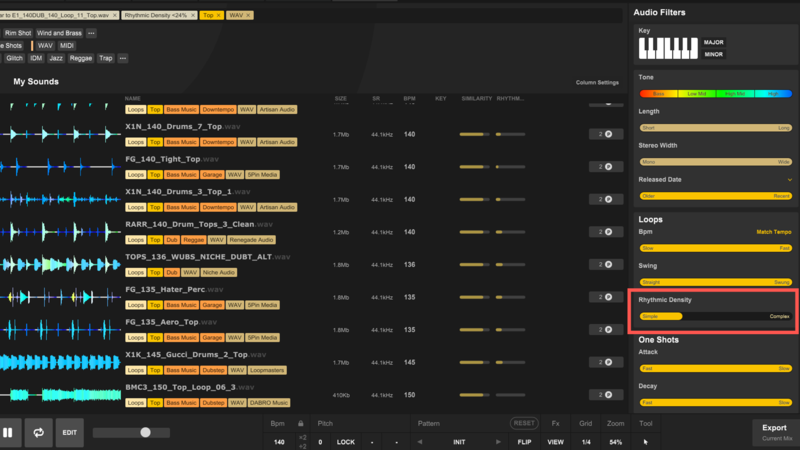
This method is especially useful for creating thematically consistent breakdowns or transitions by keeping your rhythms similar but creating room for other instruments to shine or by simply bringing the energy down.
8. Use Similar Sound Search Before Flipping a Sample
The Flip Sample feature is an extremely powerful tool, and it’s best utilised when the starting sound already has a lot of potential in your track. You can use Similar Sound Search (or Find Harmonic Matches if you’re chasing a particular chord progression) to audition related loops, choose the one with the most fitting tonality and then use Flip Sample to reshape the rhythm into something more original.
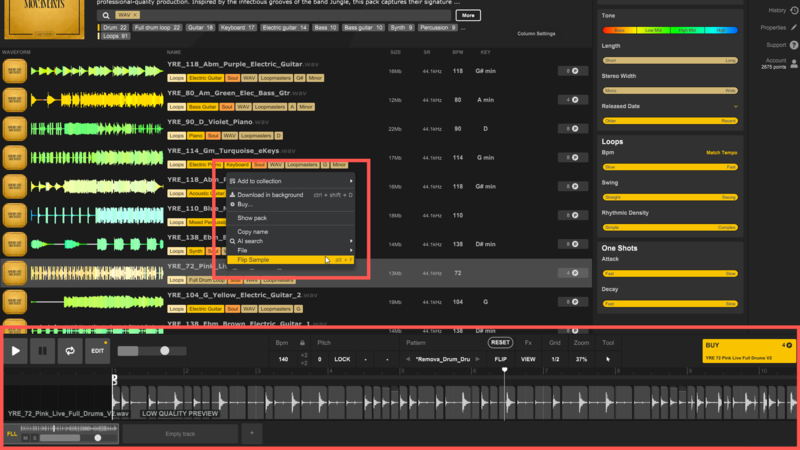
Playing around with the Flip Sample feature is a really useful way to get better raw material and it can make your final idea feel more intentional if your flipped sample fits the groove nicely.
Final Thoughts
Similar Sound Search isn’t just a way to find duplicate sounds, it’s a method for making better decisions, refreshing old ideas and solving arrangement issues quickly. When combined with Audio Filters and our Flip Sample feature, it’s an unstoppable force for getting release ready tracks. Start with sounds that already work and let Loopcloud show you where to take the idea next.